


Many of you have asked if we support integrating automated Visual Studio builds with Rational Team Concert. The short answer is yes, but you’ll have to use the Eclipse Team Concert client to control and view the results.
When talking about build, it helps a lot to look at a picture. The following diagram taken from the build examples shows the different parts involved in a build. For integrations with the Team Concert client for Visual Studio you can use the continuous integration engines, integrate with the build toolkit, and store your results in the repository. Then use the Eclipse client to control and view the results.
Let’s see how this works in practice. As you would expect, as we were developing our client in Visual Studio we needed to automate our builds. We started by doing the following:
- We wrote a set of MSbuild based batch files, calling devenv and other tools.
- We tested the scripts locally, checked that the installer was created and that tests were being run. We used the Visual Studio test infrastructure, but you could easily of used NUnit instead.
- After the scripts were in place, we figured out how to have them called from a command line build engine. This basically simulates what we did in the first step, but invoked from the build engine instead of manually from the command line. The command line output is automatically attached to the build result. Of course, you have to ensure that your batch files are parameterized as you can see is the following build definition screenshots:
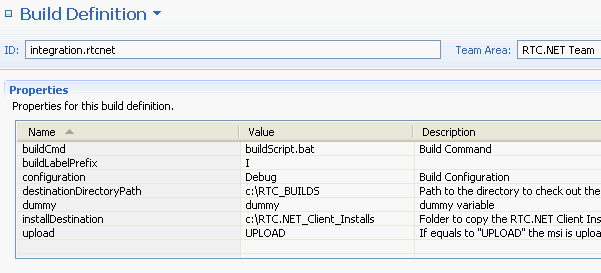
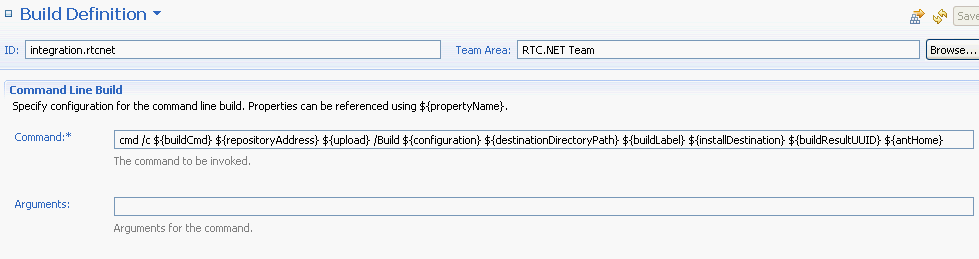
- At this stage we have automated builds running, but we don’t have the install being uploaded or the individual test files available from the build. To further integrate, we used the Jazz Build toolkit Ant tasks, as shown in the C++ build example. From the batch file, you can call into the Ant tasks that ship with Team Concert:
:StartActivity
java -cp %CLASSPATH% %ANT_LAUNCHER% -f “%DEST_DIR_PATH%\RTC.NET Client\jazzBuildTasks.xml” -lib %JAZZ_TOOLKIT% -DuserId=%BUILD_USER_ID% -DpasswordFile=%JBE_PASS_FILE% -DrepositoryAddress=%REPOSITORY_URL% -DbuildResultUUID=%BUILD_UUID% -DactivityLabel=%1 startActivity
GOTO :EOF
:PublishFile
java -cp %CLASSPATH% %ANT_LAUNCHER% -f “%DEST_DIR_PATH%\RTC.NET Client\jazzBuildTasks.xml” -lib %JAZZ_TOOLKIT% -DuserId=%BUILD_USER_ID% -DpasswordFile=%JBE_PASS_FILE% -DrepositoryAddress=%REPOSITORY_URL% -DbuildResultUUID=%BUILD_UUID% -Dfile=%1 -Dlabel=%2 -Dtype=%3 publishFile
GOTO :EOF
To track the progress of the builds and browse the results you’ll have to use the Team Concert Eclipse client. The following screenshot shows the build activity and downloads that have been attached to the builds.

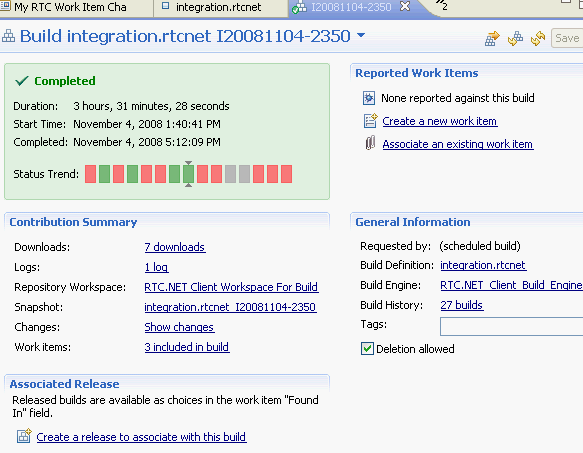
So the good news is that you can integrate your Visual Studio based builds. Over time we will try and provide more control and visibility from within the Visual Studio IDE. Before getting started with your builds, start by reading the build documentation and the examples. Then chime in to our forums if you need more help.
Cheers,
Jean-Michel

 (7 votes, average: 4.86 out of 5)
 Loading...
You must be logged in to post a comment.
Authors
 Adam Archer (1)
 Adam Neal (1)
 Adrian Cho (15)
 Alice Connors (3)
 Amy Silberbauer (24)
 Andrew Hans (1)
 Andy Lapping (15)
 Anindita Basu (3)
 Anthony Hunter (1)
 Benjamin Pasero (5)
 Benjamin Williams (3)
 Bernie Coyne (6)
 Beth Zukowsky (2)
 Bhawana Gupta (12)
 Bianca Jiang (3)
 Bill Higgins (2)
 Boris Kuschel (2)
 Brent Barkman (2)
 Brian Bryson (1)
 Brian King (4)
 Brian Lang (2)
 Brian Massey (3)
 Brian Sanders (2)
 Bruce MacIsaac (2)
 Carlos Ferreira (1)
 Carolyn Pampino (9)
 Catherine Burrows (1)
 Chandra Venkatapathy (1)
 Chris Daly (1)
 Chris Trobridge (1)
 Christophe Cornu (3)
 Christophe Elek (5)
 Christophe Telep (14)
 Clara Forero (1)
 Clare Carty (4)
 Dan Barbour (1)
 Dan Griffin (4)
 Dan Leroux (2)
 Daniel Berg (2)
 Daniel Moul (27)
 Daniel Toczala (4)
 Darin Swanson (1)
 Darrel Rader (1)
 Dave Thomson (7)
 David Brauneis (1)
 David Hodges (1)
 Dejan Glozic (2)
 Denise Cook (1)
 Derek Baron (8)
 Dibbe Edwards (3)
 Dirk Baeumer (1)
 Don Yantzi (1)
 Doron Ben-Ari (3)
 ELM Engineering (42)
 Eran Gery (1)
 Erich Gamma (5)
 Erik Craig (1)
 Ernest Mah (1)
 Evan Hughes (3)
 Fariz Saracevic (16)
 Frederic Fusier (1)
 Gary Cernosek (1)
 George DeCandio (4)
 Gili Mendel (1)
 Ginny Ghezzo (1)
 Graham Bleakley (5)
 Grant Covell (1)
 Greg Gorman (1)
 Guy Slade (1)
 Hadar Hawk (2)
 Heidi Stadel (1)
 James Branigan (2)
 James Moody (2)
 Jan Wloka (2)
 Jared Pulham (7)
- Jean-Michel Lemieux (23)
 Jeanette Deupree (1)
 Jim Amsden (1)
 Jim D'Anjou (2)
 Jim Ruehlin (1)
 Johannes Rieken (2)
 John Kellerman (2)
 John Vasta (1)
 John Whitfield (2)
 John Wiegand (1)
 Jozef deVries (1)
 Kai-Uwe Maetzel (6)
 Kalena Kelly (1)
 Karen Gosciminski (1)
 Kate Draper (2)
 Kate Hauser (1)
 Kevin Williams (2)
 Kim Peter (10)
 Kiran M N (1)
 Kit Lo (1)
 Kourken Aroyan (1)
 Kumaraswamy Gowda (15)
 Lauren Hayward Schaefer (15)
 Lawrence Mandel (2)
 Linda Watson (3)
 Liz Bonesteel (1)
 Luc Hatlestad (1)
 Lucinio Santos (1)
 Maneesh Mehra (3)
 Manoj Panda (1)
 Mario Maldari (1)
 Mark Guertin (2)
 Martha Andrews (3)
 Mary Yost (1)
 Masabumi Koinuma (1)
 Mats Gothe (1)
 Matt Lavin (1)
 Michael Fiedler (1)
 Michael Halder (2)
 Michael Valenta (3)
 Millard Ellingsworth (3)
 Miran Badzak (1)
 Monica Luke (5)
 Moshe Cohen (1)
 Nadra Rafee (1)
 Nathan Bak (5)
 Neil Leblanc (3)
 Nick Crossley (3)
 Nithya Rajagopalan (3)
 Palak Sheth (1)
 Patrick Streule (1)
 Paul Ellis (1)
 Paul Strachan (1)
 Paul Tasillo (2)
 Peter Haumer (1)
 Peter Steinfeld (1)
 Phil Vogel (3)
 Priyadarshini Gorur (3)
 Rahul Choudhary (4)
 Reuben Varzea (12)
 Richard Bone (3)
 Richard Watson (13)
 Rishikesh Agam (2)
 Robbie Minshall (1)
 Robin Bater (5)
 Roger LeBlanc (1)
 Rolf Nelson (16)
 Rosa Naranjo (1)
 Rosalind Radcliffe (1)
 Ryan Manwiller (4)
 Sandeep Kohli (1)
 Sandeep Somavarapu (1)
 Sanjesh Nair (1)
 Scott Rich (13)
 Sean Babineau (1)
 Seth Packham (11)
 Sharoon Shetty Kuriyala (1)
 Sreerupa Sen (5)
 Sridevi Sangaiah (1)
 Steve DiCamillo (2)
 Steven Beard (1)
 Subramanya Pilar (6)
 Sujan Surendrananitha (2)
 Suneel Santharam (2)
 Susan Yeshin (1)
 Tim Feeney (7)
 Tod Creasey (1)
 Tom Hollowell (4)
 Ubaidu Peediakkal (3)
 Vaibhav Srivastava (1)
 Vandana Shenoy (1)
 Vatsalkumar Parmar (3)
 Virginia Lovering (1)
 Will Streit (1)
In the Rational Team Concert Visual Studio Client 1.0.1.1 you can monitor the build and download the build attachments, this is achieved through Dashboards. Jazz has a concept of Web Dashboards and to the Dashboard you can add a build viewlet. The build viewlet gives history of the builds and shows the live status of the current running builds. From the Visual Studio IDE you can open open the Dashboard of a project from the Team Artifacts Navigator(TAN) view, this option(“Open Web UI for Project”) is present on the context-menu of the Project area in TAN. Clicking on this option opens the Projects Dashboard web page in a Web control which is embedded inside the Visual Studio IDE. Clicking on any of the listed builds in the build viewlet will take to the build page which has the all the data, attachments(like test logs, build log, etc) of the build. If the test logs are Visual Studio test results file(trx) you can open the file within Visual Studio IDE by clicking on the link in the webpage and selecting to open it. This feature brings the integration of Jazz build support into Visual Studio IDE a step closer.