


Rational Rhapsody Design Manager performance and scalability 5.0.2
Table of contents
Introduction
Summary
Overview of the Design Manager architecture
Performance test environment overview
Performance test topology
Workload model
Scalability
Tests Results
Disk Performance
Performance tuning tips
Performance comparison between Design Manager 5.0.2 & Design Manager 5.0
Introduction
Performance and scalability are paramount in any multi-users client-server application. As many users access, often remotely, the application, providing good response times as well as being able to handle the load is one of the key factors on making a client-server application successful.
Rational Design Manager application is a client-server application allowing users to manage and collaborate around design resources using a web browser or one of its rich clients.
In this article we will outline the performance & scalability results of our performance tests based on the improvements done in Design Manager 5.0.2. Following up the Design Manager 5.0 and previous releases, further special emphasis has been put into tracking and improving the performance of the application, client & server side.
The rest of this article describes the current scalability limitations in terms of concurrent users and size of the model data. This is only an additional step in our journey to improve Design Manager performances. Please stay tuned in the upcoming releases for more performance improvements.
Summary
This article describes the recommended scalability in terms of concurrent users and size of model data.
- Design Manager 5.0.2 supports up to 500 concurrent users load (average 1 operation/min.) working with a 5 GB MB model load. Performance is expected to be reasonable (below 2 sec. for a single action) in such an environment.
- 3 main bottle-necks:
- Index files:Data volume is affecting the index files size, decreasing index lookup performance. You can improve this by increasing machine memory (index files will be loaded into the memory) or by improving disk performance (SSD Disks).
- Server CPU: The Server CPU utilization is the main bottle neck to support more users. You can increase the number of CPUs on the servers to help Design Manager handle a scaled user load.
- Write scenarios:Write scenarios are heavy operations, which affect performance. You should differentiate between Actively managed users versus Externally managed users. We recommend to split the models into separated project areas to reduce Write scenarios affects on Read scenarios.
- To maximize Design Manager performance, refer to the performance tuning tipsat the end of this article. Generally, you can size the hardware and network according to the expected number of concurrent users, increase the size of the thread pool used by the server’s web application container from the default, and set the size of the heap that the JVM uses appropriately.
Overview of the Design Manager architecture
The Design Manager server is a set of JavaEE applications, each of them contributing to the overall Design Manager features. Figure 1 provides an overview of the main Design Manager parts as well as Design Manager rich clients.

Figure 1 – Design Manager main components
- Jazz Team Server:provides common services to the Jazz applications, like project area management, or user management and authentication.
- Configuration Application:Provides version and configuration management for Jazz applications.
- Design Management Application:The core of Design Manager server. Provides design, collaboration (reviewing and commenting) as well as Domain modeling capabilities.
- RSA Domain Extension Server Application:Used to create, edit and delete Rational Software Architect (RSA) based resources.
- RSA Rich Client:Extension allowing RSA integration with Design Manager. It provides editing and collaborative capabilities directly into RSA.
- Rhapsody Rich Client:Rich client allowing Rhapsody users to interact with Design Manager. It provides editing and collaborative capabilities directly into Rhapsody.
Performance test environment overview
The tests are usually run during one hour and a half with a frequency of one operation per user per minute. Test results of the first and last 15 min. are omitted to disable noise. Test results presented in this document are taken from a Rhapsody Design Manager Server run (see work item 49048).
Performance test topology
As shown in figure 2, a three-tier topology has been used, with two application servers running Tomcat 7.0.54 and one database server running DB2 10.1. The Jazz Team Server (JTS) has been deployed on a different server than the Design Management, RSA Domain Extension and Configuration applications. This allows a better scalability when integrating different Jazz-based applications as each of them could be deployed on a different server allowing a better separation as well as maximizing the hardware resources usage. As we will see in the performance tip section, this topology increases the network usage making the overall performance more dependent on the network latency.

Figure 2 – Performance test environment
The test clients are all built on the same model and used to run up to 500 concurrent users. Users are scaled up by adding new test clients to avoid exhausting the hardware resources of the test clients that will lead to erroneous performance results. All the machines (test clients and servers) used a VMWare virtual machines with the specifications shown in figure 3.

Figure 3 – Machines specification XEON
Workload model
The Design Manager performance tests are performed using a custom-made automated performance testing framework capable of simulating an arbitrary number of users interacting with a Design Manager server over an arbitrary period of time. Each user executing a configurable mix of user-level operations (use case scenarios). The framework drives the tests and records the response time of every user-level operation invoked during the test run. As performance is affected by Write scenario’s 2 to different tests have been run, to simulate externally managed users, that typically update the server overnight, and access the server to read data during the day, vs. actively managed users that create/update resources more heavily during day.
The list below provides an overview of the scenarios used in the performance tests, grouped in two categories, read and write scenarios.
- Read Scenarios:
- Open a UML Diagram: This scenario simulates a user opening a UML diagram
- Expand a node in the explorer: This scenario involves fetching the children for one of the root nodes in the performance test model data.
- Open a resource: This scenario simulates a user opening a resources in the resource editor, reviewing the resource properties.
- Search a resource: This scenario simulates a user making a keyword search in all models and in all project areas.
- Search a diagram: This scenario simulates a user making a keyword search in all diagrams.
- Rich Client Scenarios:
- Expand a node in the explorer: This scenario simulates one of the rich clients fetching the children for one of the root nodes.
- Open properties for a UML resource: This scenario simulates one of the rich clients opening the properties for a resource.
- OSLC Get: This scenario simulates the OSLC retrieving a resource.
- OSLC Query: This scenario simulates an OSLC Client (RM) querying Design Manager for OSLC links on a certain resource.
- Write Scenarios:
- Create/Delete a comment: This scenario simulates the creation/deletion of a text comment on a resource.
- Create/Delete an Link: This scenario simulates the creation/deletion of an OSLC link between 2 Design Manager resources.
- Create a resource: This scenario simulates a user creating an ontology resource (in the separated Users Domains Project).
- Save a resource: This scenario simulates a user updating the title of an ontology resource (in the separated Users Domains Project).
- Lock/Unlock a resource: This scenario simulates the locking/unlocking of a resource.
| Scenarios | %run/%min/1user | Distribution |
|---|---|---|
| Write Scenarios | 22% | |
| Create comment | 1 run/1 min | 11% |
| Create link | 1 run/30 min | 0% |
| Delete comment | 1 run/1 min | 11% |
| Delete link | 1 run/30 min | 0% |
| Read Scenarios | 78% | |
| Expand explorer | 1 run/1 min | 11% |
| Get Link | 1 run/2 min | 5% |
| Get Comment | 1 run/1 min | 11% |
| Related Elements | 1 run/2 min | 2% |
| OSLC Get | 1 run/1 min | 11% |
| Open diagram | 1 run/2 min | 5% |
| Open form | 1 run/2 min | 5% |
| OSLC Query | 1 run/1 min | 11% |
| Search diagrams | 1 run/1 min | 4% |
| Search resources | 1 run/1 min | 11% |
| Scenarios | %run/%min/1user | Distribution |
|---|---|---|
| Write Scenarios | 49% | |
| Create comment | 1 run/1 min | 10% |
| Create Design Manager Resource | 1 run/1.33 min | 8% |
| Save Design Manager Resource | 1 run/1 min | 10% |
| Lock Resource | 1 run/1 min | 10% |
| Unlock Resource | 1 run/1 min | 10% |
| Read Scenarios | 51% | |
| Rich Client Expand Explorer | 1 run/1 min | 12% |
| Expand Explorer | 1 run/1 min | 8% |
| OSLC Get | 1 run/1 min | 10% |
| Open Diagram | 1 run/2 min | 5% |
| Open Form | 1 run/2 min | 5% |
| Search Diagrams | 1 run/1 min | 4% |
| Search Resources | 1 run/1 min | 6% |
Table 2 – Workload scenarios distribution Actively Managed mode.
Scalability
The scalability of the system can be expressed in terms of user load versus workspace load. We marked a 2 sec. average response time per single action as an acceptable performance. Server performance is affected by both scalability factors (user load and workspace load).
Please refer to our 5.0 article to compare different work loads and their impact on the server performance.Users scalability
The first scalability factor is the number of concurrent users Design Manager could handle before the performance degraded significantly. Adding more users will typically require to increase the server cpu.
Changing the test environment of the user transaction frequency would have an effect on the number of concurrent users. For example, running the same test with a scenario frequency of one transaction every three minutes, resulted on the application being able to handle at least 300 concurrent users.
Workspace scalability
To identify the maximum model data size that Design Manager can handle before the performance started to decrease significantly, we imported 3 different Rational Rhapsody Models into Design Manager and run the tests using the resources generated by the import.
The tests run against the Rhapsody Sample Project model AMR System (20Mb). To simulate workspace load, we added additional models into the same workspace. Overall we have 1 Gb of model in every workspace. To size to 5Gb we have create additional project areas with 1 Gb of model load each.
The workspaces contain altogether 5Gb of model data. Table 3 shows the resulting number of resources and elements in the Design Manager project area.
| Model size on disk (MB) | # Resources after import | # triples after import |
|---|---|---|
| 5 Gb | 750.000 | 45.000,000 |
Table 3: Number of resources and elements for a 5GB model data load
Note: The test itself is running against project areas with a maximum model data load of 1 Gb. Sizing the data is done by creating additional project areas.Tests Results
Externally Managed Tests Results
Figure 4 clearly shows that our test environment successfully handles 500 users with a user transaction per minute and a model data load of 5 GB.
Looking more closely to the response time of every single scenario in figure 4, you can see that the heaviest operations are the OSLC Link creation scenarios. With Design Manager 5.0.2 we achieved our target handling this within 2 sec.
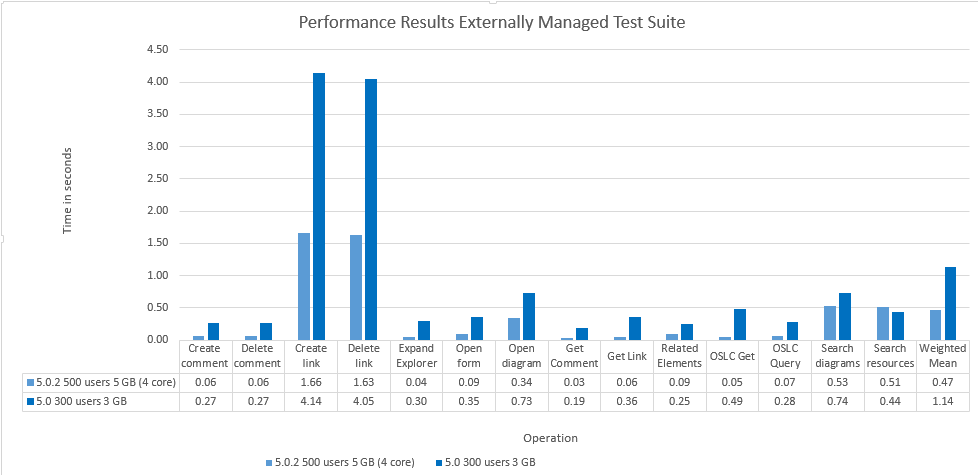
Figure 4 – Response time in aspect of 500 users with a 5Gb model load of an externally managed test suite.
Actively Managed Tests Results
Figure 5 shows that the Actively Managed test suite performed within limits with 500 users / 5 GB load.
As reference you can see previous test results in Design Manager 5.0 release with 300 users / 3 GB load.

Figure 5 – Response time in aspect of 500 users with a 5Gb model load of an actively managed test suite
Disk Performance
One of the main bottle necks for performance and scalability of the design manager server is the RDF index files implemented by Jena DB. We have identified that the performance and scalability is highly dependent on the index files accessibility.
To improve the index accessibility, 2 options can be taken.
- Increase the server’s RAM:Increasing the memory to 64Gb RAM will cause Jena to load the index files into memory to maximize the performance.
- Use SSD Disks:Performance of accessing the indexing files on the disk will be improved significantly. In Table 4 below you can see an overall improvement of approx. 30% by simply moving to an SSD disk.
In table 4 below you can see performance results of a test run on 2 sets of machines with similar hardware settings. The difference between the machines is the disk used. One was using an SSD disk while the other wasn’t. We see an overall performance gain of approx. 30 % average.
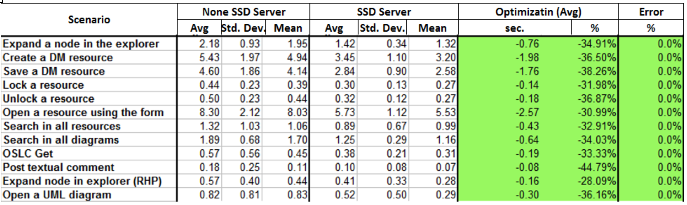
Table 4 – Comparison between an SSD Hard drive vs. a simple Hard drive of an actively managed test suite (DM 4.0.6 data)
Performance tuning tips
Here are some performance tuning tips that would help you maximize the performance of Design Manager.
The performance tuning considerations for Design Manager are similar to those for other Jazz-based applications, in particular:
- Size your hardware and network accordingly to the number of concurrent users you are expecting.
- Use SSD Disks
- Increase Server RAM
- Increase the size of the thread pool used by the server’s web application container from the default.
- Set the size of the heap the JVM uses appropriately.
Hardware sizing
To maximize Design Manager performances use a 64-bit architecture with at least 2 CPU cores, and at least 8 GB RAM. As noted above, the main resource contention observed during the tests in the Design Manager server is the CPU cores, so increasing the number of CPU cores of the Design Manager Server should help increase the number of concurrent users and the size of the model data that Design Manager can handle. As seen above, moving to SSD Disk’s or increase machines RAM Memory will boost performance significantly, allowing to scale to more workspace data.
Network connectivity
In the test topology described previously, the Design Manager application, the JTS application and the database were installed in different machines. This allows to increase the CPU, memory and disk available for each application, but in return it puts more pressure on the network connectivity, especially the network latency. To mitigate this, it is recommended to locate the three servers on the same subnet.
Thread pool size
The size of the thread pool used by the Design Manager server’s web application container should be at least 2.5 times the expected active user load. For example, if you expect to have 100 concurrently active users, like in the tests described above, set the thread pool size to at least 250 for both the Design Manager Server and the JTS server.
JVM heap size
It is recommended to set the maximum JVM heap size to at least 6 GB. However, you can only do that if the server has at least 8 GB of RAM. As a rule of thumb, avoid setting the maximum JVM heap size to more than about 70-80% of the amount of RAM in the server has or you may experience poor performance due to thrashing.
If you are running Tomcat, you will need to edit the server-startup script to change the default values of -Xms and -Xmx to the desired value (8GB or more). Set both parameters to the same value to avoid the overhead of dynamic Java Virtual Machine (JVM) heap management. You will need to stop and restart the server for the changes to take effect.
If you are running Websphere Application Server (WAS), see the “Java virtual machine settings” section in the WAS information center for instructions specific to your WAS deployment.
Sources
IBM Rational Software Architect Design Manager 4.0 Performance And Sizing Report
Rational Design Manager performance and scalability 4.0.4
Rational Design Manager performance and scalability 4.0.6
Rational Design Manager performance and scalability 5.0
About the author
David Hirsch is a senior developer in the Design Management development team. He was responsible for the Rational Rhapsody Design Manager before taking the lead on the Design Manager effort to improve Design Manager performances. David can be contacted at davidhir@il.ibm.com.
© IBM – Rational Design Manager
Thu, 06 Aug 2015