


Lightweight modeling and design with Rational Design Manager
When most developers hear the words “Modeling” or “Design” they tend to have an initial impression of something heavy weight that will get in the way of their creative process and add additional actions and overhead to their daily activity. On the other hand, management and architects will tend to have an opposite view and find that models provide a necessary abstraction on top of the code that allow them to make decisions around the direction of a particular product or component. How do we consolidate these points of view such that we make modeling and design more accessible to both types of practitioners? The developers don't want modeling to encumber their ability to code and the management / architect roles need to have an appropriate level of governance over the code to make the right decisions.
There's an old saying that says “if you have a hammer, everything looks like a nail”. In development organizations they tend to be knowledgeable about certain ways to develop applications and they will continue to use that knowledge in future tasks. An organization may be very code centric and as such doesn't have much or any knowledge about state of the art modeling techniques or how modeling can help them to develop more robust architectures. They may have some design that takes the form of Word documents or informal sketches using a tool like Visio, but they struggle to keep those documents relevant once they transition to development.
Or an organization may be fully immersed in the use of UML (Unified Modeling Language ) and has a clear process around creating their models and generating code from them. In this case, they have issues around managing complexity and making the models accessible to other roles in the organization. Often in the early stages of design, UML has more detail than is required and is not accessible to the high level architects. Each of these different organizations could benefit from an alternate approach to design that can complement their existing processes without changing them to any considerable extent.
This article will describe an alternate approach to Modeling that can complement the existing design process of organizations without any requirement for drastic changes. Lightweight modeling can help with some of the issues organizations are facing by providing an intermediary description of their design before moving into more complex modeling or directly into code. The Rational Software Architect Design Manager or Rational Rhapsody Design Manager applications can provide the tooling to accomplish this.
What is Design?
In essence a Design is an artifact or set or artifacts that describe in enough detail what needs to be done in order to implement or bring an idea to production. There's no specific way to represent a Design as long as it accomplishes this goal. A Design could be a simple text representation, it could be a visual or diagrammatic representation, a combination thereof or it could be a specific model formal representation (such as UML).
How does one get to the point where a Design can be considered ready to implement? This is where some agreement needs to be made as to whether the current form of a Design is adequate to continue to implementation. Design is by its nature a collaborative and creative process. At some point the Design is reviewed and a decision is made that it is ready to continue towards development. It's possible that the Design may only exist in the Developer's head and that the review was done by the Developer himself, but this simple process will exist in all design scenarios. The challenge is making sure this Design exists in some concrete form such that other people can review or read it without having to use Vulcan Mild meld.
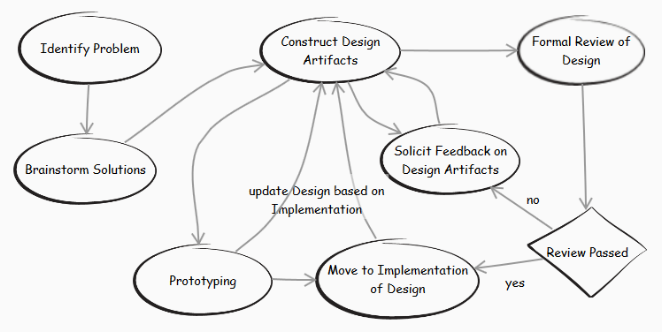
Figure I: Typical Design Process (Implicit or Explicit)
In typical organizations, Design will usually start with some sort of informal meeting between developers, perhaps by using a whiteboard to capture some ideas with simple boxes and lines. Following this, the white board discussion is translated into an artifact that formalizes the discussion as either a document or potentially a model of some form. Further collaboration will occur on this document or model artifact and there will be incremental changes until it is deemed final. The problem with this approach is that there are a number of gaps between each of these steps that can lead to issues. The whiteboard drawings will most often simply be left in the conference room where they can be erased in the next meeting. Next the document that transcribes the whiteboard discussion is often passed around in email where copies of the document will be modified by different people. The author then has a difficult task of consolidating these changes. The result is that multiple versions of the document can exist throughout the team leading to inconsistent impressions of the design. Finally, there may not be any consistent way to represent the Design – different people in the organization are using different tools or design concepts that may not be fully understood by all (or readable if the tools aren't installed). This may be perfectly alright to have the different representations, but having a common repository and way to view them would solve the problem of accessibility.
Design Manager to the Rescue!
These issues around having persistent designs that are shareable, reviewable, reportable, version-able and accessible to all roles in an Enterprise can be solved with a server based installation of Jazz Design Manager. Design Manager has all the capability out of the box that can assist any organization with basic design construction and management. We will examine through the use of Sketching, Document creation and then subsequent use of Informal Modeling Domains how these capabilities can help an Enterprise to create robust designs and more quickly move to implementation.
The most basic function that Design Manager provides is a common repository for all design artifacts. All of these artifacts can be accessed through the HTTP protocol (web browser) and can be organized in Project Areas that have user authorization associated with them. You can either upload existing artifacts into the repository, such as documents or images, or you can create Design Manager specific artifacts, such as sketches, rich text documents or informal modeling documents (Use-case, Process, Architecture Design Knowledge). Subsequently, you can use the Rhapsody or Rational Software Architect application clients integrated with Design Manager to edit and create UML models and other client specific artifacts that will reside on the server as well. Any of the models or artifacts created in these application clients can be commented on live in the web client so that everyone can see them immediately. They can also be added to a formal Review of multiple artifacts and have all the stakeholders in the design officially sign off on the design. Then a snapshot of the designs can be made in the repository so that the designs can continue to evolve but older versions of the design can always be referenced if desired. For the purposes of this article we will focus on the design creation process, but it's important to be aware of the commenting and review capability since it's a fundamental part of the Design Manager value statement.
Now we can re-examine the different steps in the generic design process diagram to incorporate some of the Design Manager functionality to track and manage the different aspects of the design process.
Identify the Design Problem
Identifying the design problem could take the form of a requirement or artifact managed by a different tool such as Rational Requirements Composer , DOORs or even a work item in Rational Team Concert. Alternatively, we have a way to track technical debt or internal design issues within Design Manager through the Architecture Design Knowledge Domain (ADK). ADK is a simple way to manage information about architecture and design issues and decisions. In doing so it helps to enable agile architecture and design practices. In collaborative design this information can then be shared with other users so they can benefit from the decision making process the original user went through to resolve the problem.
The ADK domain consists of a set of different resource types that together can fully describe the decision process. An issue resource captures the essence of the issue and describes all the possible alternatives that could solve the issue. This allows you to extrapolate all the alternative solutions to an issue and collaborate with other people on what the pros and cons are of implementing a particular solution. You can also make an issue depend on other issues and ensure that certain solutions are compatible with other solutions before moving to implementation.

Figure II: Architecture, Decision and Knowledge Domain Resources
A Decision resource binds an issue to a particular solution (Alternative) and allows for discussion and review before the decision is finalized. The Decision can be then be linked to subsequent design and implementation artifacts so that you can trace any change or resource back to the original decision that required its existence.
Brainstorm Solutions
In the course of going through the various alternatives or solutions for a particular issue it may be convenient to have meetings or discussions around the impact of a particular solution. You may have meetings where a white-board is utilized to draw out scenarios or simple designs for the benefit of the group. Jazz Design Manager can be used to complement these meetings by having offline discussions using the Sketch capability which can simulate a white board style of describing architecture and design. When saved, these Sketches can be viewed by remote team members.
If you prefer classic whiteboard discussions with in-person collaboration, you could simply take a picture of the whiteboard after the discussion with your cell-phone and then upload the image to the Design Manager server using the native Image upload capability. This image can then be used in further discussions by allowing sidebar commenting or by pasting it into a text field. Since the whiteboard image becomes an artifact in the Design Manager repository it can be linked to any other resource that is part of the design process including native resources like Rich Text, ADK Issues, or resources managed by other applications like requirements or test management.

Figure III: Classic Whiteboard Design Example
This image can be commented on or reviewed individually as an uploaded image or it can be inserted into a Rich Text Document or Sketch and referenced indirectly.
Instead of uploading or pasting the image, you could also transcribe the image into a sketch using the web tooling to create the individual shapes and lines. This is fairly straightforward with the intuitive in-context UI that allows creation immediately where the mouse or touch point is in the UI. Then the image can be evolved and shared within the larger team as well as having a better comment integration (such as the ability to sketch on sketch). The original whiteboard image could still be uploaded if desired and the transcribed sketch can link to the image as a reference.
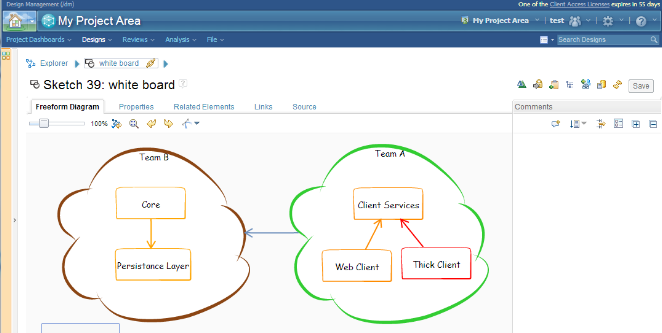
Figure IV: Transcribed whiteboard sketch into Design Manager Sketch
Design Manager Sketches have a number of capabilities that make them well suited for representing high level designs. First, there aren't any semantics that constrain the user with respect to the relationships between the different shapes. The user is free to draw any diagram that comes to their mind so that the idea can be represented at a high level. Sketches support a number of predefined shapes such as Rectangle, Oval, Cloud, Cylinder, Stick figure, etc. that allow for a broad spectrum of diagram representations. Each shape can be overridden with a custom image if desired that can be uploaded onto the server and reused in multiple shapes. The user can also control the fill and line colors, line style and all the font attributes to highlight particular shapes or call out some implied semantic differences between them.

Figure V: Control over Fill and Line Colors

Figure VI: Control over line style and appearance
With these capabilities the Sketch represents ideas that can easily be conveyed and shared to facilitate moving a design concept forward in the development process.
Constructing Design Artifacts
Once all the high level design decisions have been made, the lower level design process can start in earnest. Specifications or architecture diagrams with descriptions of components and services may be necessary before having enough detail to begin implementation. This may be a done with a more classic waterfall approach where a design is reviewed and finalized before moving to implementation or with an agile approach where design and implementation are more closely tied together. Either way, there are some lightweight modeling options in Design Manager that can help with these design descriptions.
The most classic way to describe a design is textually in a document, perhaps with some diagrams or images that help accent the points made. A specification that goes through detailed descriptions of API or services is an example of this. To facilitate this, Design Manager has a Rich Text Document capability that allows for web based entry of documents. The Rich Text Document fulfills most of the basic expectations of a word processor by allowing full control over individual text and paragraph attributes. It also has the additional capability of being able to add live links to diagrams (Sketches, Freeform diagrams or UML diagrams) that are fully displayed in the document. Then when the diagram is changed in Design Manager, it will automatically be reflected inside the Rich Text Document content. Images and Links can be added in the Rich Text Document content as well. Since the documents are hosted in the web browser a link can be sent around to interested parties who can contribute their own content or make comments. The problem of many different copies of documents floating around in emails is solved!
There are some distinct advantages of using the Design Manager Rich Text Document support over other known online document solutions. Other than the integrated comment and review support and the embedded diagram and image support, the fact that these Documents can be versioned along with all the other design artifacts in a Project Area ensures they can traced into particular release or product variants. A feature within Design Manager is the concept of a workspace. A workspace is essentially an independent work area where changes can be flowed into a parent workspace. Eventually the changes flow into a master workspace that represents a product or component release. Using this capability it is possible to have different project workspaces for different product releases and make modifications to the same document that would be specific to a particular release. Then once the product has been officially released, the workspace can be snapshot ensuring that the document contents are captured and aligned to that release.

Figure VII: Same Document can have multiple versions that are modifiable separately
For more complex documents or users that prefer using a particular 3rd party tool for their word processing it is possible to upload the file onto the server and then it can be linked into the design life cycle just like the native Rich Text Documents. The down-side is that live diagram links would not be possible in this scenario. These external documents can also be versioned and associated with a snapshot in the repository if new versions are uploaded after changes are made in the external tool.
As we have seen Sketching is a powerful way to describe designs, but sometimes it may not be adequate for some scenarios, specifically if you have a concept that is repeatedly used and needs to be referenced in an explicit way. Sketch shapes are not separate documents themselves, so it is not possible to create a link to a specific shape on a diagram. Only the entire Sketch or Freeform Diagram can be referenced by a link. This is where some lightweight semantics could be valuable to facilitate that linking and to provide repeatable property values that impart some relevant information about the object. Design Manager has a number of different domains available to describe elements at this higher level of detail. Of course UML is the best example of this. By utilizing the Rational Software Architect or Rhapsody products in conjunction with Design Manager, you would be able to create those models and diagrams and have them persist in the Design Manager repository where all the versioning, collaboration and linking capabilities would be available.
In certain instances, the overhead of a UML Model and the external tool it requires may be more than is necessary for some aspects of the design process. Design Manager provides a few lightweight Domains that are fully editable within the web client that can be alternatives to parts of UML or more likely complement the use of UML models. Use Cases are one example of this. The use case designer may not be as technical as the product architect and may not understand all the complexities or UML or the external products required to manage and create the model. Using the Design Manager Use Case Domain, they can create and fully describe Use Case and Actor elements in their web browser. The Use Case shapes can co-exist with Sketch shapes on a Freeform Diagram so that additional annotation or description can be facilitated.
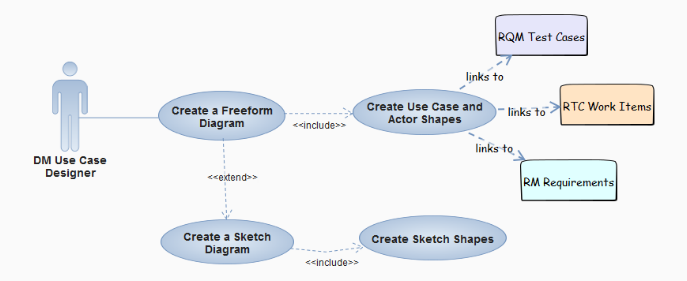
Figure VIII: Example Use Case diagram with some Sketch elements
Similarly the Process domain enables the creation of simple Process diagrams with minimal semantic interference. This domain is not intended to replace BPMN that is available in Rational Software Architect, but rather provide a way to describe a process at a high level similar to how Sketch could be used to describe a set of components. The process diagram could be transcribed or linked to by a BPMN diagram to elaborate the process further or to allow code generation to BPEL (Business Process Execution Language ) etc. The Design Manager Process Domain allows for creation of separate Process elements that can contain Actions, Decision, Start and End point and connected by Flows.

Figure IX: Process Describing Lightweight Modeling with Design Manager
Prototyping
Working on a design is usually an iterative process through experimentation, trial and error and harnessing past experience. This entails trying out different designs in practice by creating prototype code to validate if a particular idea is practical. This can be done concurrently with the creation of a formal design and in fact lends more weight to the design idea by showing that it can be done. Prototyping work can be integrated into the Design Manager process through the use of Open Services for Lifecycle Collaboration (OSLC ) linking. For example, if you are using RTC (Rational Team Concert) as the source control system that stores your source code, the Prototyping activity could be isolated in a task work item. Source code changes would be added to a change set (a concept where source file changes are accumulated together) which would be associated with the work item. Using the OSLC linking capability of Design Manager and RTC, you can create a navigable link between the design artifact and the work item. Then using this link it is possible during the design review process to navigate all the way back to the prototype code (and possibly future production code). Similarly for someone immersed in the code, they could traverse the link from the work item that has the source change set into Design Manager in order to see the associated design artifact.
Solicit Feedback on Design Artifacts
Collaboration is a fundamental part of Design Manager and is built into the tool to ensure that all stakeholders can contribute to the design process. Having the design artifacts accessible in the web browser allows them to be viewable simply by providing a link to interested parties. The link can be grabbed from the browser URL field or by using the “Short link” button available from the bread-crumbs links in the resource header. This link can be sent by email and shared as desired. Then you can comment in email or launch the web browser and use the comment pane to add a comment to a particular resource. All the other comments by other users are also visible in the pane as well. For comments on diagrams, there is additional capability to add comment sketch layer on top of the diagram when the comment is selected. This allows a user to highlight a particular part of the diagram that the comment is targeting.
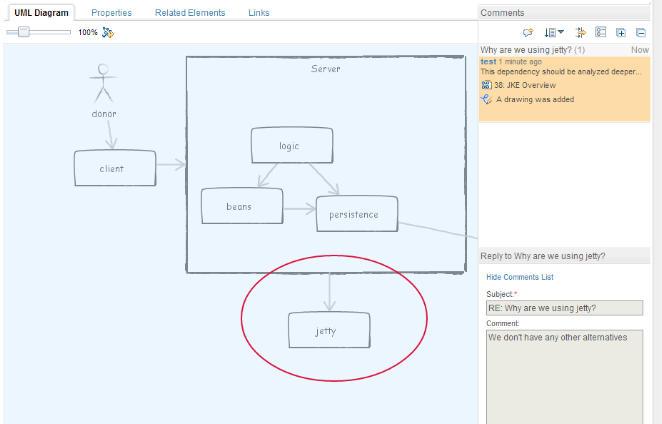
Figure X: Comment side bar with a comment sketch
Formal Review of Design
The commenting capability may be adequate for most organizations, but if there is a need to track reviews formally or to be able to review multiple resources together, then the formal review functionality in Design Manager should suit this purpose. A review in Design Manager allows multiple users to be targeted for the review as well as multiple resources. Each user can be specified as a Reviewer (someone who can review and provide feedback), an Approver (someone who can approve or reject the changes) or a Subscriber (someone who receives notifications of changes in the Review). Any artifact or resource in the Design Manager repository can be added to a review. The review can be active for a particular version of the resources if desired so different release versions can be reviewed separately. In the interest of simplicity it is also possible to review the live design data in the default Project Area configuration that may be version agnostic.
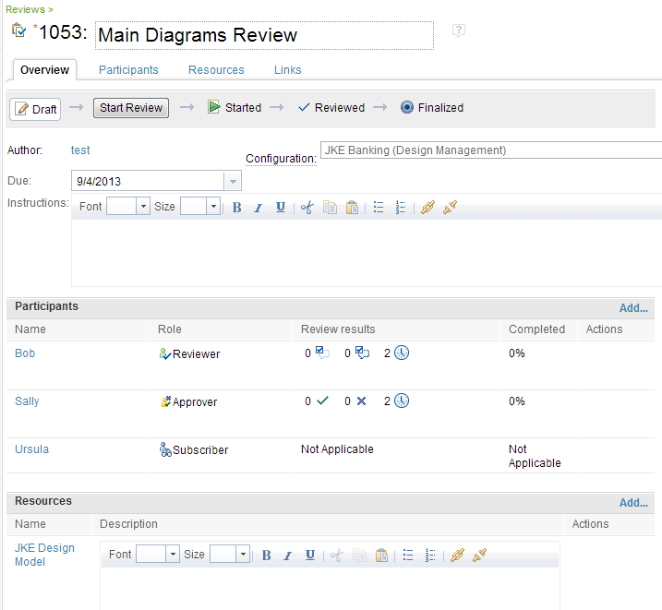
Figure XI: Example Review in Design Manager
Move to Implementation from Design
Once the design has been reviewed and approved, the implementation can begin in earnest, though in reality we know that the design process never really ends. During the implementation of the design tweaks or refinements to the design can be easily done. It is advisable to create a snapshot of the design artifacts after the review process so you can trace back to the original proposal. Then during implementation if changes need to be made, the design in the live workspace can be modified. Once the implementation is complete, you can create another snapshot of the design indicating that it is at the release milestone. Using this technique, you can do visual comparisons of the original design snapshot to the milestone snapshot and make retrospective observations accordingly.
If there was a prototype of the design, then this prototype can be transitioned into implementation by creation of a new work item that formally tracks the code changes required (an RTC enhancement or defect). Here again the technique of adding links from the RTC work item to the Design Manager resources (and vice-versa) can be utilized. If these links have been used consistently in the design process, it is possible to do an impact analysis when considering changes to particular design aspects. As an example, if we have a request to modify a particular use-case for a future release, we can trace through these linkages to the architecture design for the use-case which in turn may trace into the work item in RTC that implements it and then to the actual source code in the associated changesets.
There is a capability in Design Manager called “Impact Analysis” that can create a visual diagram of these traceability links between resources. By examining the results of the “Impact Analysis” you can navigate to affected resources and understand what the impact of the change would be. This brings us full circle in the design process. At this point, the Architecture, Decision and Knowledge domain can be utilized to describe the impact in an issue and then solutions explored resulting in a final decision. Or perhaps it simply warrants an RTC work item to track the change.

Figure XII: Example Impact Analysis Diagram
Conclusion
The design process used is somewhat unique in each organization. While any design process can be subdivided into the steps that we have analyzed, whether they are implicit or explicit, each organization needs to decide what aspects of the design process to formalize. This is difficult to standardize and enforce across a development team. Using a tool such as Design Manager can help make this easier by allowing the organization to pick and choose what aspects they want to incorporate. The flexibility of a lightweight modeling solution lets people bring in formal designs with minimal overhead and learning curve to accommodate. At the same time a design artifact isn't of much use if it can't be easily shared, collaborated on or linked into the rest of the organization's life cycle artifacts. Using Design Manager ensures that every resource has these attributes whether it is a simple Sketch or a robust and detailed UML Model from Rational Software Architect.
Copyright © 2013 IBM Corporation