


Practical Insights from Setting Up a Sample Jazz Build with ECJ and JUnit Integration
In IBM Engineering Workflow Management (EWM), automating build activities can significantly improve traceability and reduce manual effort. One common approach involves using the sample compile-and-test Ant script provided with the Build System Toolkit to demonstrate how compilation and test results can be published in the build result.
While this sample provides a useful starting point, configuration may require careful adjustments depending on the environment and tool versions used.
Scenario: Using a Sample Build to Publish Compilation and Test Results
The sample build demonstrates how to integrate key build tasks, including:
- StartBuildActivityTask and CompleteBuildActivityTask – to mark build stages
- JdtCompileLogPublisherTask – to log compilation results
- ArtifactFilePublisherTask – to attach build artifacts
- JunitLogPublisherTask – to publish test outcomes
The goal is to help teams visualize and verify each stage of their build process through EWM’s build result view.
Prerequisites
Ensure the latest IBM EWM Build System Toolkit is installed. The sample script can be found under the toolkit’s examples/compile-and-test directory.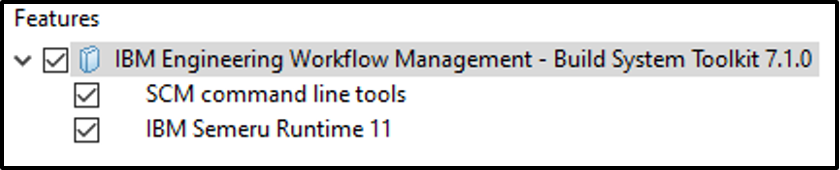
You will also need the Eclipse Compiler for Java (ecj-<version>.jar). A current version is recommended to ensure compatibility with modern JDKs and dependencies.
Configuration Steps
1. Create a New Build Definition- Use the “Ant – Jazz Build Engine” template.
- Proceed with default values.
- In the General tab, create a new Jazz Build Engine and assign an engine ID (e.g., MyEngine).
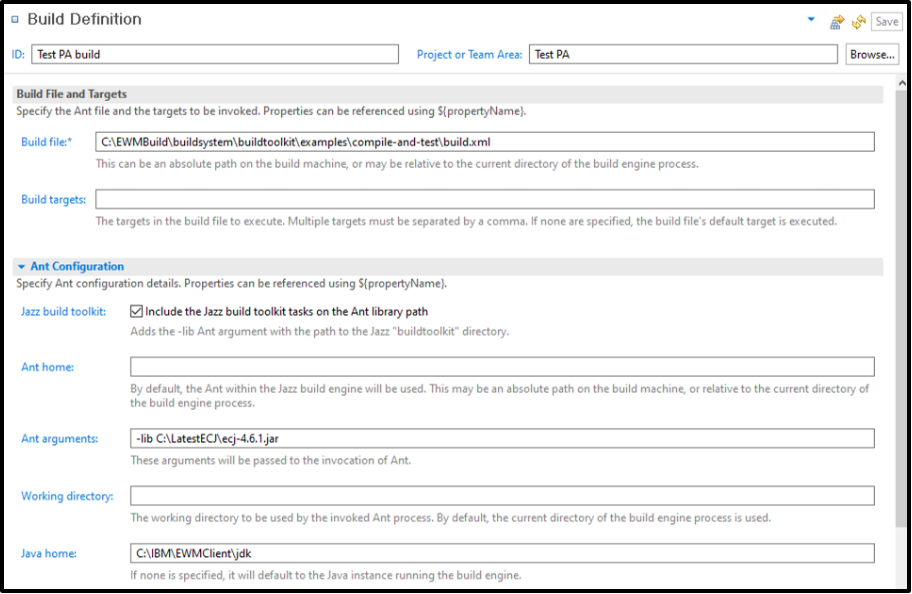
- Set the build file path to the sample build.xml in the compile-and-test folder.
- Optionally copy the script to a local working directory for easier customization.
- Download a recent ECJ JAR file.
- Reference it in the Ant arguments:
-lib <path-to-ecj-jar>
5. Set Java Home
- Match the Java home with the JDK used by your EWM client to avoid version mismatch issues.
6. Customize the Sample build.xml File
- Update the junitJar property to point to a valid local JUnit JAR path.
- If the expected file is not present, you may need to download it from a trusted internal or public source.
- Update the userId and password properties with placeholder or real values, as needed.
- Comment out the line setting build.compiler to let Ant use the default javac.
- Modify the <javac> task for your Java version (e.g., source=”11″, target=”11″).
- Add includeantruntime=”false” to suppress warnings during compilation.
Handling Common Configuration Issues
While the sample is intended to work out of the box, issues can occur due to:
- Missing or incompatible JAR files (e.g., ECJ, JUnit)
- Environment-specific path or permission errors
- Version mismatches between Java, Ant, or the Build Toolkit
If the build fails or results are not published as expected, reviewing logs and tweaking build properties is often necessary. You may also need to experiment with different versions of dependencies to ensure compatibility.
Starting the Build Engine and Running the Build
1. Launch the Jazz Build Engine (JBE)- From the build engine’s directory, start the engine using a command like:
- jbe -repository <repo-URL> -userId <user> -pass <password> -engineId <engine-ID> -sleeptime 1
- Use the defined build definition to trigger a build request.
- If configured correctly, you will see activities logged and results published in the build result.
Final Thoughts
Setting up the sample Ant – Jazz Build Engine configuration is a helpful way to learn about EWM’s build process and publishing capabilities. While setup might require some troubleshooting—especially when working across different environments—the sample provides a solid foundation.
By adapting paths, dependencies, and build script logic as needed, teams can successfully integrate this into their build pipeline and extend it for more complex scenarios.
© Copyright IBM Corporation 2025