


How to use the Practice Library application
What it is: The Practice Library application is a simple tool that allows process authors to create and manage a set of shared practices which can be consumed by teams using the CLM applications. A shared practice can be used as part of a process description, and a shared process description can be associated with a process area to describe the routines and methods of a project or a team. The Practice Library is also integrated with Rational Method Composer (RMC). It can easily consume a process exported from RMC.
Brief description: This document demonstrates how to use the Practice Library application from two perspectives:
- As a process engineer; how to use the library to author and publish reusable practices and process descriptions.
- As a project manager using one of the CLM products; how to configure the library to consume these practices and descriptions.
Prerequisites: To try the following scenarios, install and register the Practice Library application (refer to Install Practice Library Application). Additionally, make sure you have read the Process Authoring User Guide to get familiar with the basic process authoring operations.
Story 1: Contribute a new process to the Practice Library
Background: As a process engineer, it is Kevin’s responsibility to manage existing practices and process descriptions, as well as contribute process materials to the Practice Library. He has just been given a new process, and needs to add it to the Practice Library. This will allow the process to be shared with the team at large, while also enabling customization.
Scenario 1: The process description is one exported from RMC.
Steps:
- Kevin logs into the Practice Library application.
-
He checks to see if the new process description already exists in the library. He can do so by selecting the “All Process Descriptions” scope in the search box, and typing “OpenUP” in the search field. “No results found for …” indicates the new process description is not yet in the library.

-
Next, Kevin imports the process description by clicking the Import Process Descriptions link.

After a few moments, a “Successful Import” dialog is shown, and the imported process description is shown on the Process Descriptions page.

Scenario 2: Kevin wants to tailor the process description to his team’s needs.
Steps:
- Kevin opens the process description.
-
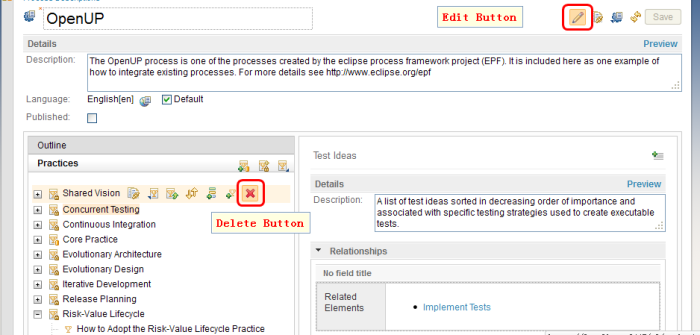
In the process description editor, he clicks the Edit button to switch the mode from view mode to edit mode. Now the current process description is editable. In this case, Kevin wants to delete unused and unnecessary practices to simplify the process. These are found in the navigation tree on the left.
-
Kevin wants to contribute a useful practice – “Buildmeister Rotation” to the process, so he clicks the Create New Practice button in the Practices pane, and proceeds to fill in the new practice with categories and practice elements.

Scenario 3: Kevin shares the process description and practices with other colleagues.
Steps:
-
Kevin thinks the new process description is ready to ship. In order to share it with project managers, he checks the Published check box, and clicks the Save button. This will publish the process description. It is now exposed and available for project and team areas to use.

-
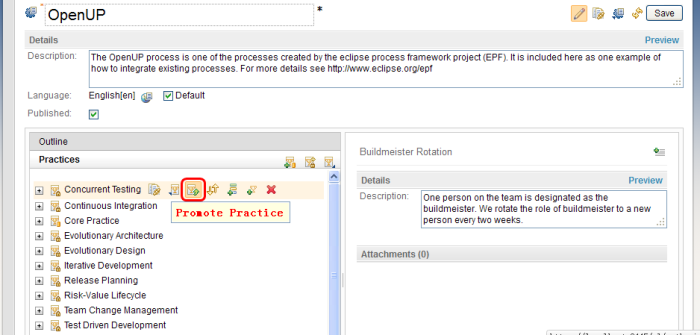
Some of the practices within his process description are also useful for other processes. In order to share these practices, Kevin hovers over those practices in the Practices pane, and clicks the Promote Practice button in the hover box.
-
The newly promoted practices can now be found on the Practices page:

Story 2: Consuming process from the Practice Library
Background: As a project manager, Marco wants to define a process for his team by consuming shared practices in the Practice Library in a new description.
Scenario 4: In order to compose his process description, Marco navigates to the Practice Library application. Here he can browse the practices and process descriptions available in the library, search for practices that fit his team, and use them in his own process description.
Steps:
-
Marco clicks the home menu and then clicks the Process Authoring item in the Practice Library Management section, which takes him to the Practice Library application web ui.

- Marco looks through the process descriptions in the library, but he does not find a process description which exactly matches his team. Therefore, he decides to use individual practices in the library rather than a whole shared process description.
-
Marco creates a process description – “BRM Team Process” – for his project area, and authors some practices by himself. He wants to add more practices around the build aspect, so he puts the key word “build” in the practice search box to find all results related to build.

-
Marco adds the “Buildmeister Rotation” and “Continuous Integration” practices to his process description.

Scenario 5: From Marco’s daily work, he authors a new useful practice – “Newsmeister Rotation”, and wants to contribute this practice to the Practice Library to share it with other teams.
Steps:
- Marco opens the Process Description tab in the project area editor, clicks Create New Practice in the Practices pane to create a new private practice for his team, and inputs “Newsmeister Rotation” in the practice title field.
- Marco creates a “Roles” category, and adds the “Newsmeister” practice element under it. After entering the main description and responsibility information for this role, Marco clicks Save to finish authoring.
-
To allow other teams to use this practice, Marco hovers over its entry in the practice tree and clicks the Promote Practice button to contribute this practice from his team back to the Practice Library.

The “Newsmeister Rotation” practice can now be seen in the practice list of the Practice Library application.

About the authors
Kevin is a software engineer in the Jazz Foundation Process team. He can be contacted at gumingbj@cn.ibm.com.
Alex is a software engineer in the Jazz Foundation Repository team. He can be contacted at aschaffe@us.ibm.com.
© Copyright 2011 IBM