


Using Rational Engineering Lifecycle Manager on Systems Engineering Models
If you haven’t read the ‘Under The Hood’ series of blogs – I would highly recommend taking a look now – some of the work in this article builds upon the work shown in those blogs.
In the ‘Under the Hood’ series of Blogs you saw how to create some pretty impressive Views that spanned the engineering data across Requirements, Test Cases and linked Model Data. However, many of the links being explored were added explicitly by the engineer – for example satisfy dependencies in the model or OSLC-based links.
The goal of this article is to focus on something slightly different – using RELM for impact analysis within a model where the traceability is implicit in the way that the model is being built – for example models built using the Harmony-SE workflow. This article will also show how RELM can be used to improve the traceability in ‘legacy’ models that used Rhapsody’s own Gateway tool to import Requirements from DOORS.
Along the way you’ll see some useful tips and techniques you can use when building any of your own Views.
I’ll assume you’ve read the blogs mentioned above and so won’t be covering topics like how to add a Container to your View, since those have already been covered.
Using Properties
When creating Views you may find it useful to have a second browser window or tab open. In that window/tab you can use RELM to search for a resource and then use the Properties View as a guide to the information available for that resource. This really helps when you are writing your SPARQL queries and you can even right-click elements in the properties view and copy their URI for pasting directly into your Query.

 Figure 2 – Properties Page
Creating The View
Parameters
As described in the blogs, Views can configure themselves to show different data by adding Parameters, making them re-usable. The starting point for our first View is a Use Case so you should add a Parameter for that. In this case we’re using the Use Case Name – but if this view were intended to be launched from another View linked to this (you’ll see how to link Views later in this article) then we might use the GUID which is more unique – if a little less user-friendly
 Figure 3 – Adding a Parameter to a View
Extracting the Use Case
If you’ve read the blogs mentioned above you should already have a pretty good idea about how to extract a specific model element – in this case it’s Use Case. The blogs also showed the PREFIX statements for each Query. In this article we’ll be using a standard set of PREFIX statements for every Query – you will find those at the end of the article. For that reason (and to keep the article length to a minimum) they won’t be shown in the Queries themselves. If you want to copy and paste the Queries – make sure you also copy and paste the standard set of PREFIX statements too. The Query to extract the Use Case is as follows:
SELECT ?resource ?shortTitle ?title ?type WHERE { ?resource uml:modelElement-name ?title; rdf:type uml:UseCase; rdf:type ?type; FILTER (?title="$UseCaseName$") BIND( SUBSTR(str(?title), 1, 50) AS ?shortTitle ) } Note that you should always (at the very least) capture resource, title, shortTitle and type. Since they are all used by the default Node types. If the resource has no shortTitle then you can construct one using BIND – as we’ve done here.
Extracting Dependencies
The blogs showed a Query that extracted dependencies – let’s dig a little deeper and see how to work out how to write that Query. Dependencies are not a simple ‘a to b’ triple. Looking at the properties for a Use Case:

Figure 5 – Dependency Property

Figure 6 – Anatomy of a Dependency
A dependency is not made up of a single triple. In this example there are two – the first one gets the Dependency itself (Dependencies) – which is a Blank Node. The second (DependsOn) gets the element at the end of the Dependency. So to extract those, the Query is as follows:
SELECT ?resource ?shortTitle ?title ?type WHERE { # -- Get the Use Case ?uc uml:modelElement-name ?uctitle; rdf:type uml:UseCase; # -- Get the Dependencies uml:modelElement-dependencies ?blank . # -- Get the Triples of the Blank Nodes ?blank ?pred ?dep . # -- Get the Dependent Elements ?dep uml:dependency-dependsOn ?resource ; rdf:type ?depType . ?resource dcterms:title ?title ; rdf:type ?type; FILTER (?uctitle="$UseCaseName$") FILTER (?type=uml:Requirement) BIND( SUBSTR(str(?title), 1, 50) AS ?shortTitle ) } Note the use of Comments in the Query to make things clearer. We could also filter on specific types of dependency, for example SysML Satisfactions. Note also that the Query contains the Use Case identification that we wrote previously. Writing the Query in this way ensures that we only get the dependencies we want.
Using the same technique explained in the previous article we can now add connections for the dependencies to the View

Figure 7 – Adding Connections
Translating Imported Requirements to DOORS Requirements
If you have a legacy model that has Requirements in it that were imported from DOORS using Rhapsody’s Gateway tool – RELM can offer you a very powerful view. With a small tweak to the Query – RELM can show you the actual OSLC-based Requirements that the Rhapsody model element Requirements relate to:
SELECT ?resource ?shortTitle ?title ?type WHERE { { # -- Get the Use Case ?uc uml:modelElement-name ?uctitle; rdf:type uml:UseCase. FILTER (?uctitle="$UseCaseName$") # -- Get the Dependencies ?uc uml:modelElement-dependencies ?blank . # -- Get the Triples of the Blank Nodes ?blank ?pred ?dep . # -- Get the Dependent Requirements ?dep uml:dependency-dependsOn ?uml_req . ?uml_req rdf:type uml:Requirement; uml:requirement-requirementUserID ?uml_req_id . # -- Get the corresponding DOORS Requirement } OPTIONAL { ?resource a oslc_rm:Requirement ; rdf:type ?type ; dcterms:title ?title . FILTER (STRSTARTS(str(?title),?uml_req_id)) } BIND( SUBSTR(str(?title), 1, 50) AS ?shortTitle ) }

Figure 8 – Gateway Requirements Visualized as OSLC Requirements
Extracting Sequence Diagrams
Looking at the properties of the Use Case again – you can see that Sequence Diagrams owned by the Use Case may be extracted in the same way as dependencies.

Figure 9 – Sequence Diagram Property
SELECT ?resource ?shortTitle ?title ?type WHERE { # -- Get the Use Case ?uc uml:modelElement-name ?uctitle; rdf:type uml:UseCase; # -- Get the Referenced SDs uml:class-sequenceDiagrams ?blank . ?blank ?pred ?resource . ?resource rdf:type ?type ; dcterms:title ?title ; FILTER (?type=uml:SequenceDiagram) FILTER (?uctitle="$UseCaseName$") BIND( SUBSTR(str(?title), 1, 50) AS ?shortTitle ) }
You should also be able to use the techniques described in the blogs to start making the diagram a little more pleasing to the eye:

Figure 10 – Custom Nodes
Connecting Views
RELM allows you to connect Views together – giving you a powerful ‘drill down’ capability. Here we’ve created a View that analyzes a given Sequence Diagram (note that creation of that View is not part of this article). The View extracts the Operations, Events and Blocks, along with the Ports and Provided / Required Interfaces on those Blocks. The View has a parameter to select the Sequence to analyze, ‘SequenceDiagramName’ (again we could have used the guid here). The View also has a unique ID we can reference from other Views:

Figure 11 – Page Properties – ID
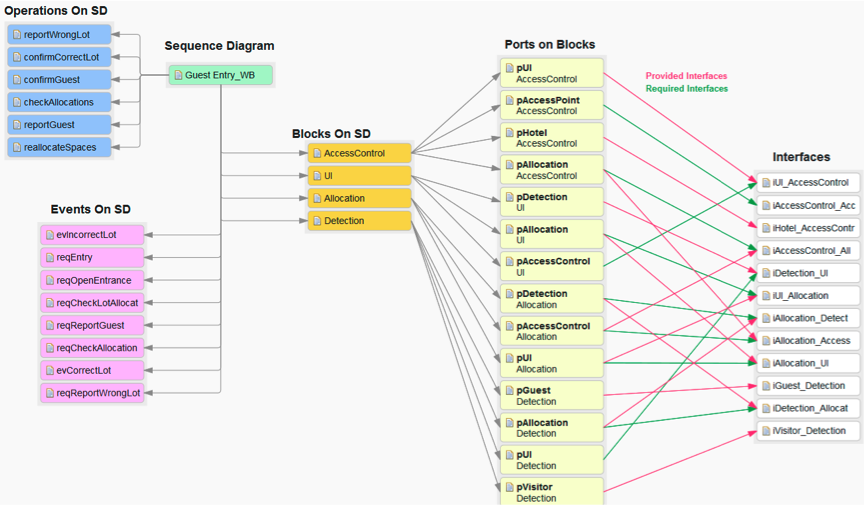
Figure 11 – Sequence Diagram Analysis View
To connect the views together we add an Action to the Sequence Diagram Node in the previous view, passing the ID of the View we want to connect and any parameters we want to pass when the View is opened.

Figure 12 – Customizing the Node to Add an Action
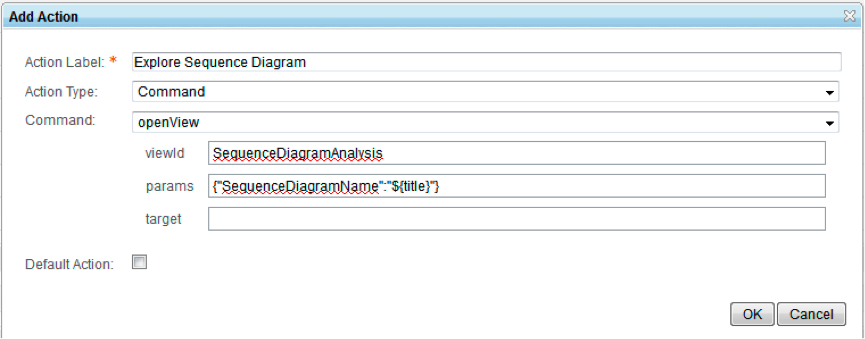
Figure 13 – Adding an Action
Note that the syntax for parameters is
{ “X”:”Y” } where X is the name of the parameter in the View you want to open, and Y is the value you want to pass – in this case we are passing a variable from the Query that this Node references – ${title}Now you can connect your Views together and drill down into each Sequence Diagram reported in the Use Case Analysis View:

Figure 14 – Navigating to Another View
Queries Used In This Article
Common PREFIX Statements
PREFIX dcterms: <http://purl.org/dc/terms/>  PREFIX dt: <http://www.w3.org/2001/XMLSchema#>  PREFIX rdf: <http://www.w3.org/1999/02/22-rdf-syntax-ns#>  PREFIX rdfs: <http://www.w3.org/2000/01/rdf-schema#>    PREFIX oslc: <http://open-services.net/ns/core#>  PREFIX oslc_cm: <http://open-services.net/ns/cm#>  PREFIX oslc_rm: <http://open-services.net/ns/rm#>
PREFIX oslc_qm: <http://open-services.net/ns/qm#>
PREFIX oslc_am: <http://open-services.net/ns/am#>    PREFIX uml: <http://jazz.net/ns/dm/rhapsody/uml#>
PREFIX sysml: <http://jazz.net/ns/dm/rhapsody/sysml#>
PREFIX links: <http://jazz.net/ns/dm/linktypes#>
PREFIX dm_diag: <http://jazz.net/ns/dm/diagram#>    PREFIX fn: <http://www.w3.org/2005/xpath-functions#>
View: Use Case Analysis
Query: Use Case
SELECT ?resource ?shortTitle ?title ?type WHERE { ?resource uml:modelElement-name ?title; rdf:type uml:UseCase; rdf:type ?type; dcterms:title ?title; FILTER (?title="$UseCaseName$") FILTER (?type=uml:UseCase) BIND( SUBSTR(str(?title), 1, 50) AS ?shortTitle ) } Query: Sequence Diagrams
SELECT ?resource ?shortTitle ?title ?type WHERE { # -- Get the Use Case ?uc uml:modelElement-name ?uctitle; rdf:type uml:UseCase; # -- Get the Referenced SDs uml:class-sequenceDiagrams ?blank . ?blank ?pred ?resource . ?resource rdf:type ?type ; dcterms:title ?title ; FILTER (?type=uml:SequenceDiagram) FILTER (?uctitle="$UseCaseName$") BIND( SUBSTR(str(?title), 1, 50) AS ?shortTitle ) } Query: Requirements
SELECT ?resource ?shortTitle ?title ?type WHERE { # -- Get the Use Case ?uc uml:modelElement-name ?uctitle; rdf:type uml:UseCase; # -- Get the Dependencies uml:modelElement-dependencies ?blank . # -- Get the Triples of the Blank Nodes ?blank ?pred ?dep . # -- Get the Dependent Elements ?dep uml:dependency-dependsOn ?resource ; rdf:type ?depType . ?resource dcterms:title ?title ; rdf:type ?type; FILTER (?uctitle="$UseCaseName$") FILTER (?type=uml:Requirement) BIND( SUBSTR(str(?title), 1, 50) AS ?shortTitle ) } Query: Requirements Translated Into DOORS
SELECT ?resource ?shortTitle ?title ?type WHERE { { # -- Get the Use Case ?uc uml:modelElement-name ?uctitle; rdf:type uml:UseCase. FILTER (?uctitle="$UseCaseName$") # -- Get the Dependencies ?uc uml:modelElement-dependencies ?blank . # -- Get the Triples of the Blank Nodes ?blank ?pred ?dep . # -- Get the Dependent Requirements ?dep uml:dependency-dependsOn ?uml_req . ?uml_req rdf:type uml:Requirement; uml:requirement-requirementUserID ?uml_req_id . # -- LOOK FOR DOORS REQUIREMENTS THAT MATCH -- } OPTIONAL { ?resource a oslc_rm:Requirement ; rdf:type ?type ; dcterms:title ?title . FILTER (STRSTARTS(str(?title),?uml_req_id)) } BIND( SUBSTR(str(?title), 1, 50) AS ?shortTitle ) }
For more information
- Overview of Systems and Software Engineering Solution
- Overview Video of RELM
- Using Rational Engineering Lifecycle Manager to answer hard Systems Engineering questions Blog Series
About the author
Andy Lapping has over 15 years experience in Model Based Systems and Software Engineering. A subject matter expert in UML and SysML, he is an official content developer for the OMG SysML Certification examinations. He is an expert in the application and customization of Rational Rhapsody for Embedded Systems and Software Engineering. He is currenly gainfully employed as a Technical Enablement Specialist for the Rational brand of IBM.