| Description | |
|---|---|
| Build artifacts |
Hover preview windows for build records and build definitions When you hover over a build record or build definition, a window is displayed that contains information about the build artifact. If a build record contains available build verification test (BVT) information, click Show More to see the BVT information and build definitions that are associated with the record. Image of the hover preview window for a build record: 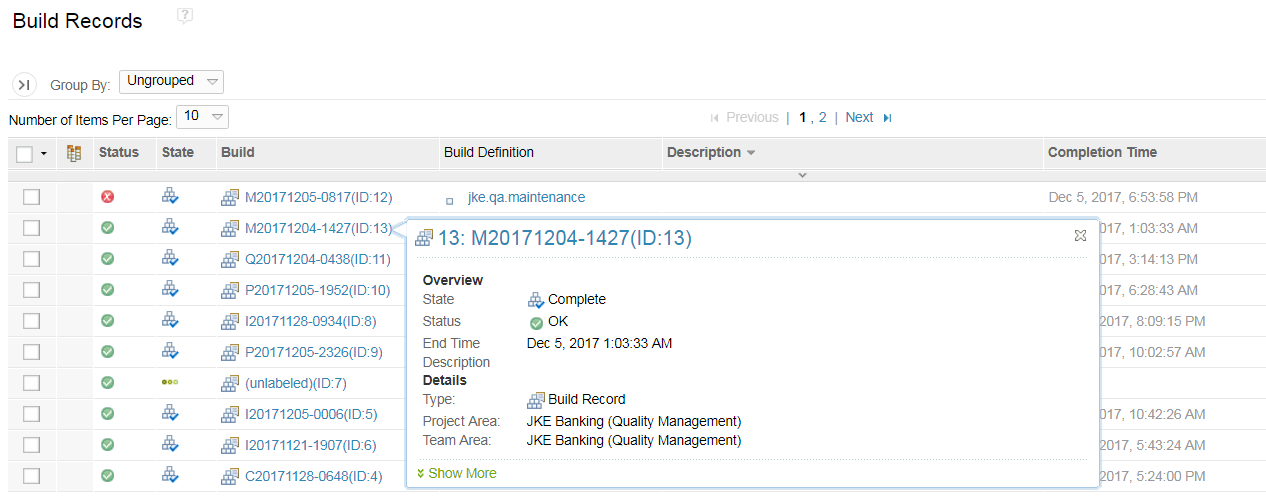
|
| Compare and merge |
Differences are highlighted in the Summary section When you compare two artifacts or two versions of the same artifact, differences between values in the Summary section are now highlighted. The values include the artifact's built-in attributes, category values, and custom attributes. In the Summary section, use the Accept action to accept the values from the source artifact. Image of two test cases compared in the Summary section: 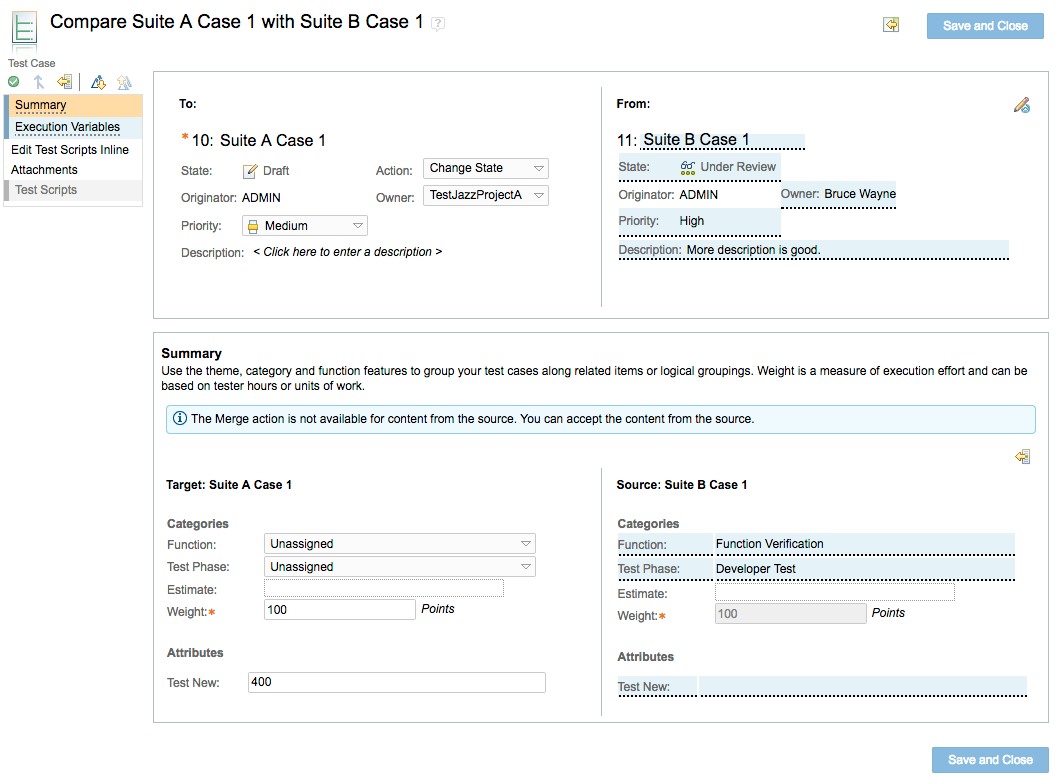
|
| Configuration management |
Warning messages for requirements links in local configurations When you work in a project that is enabled for configuration management, you should use a global configuration, which contains the configurations of contributed streams from various applications. If Rational Quality Manager is in a local configuration, there is no way to resolve requirements links from Rational DOORS Next Generation without knowing the configuration of the Rational DOORS Next Generation stream. If you are working in a local configuration, a warning message is displayed to use a global configuration. The warning is displayed in the hover content of requirements links in the editor sections and the related information sections. An application-level warning is also displayed at the top of the page. |
| Custom attributes |
Rational Quality Manager Reportable REST API supports CRUD and query requests for custom attributes The Rational Quality Manager Reportable REST API now supports creating, reading, updating, and deleting (CRUD) and querying a custom attribute type: https://<server>:<port>/<context>/service/com.ibm.rqm.integration.service.IIntegrationService/resources/<project area>/customAttribute For more information, see New resources in Rational Quality Manager Reportable REST API. The query support includes fields selection and filtering: https://<server>:<port>/<context>/service/com.ibm.rqm.integration.service.IIntegrationService/resources/<project area>/customAttribute?fields=feed/entry/content/customAttribute[title='custom attribute title 1'] For more information, see fields in Rational Quality Manager Reportable REST API. |
| Excel importer |
Configuration file syntax for user-defined priority values You can define the priority values of a test artifact by using string literals. These values do not convey the literal meaning of priority. For example, to define a test suite's priority as high, you use this configuration file syntax: testsuite.priority="literal.priority.130". Previously, if you had user-defined priority values, you had to manually edit large sets of Excel data to map those values. Now, a new configuration file syntax is available that enables you to define priority values by using the optional #define syntax. Examples:
Note: Undefined priority values are not translated and are not sent to the server. If a priority value matches a custom priority, the server processes it. Otherwise, the server assigns default values for the priority. For more information, see Rational Quality Manager Word/Excel Importer: Priority value mapping. |
| Manual test scripts |
Merge steps modified during execution by using the test script editor During manual execution, users with the appropriate permissions can add, edit, and delete steps by using the row-level actions for each step. After the execution is complete, users can merge the changes back into the test script by using the Compare with Test Case Result Steps button in the Manual Steps section of the test script editor. Use this button to select the modified test case result and merge its modified steps back into the test script. The browse test script table has a new column named Step Merge Status that you can use to filter test scripts. By default, the step merge status of all test scripts is empty. If steps are modified, added, or deleted during execution, the step merge status changes to Pending. When you merge changes back into the test script, the step merge status changes to empty. You can also perform the Compare with Test Care Result Steps action from the browse test script table. Keep test script steps without merging by using the browse test case result table In the browse test case result table, use the Compare with Test Script Steps > Keep Test Script Steps action to keep the current test script without merging with the modified result steps. This action marks the step modification status of the selected test case result as Merged. |
| Reviews |
Prevent specific users from reviewing or approving test artifacts A new precondition named Disallow Specific Users as Reviewers and Approvers was added for the Save Formal Review operation. This precondition prevents the following users from reviewing or approving a test artifact:
Image of the new precondition: 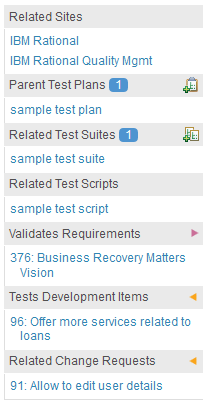
|
| Test cases |
Precondition and post-condition sections in the Test Case Result editor New precondition and post-condition sections were added to the Test Case Result editor. These sections display the content from precondition and post-condition sections of the associated test case at the time of execution. |
| Test environments |
Send an ID for the test environment to RQM adapters When a test case runs, the data that is passed to the adapter (the execution request) includes the test environment name, not the identifier of the test environment or the URI for the test environment. Because duplicate names are allowed for test environments, the adapter cannot determine which test environment to use. Now, a unique identifier is passed with the test environment name so the adapter can determine which test environment to use. This unique ID field is visible in the Execution Variables section of a test case result. Image of the test environment ID with the test environment name in the Execution Variables section: 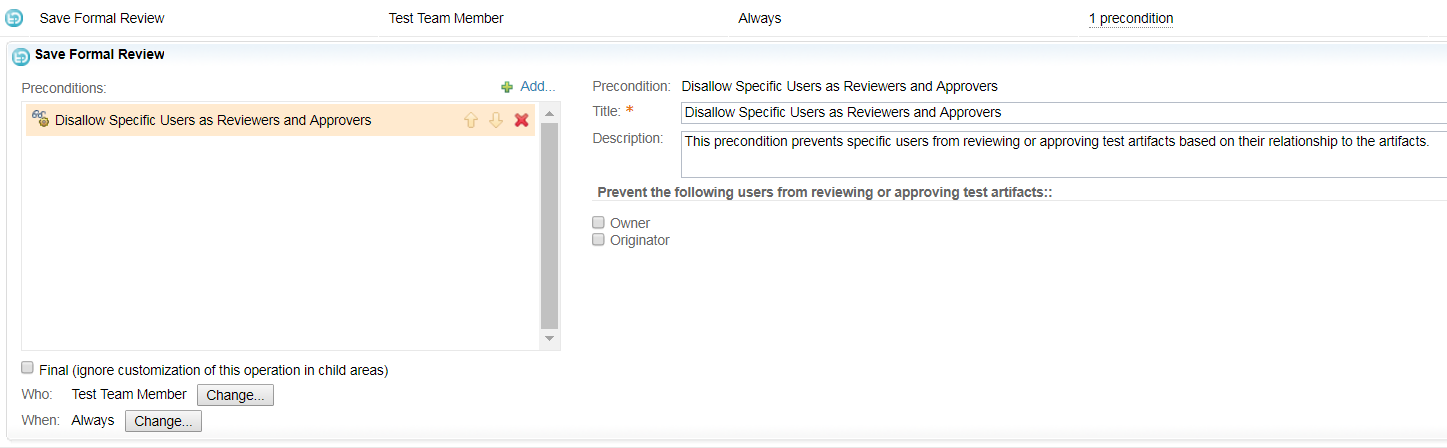
|
| Test execution |
Automatically delete artifacts when a test case or test suite is no longer referenced from a test plan TCERs and TSERs are deleted as part of a scheduled background task which occurs once a day by default. To modify the schedule frequency, go to Advanced Properties and change the "Case and Suite Unreferenced by Plan Clean Up Task Fixed Delay" setting. |
|
Automatically update the Time Spent field in test case execution records Previously, you had to manually update the Time Spent field of a test case execution record after it ran. Now, a new preference named Calculate time spent of a test case execution record once its execution is over was added under Manage Project Properties > Execution Record Preferences. If you enable this preference, the Time Spent field of the test case execution record is automatically updated after it completes the current execution by subtracting the end time from the start time of the last result. Image of the new project property: 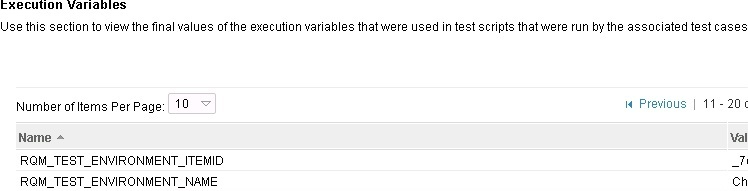
|
|
|
Distribute the weight of a test case result based on the actual result of the test case result By default, the weight distribution of a test case result depends on the verdict of its step results. Consider an example where the weight of a test case result is 100 and it has four step results. Three step results are passed, one step result fails, and the overall actual result of the test case result fails. The passed point of the test case result is 75 and failed point is 25. A new project property named Calculate weight of a test case result based on actual result was added under Test Result Preferences. If you enable this preference, the weight distribution of the test case result is based on the actual result and not on the verdict of the step result. Because the actual result failed in the example, the failed point of the test case result is 100 and the passed point is 0. Image of the new project property: 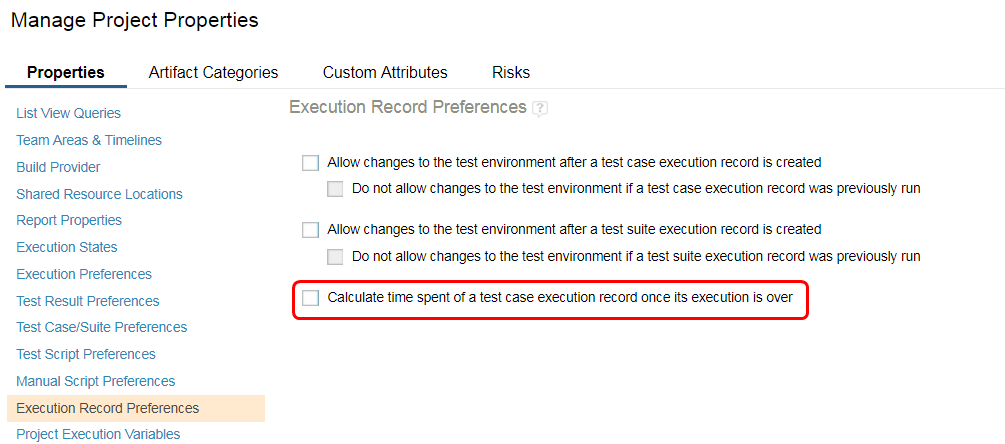
|
|
|
Identify a TCER or TSER to run based on additional input variables If an ID is not provided for a test case execution record (TCER) or test suite execution record (TSER) to run, the execution tool now supports these additional input variables to locate a TCER or TSER:
Note: These additional arguments are required only when a TCER or TSER ID is not specified. |
|
|
Move a defect at the step level during manual test execution When you run a manual test, you can add a defect at the step level. During test execution, you can now delete a defect from the current or a previously executed step and add it to another executed step. |
|
|
New column filters in the Add Step dialog box for execution schedules You can add a test case execution record and a test suite execution record to an execution schedule by using the Add Step operation. Column filters are now available for all columns in the Add Step dialog box for both test case execution records and test suite execution records. Image of the Add Step dialog box with column filters: 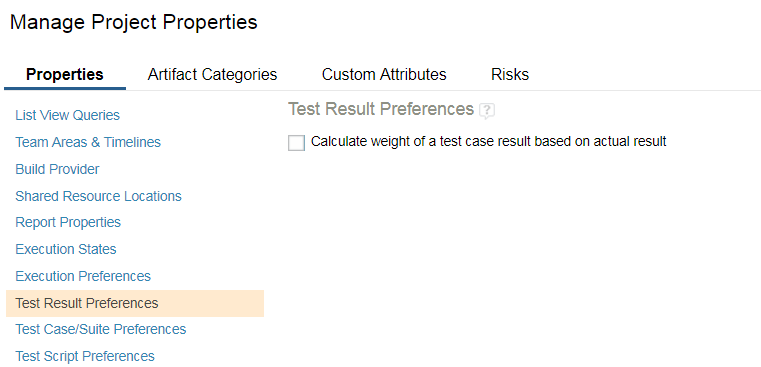
|
|
|
Preconditions and post-conditions are displayed by default in the test case execution console Previously, during test case execution, the precondition and post-condition sections of a test case were collapsed by default and only displayed the title and section description. Now, the two sections are expanded by default and their contents are displayed. The section description is in context-sensitive help, which is displayed when you hover over the help icon. |
|
|
Prevent test environments from being edited if execution records were previously run New project properties were added under Execution Record Preferences to prevent test environments from being edited if test case execution records and test suite execution records were previously run. The new preferences are Do not allow changes to the test environment if a test case execution record was previously run and Do not allow changes to the test environment if a test suite execution record was previously run. Image of the new project properties: 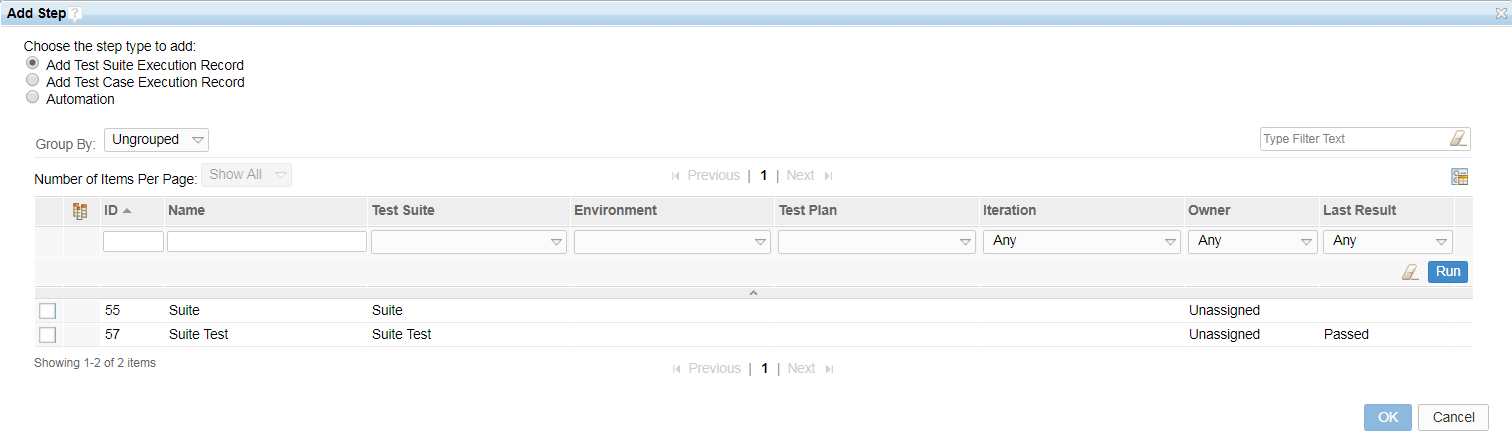
|
|
|
Run actions are available in each row in a TCER list view Previously, to run a test case execution record (TCER) from the list view, you clicked the row actions menu icon; then, from the drop-down menu, you clicked Run Test. Then, from another drop-down menu, you clicked Run to start the execution. The same multiple clicks were also required to resume a paused execution. This release includes a simpler way to start the execution. When you hover over an entry in the TCER list view, if the Last Result column is displayed (default), the Run icon is displayed beside the last result icon. This icon provides a simpler one-click option. If the execution is paused for the TCER, the Resume icon is displayed. The TCER list view also appears in the Test Artifact dashboard viewlet, and this capability is available in that viewlet. |
|
| Usability enhancements |
Copy the link for the current page as rich text In 6.0.5, the Copy link for this page action was introduced to copy the URL of the current page. This action was enhanced to copy the link as rich text for browsers that support it such as Google Chrome and Microsoft Internet Explorer. If you paste the copied rich text link in applications that support rich text, such as Microsoft Outlook and IBM Notes, the title of the page is displayed as a link, with the URL set as the HREF attribute of the link. |
|
Description column in the browse test case table An optional Description column was added to the browse test case table. To add this column, use the "Change column display settings" dialog box. The new column is also available during a CSV or PDF export of the browse test case table. |
|
|
Filter icon in the Test Artifact dashboard viewlet A Filter icon was added to the header of the Test Artifact dashboard viewlet. The filter provides the same text search capability as the text search in Rational Quality Manager artifact list views. |
|
|
Improved navigation to the Filter By panel In artifact list views, a button is now available to open and close the left navigation pane. The navigation pane is organized into tabs, which makes selecting the Filter By panel easier. Image of the artifact list view with the navigation pane closed: 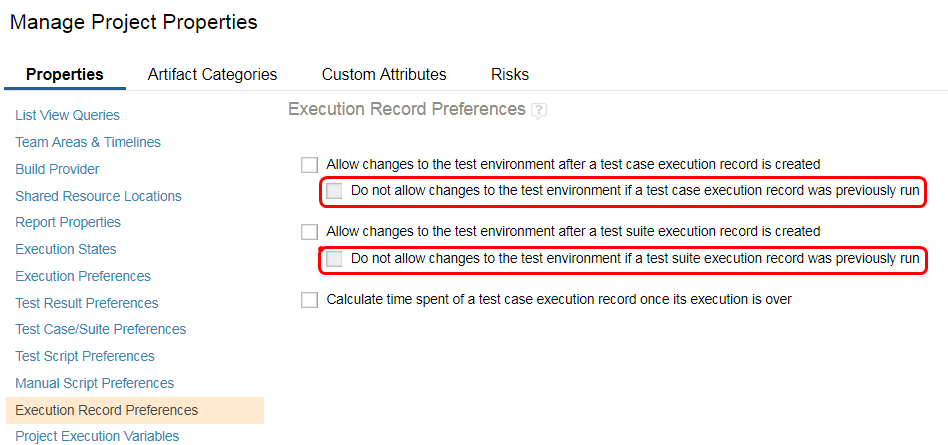 Image of the artifact list view with the navigation pane open: 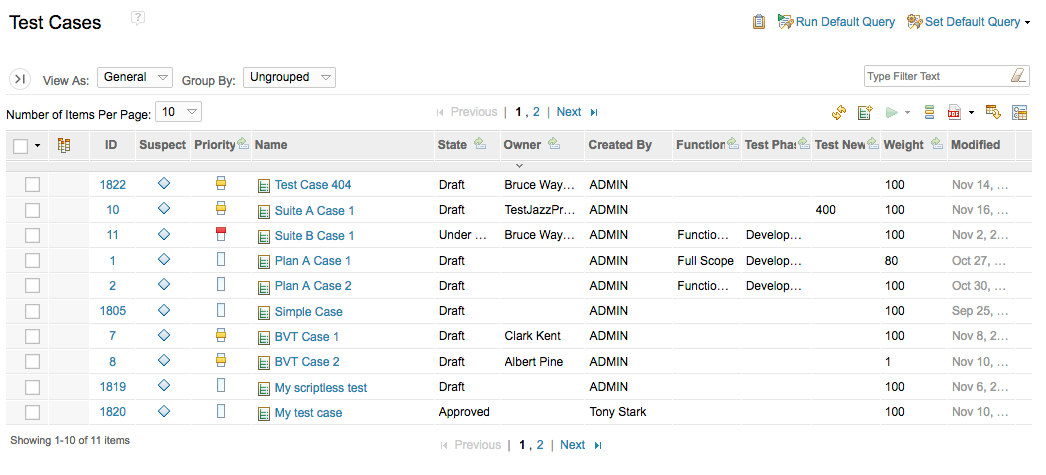
|
|
|
Updated navigation and organization in the Project Properties window In the Project Properties window, the groupings of project properties are now organized and displayed as tabs. When you select a tab, the group's properties are displayed on the left, which streamlines the display and makes navigating to the group's properties easier. Image of the Project Properties window: 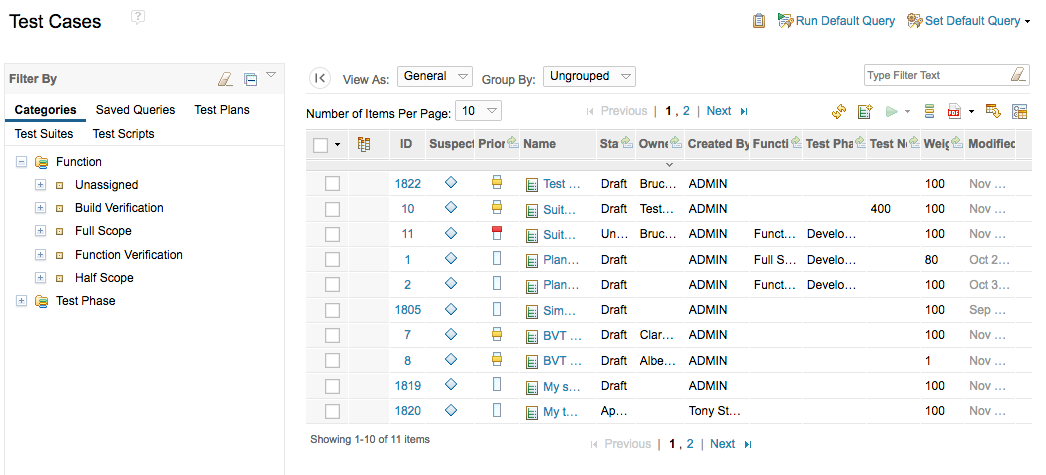
|