| Description | |
|---|---|
| Document Builder |
Document Builder: Auto-complete support for tags You can apply tags to assets, connections, and schedules. As you type into the tag field, auto-complete displays matching tags so that you do not have to remember the full tag name. You can also reuse existing tag names. Image of autocomplete tags: 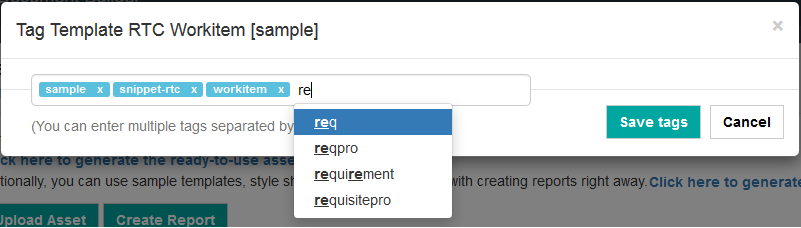
|
|
Document Builder: Enhancements to asset permissions Additional enhancements are added to the existing asset permissions in Document Builder: #1. High-level configuration for default privacy settings Administrators can now set the default privacy for the assets being generated. Assets are private by default and can be set to public if required on the Runtime Variables page. Image of privacy configuration: 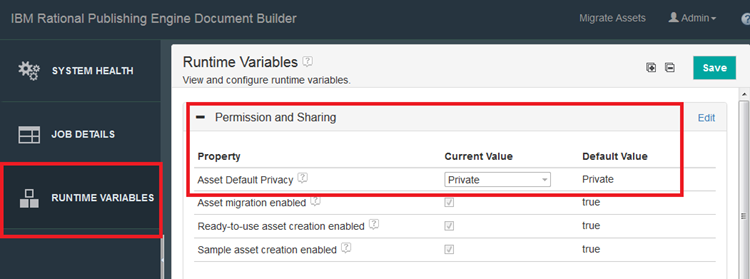 #2. Make Public option while uploading an asset or creating a report Report designers can now set privacy levels when uploading assets or creating reports. The Upload window and the Create report page now have a Make Public check box where you can set the privacy. Image of making assets public: 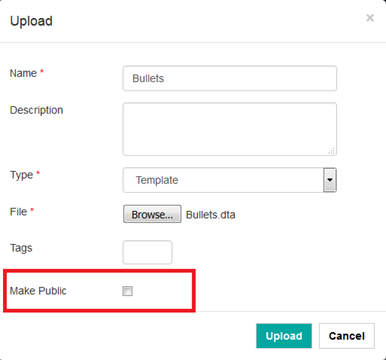 Image of making reports public: 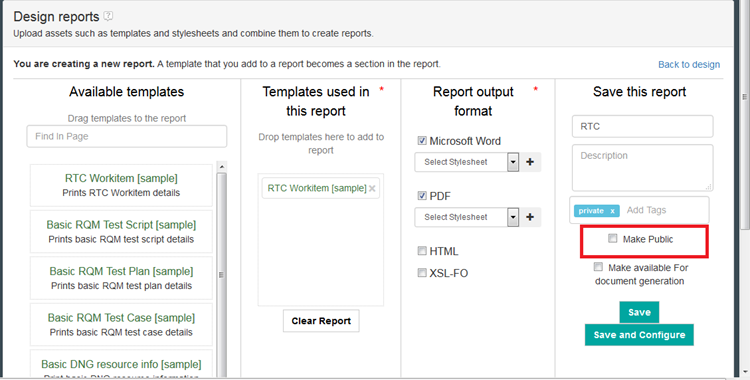 #3. Mark multiple assets as public or private You can now change the privacy settings for multiple assets at once. When you select several assets and click the Change privacy settings icon, you can select either the Private or Public option and save it as a new privacy setting for the marked assets. Image of marking privacy for multiple assets: 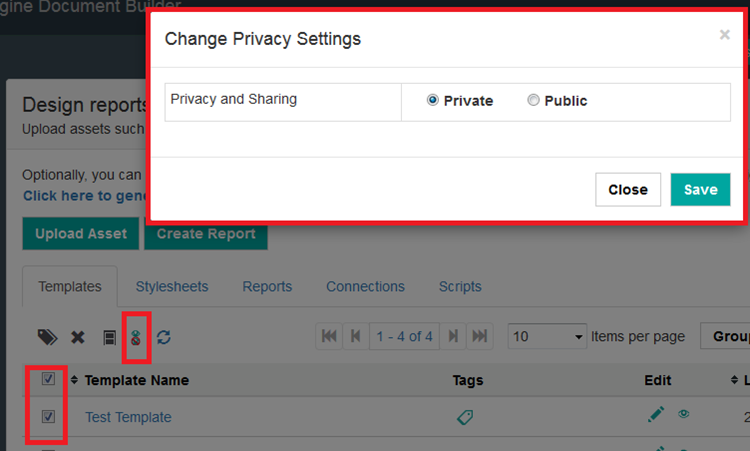
|
|
| Document Studio |
Document Studio: Redesigned welcome screen When you open Document Studio, you see a redesigned welcome screen. It provides direct links to new features and enhancements from the release, videos, and more. The new welcome screen helps new users to take guided tours or use the template assistant to build templates and generate documents. Experienced users get access to recently opened files or open starter templates for products like IBM® Rational® DOORS®, IBM Rational DOORS Next Generation or IBM Rational Quality Manager. Useful links to related content give quick access to product documentation, blogs, the support portal, and other resources. Image of the welcome screen: 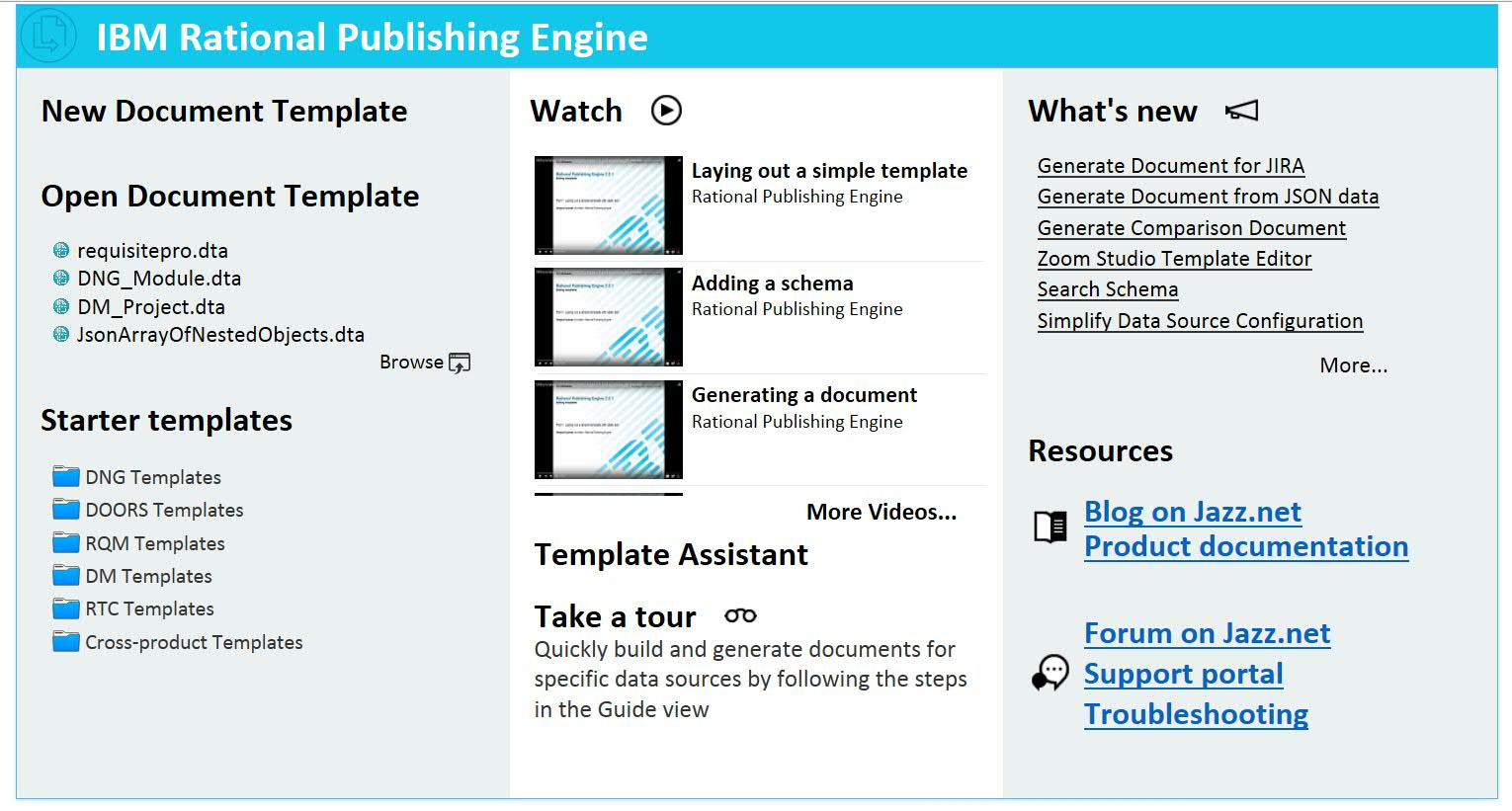
|
| Launcher |
Launcher: Compare two documents You can create a document that shows the differences between two documents. For example, you might want to compare two different views from IBM® Rational® DOORS® Next Generation, or two versions of a test case or test plan in IBM Rational Quality Manager. First, generate a base document, and then when generating the second document, specify the properties of the base document in the document specification. When the target document is generated, the comparison document is also generated. You can see the tracked changes as pictured in the following image. Image of a requirements comparison document with tracked changes: 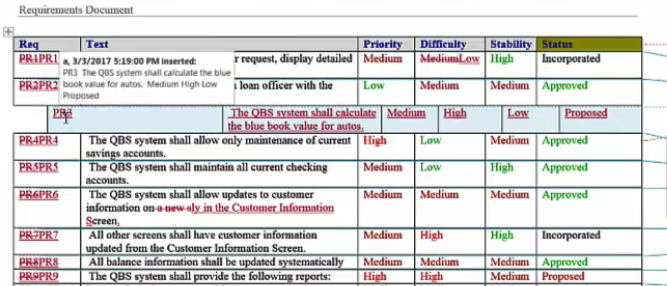
|