| Description | |
|---|---|
| IBM Documentation |
IBM Knowledge Center is now IBM Documentation
On April 1st, IBM released the newest version of our product documentation site, with a new user experience and a new name—IBM Documentation. Previously known as IBM Knowledge Center, IBM Documentation offers a modernized user experience built with IBM Design Language. Get started now in IBM Documentation, and look for the guided tour that walks you through the new features. Notes:
|
| RMM-JRS Integration |
Enable JRS reports for opt-out projects
Now, Rhapsody Model Manager (RMM) offers the ability to support Jazz Reporting Service (JRS) reports for opt-out projects. You can generate reports from opt-out projects that contain data from the default OSLC context only. By preventing the publishing of other streams in an opt-out project, it ensures that only a single version of an architecture element is available in the reports (the versions from the published default OSLC context). The ability to publish data from the default OSLC context is available under the Architecture Management > Settings page of the Project Area editor. Image of the Settings page: 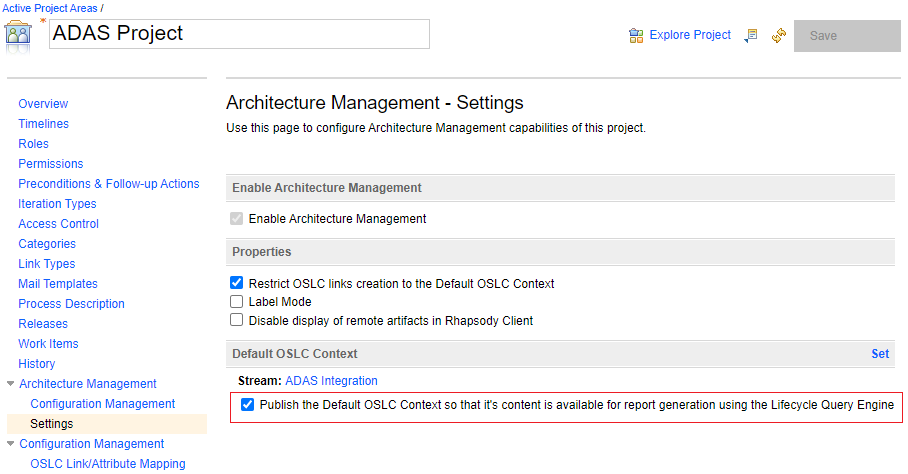 Only administrators with the Source Control > Tracked Resource Set > Publish & Unpublish permission can publish the default OSLC context. Image of the Publish & Unpublish permission: 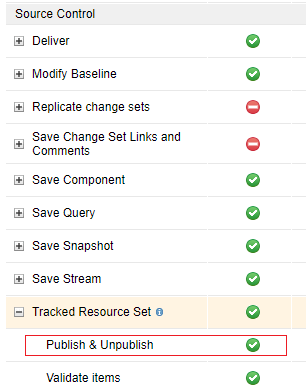 Note: If an opt-out project is to be used for reporting, all components in the default OSLC context must be owned by the same project area. This limitation arises from the fact that project area filtering uses the component owner. Therefore, if components that are published span multiple project areas, the report might have unexpected results when the filter is used to show data from the opt-out project area only. |
|
Enable JRS reports to filter architecture elements by component
In Report Builder, you can now use the Add Condition dialog to filter architecture elements by their corresponding component. Image of the Add Condition dialog: 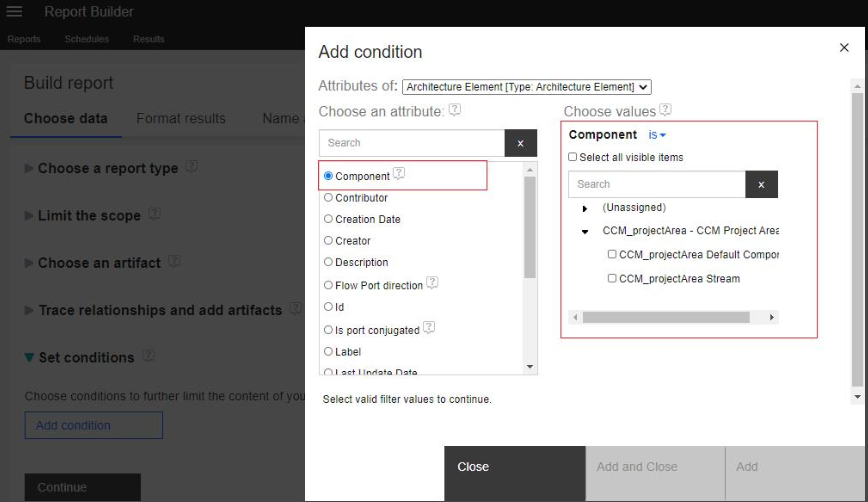 Note: In the preceding image, the component represents SCM components only. Architecture elements are available in an SCM file that exists in those SCM components. |
|
|
Enable JRS reports to filter architecture elements by project area
In Report Builder, you can now use the Add Condition dialog to filter architecture elements by project area. The new attribute Project Area provides the ability to generate JRS reports based on project area. Image of the Add Condition dialog: 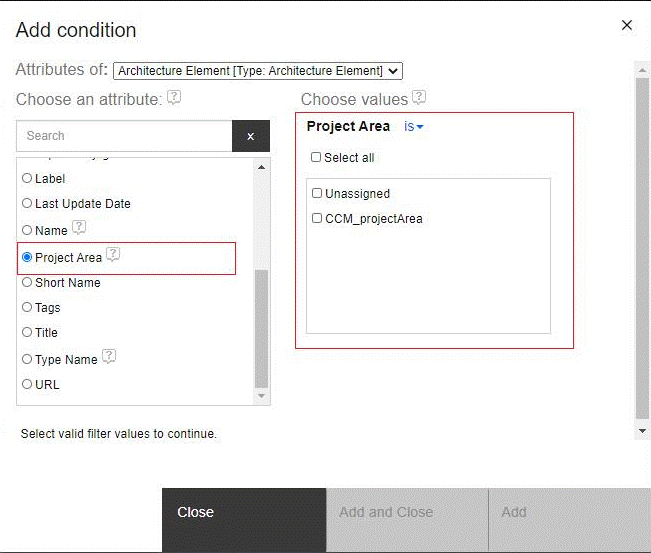 Alternatively, you can select one or more project areas from the Limit the scope section to restrict report contents to the selected project areas only. Image of the Limit the scope section: 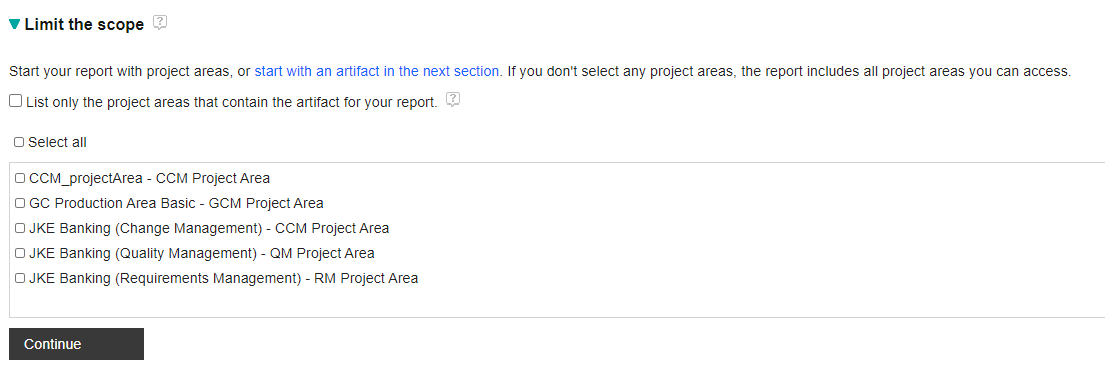
|
|
| Web UI |
View quick search results in a table view on main page
Now, you can view the search results of architecture elements in a table view on the main page. To view the results on the main page, click the Search icon or press Enter. By default, 25 architecture elements are displayed on each page. You can use the pagination options to browse through pages. Image of the quick search results on the main page: 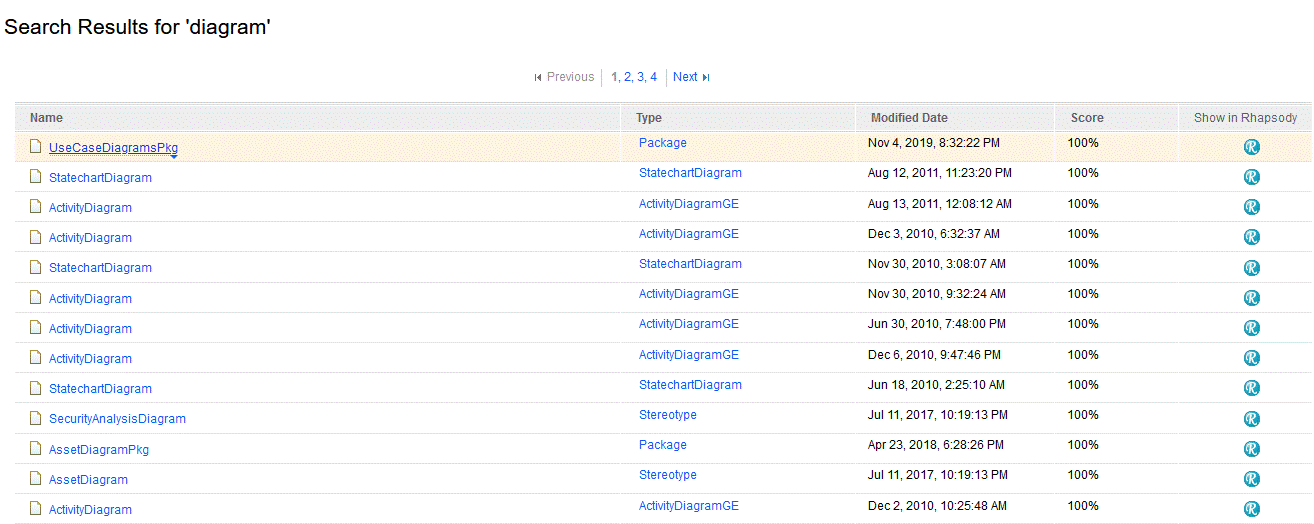 In the table view, you can sort results data by descending, ascending, and default order on all columns except the Show in Rhapsody column. The default order displays the results based on the descending score in the Score column. Image of the search results by default order: 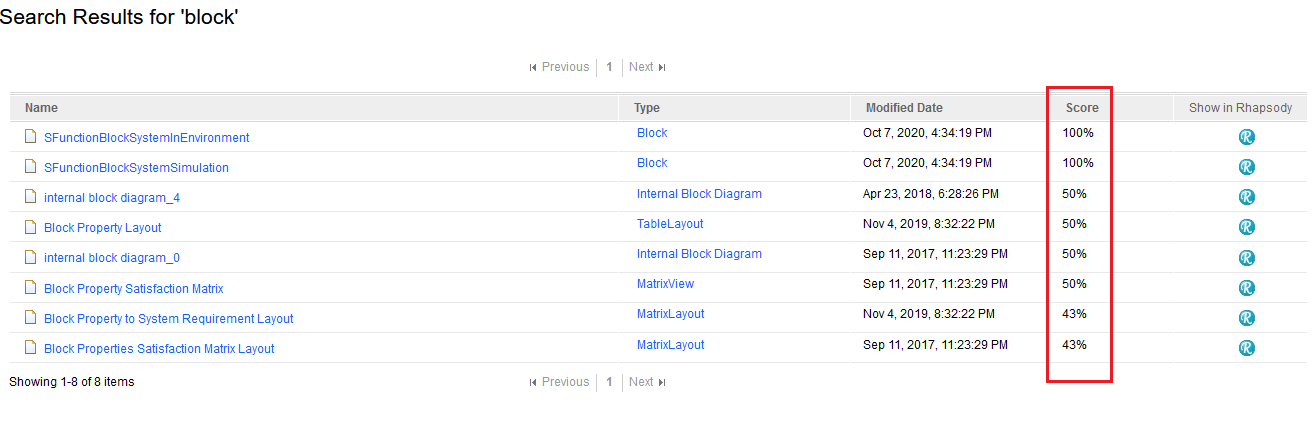 Click the Show in Rhapsody icon of a corresponding architecture element to open the element in the Rhapsody client. |