| Description | |
|---|---|
| Lifecycle Query Engine |
New look for LQE banner
The product banner for Lifecycle Query Engine (LQE) is now updated to align with IBM's open-source Carbon design theme. This modern theme provides a consistent look across IBM products. Image of the product banner for LQE:  |
| Report Builder |
Run Report Builder against the types from a user-specified set of Global Configurations Reporting takes types from across multiple projects, domains, and servers and utilizes a merging approach that helps to provide a concise view of the IBM Engineering Lifecycle Management (ELM) type system. This is referred to as the metamodel that is used in Report Builder for a particular data source connection (LQE, LQE scoped by a configuration, and Data warehouse have 3 corresponding metamodels). This allows reusable reports to be created and shared across the enterprise. The goals of the reporting type system require that an organization plans and communicates amongst their stakeholders what they want to see in their type system so that concepts that can be shared across project areas are set up appropriately. There are situations in which one consistent metamodel is not possible, for example:
To create a new Report Builder data source scoped by a configuration, an RB administrator:
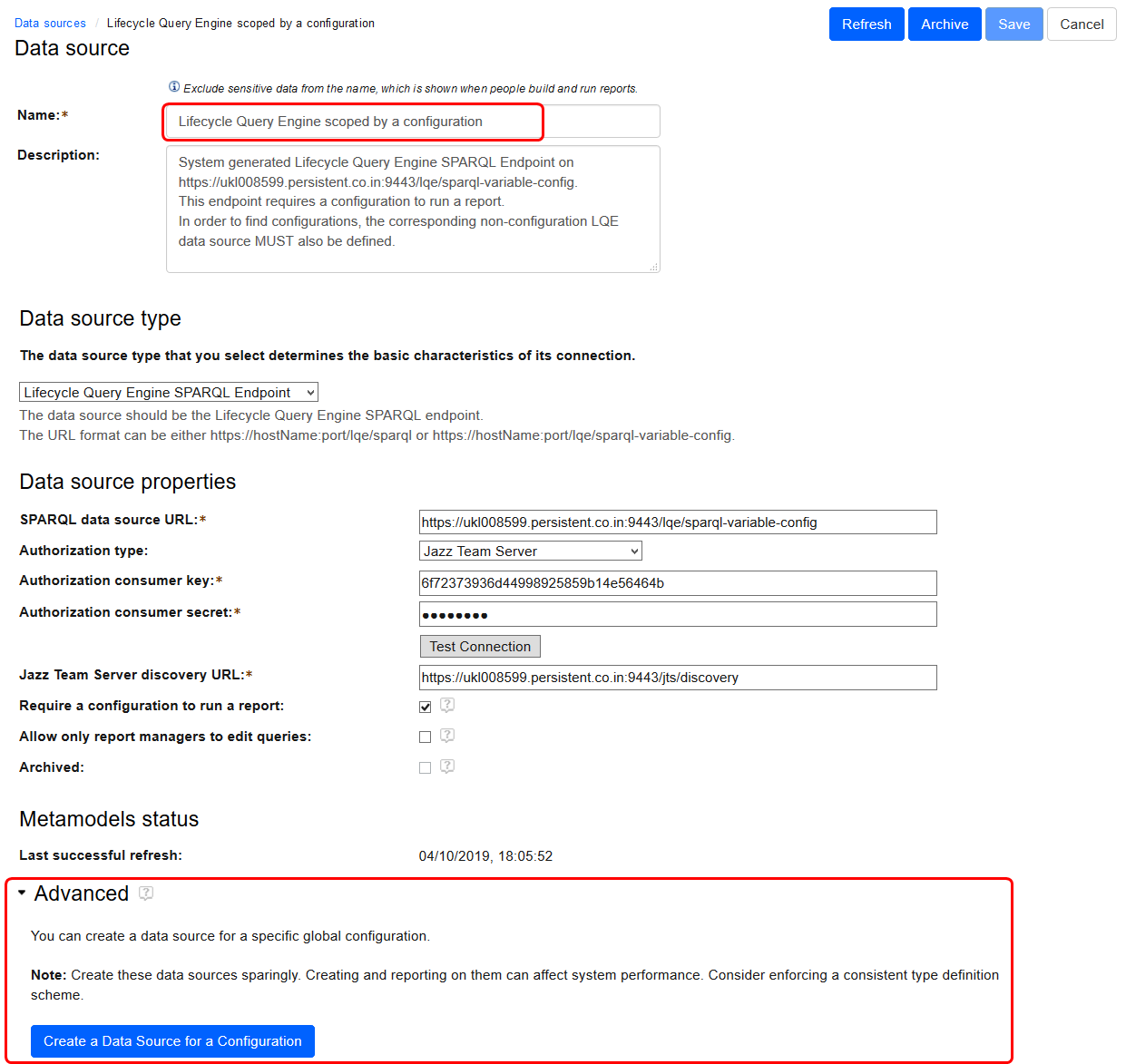 2. Clicks the Create a data source for a configuration. 3. Selects a configuration, typically a global configuration as shown below: Image of the configuration picker:299002 4. Verifies the details for the proposed new data source and clicks Save as shown below. Image of the data source details: 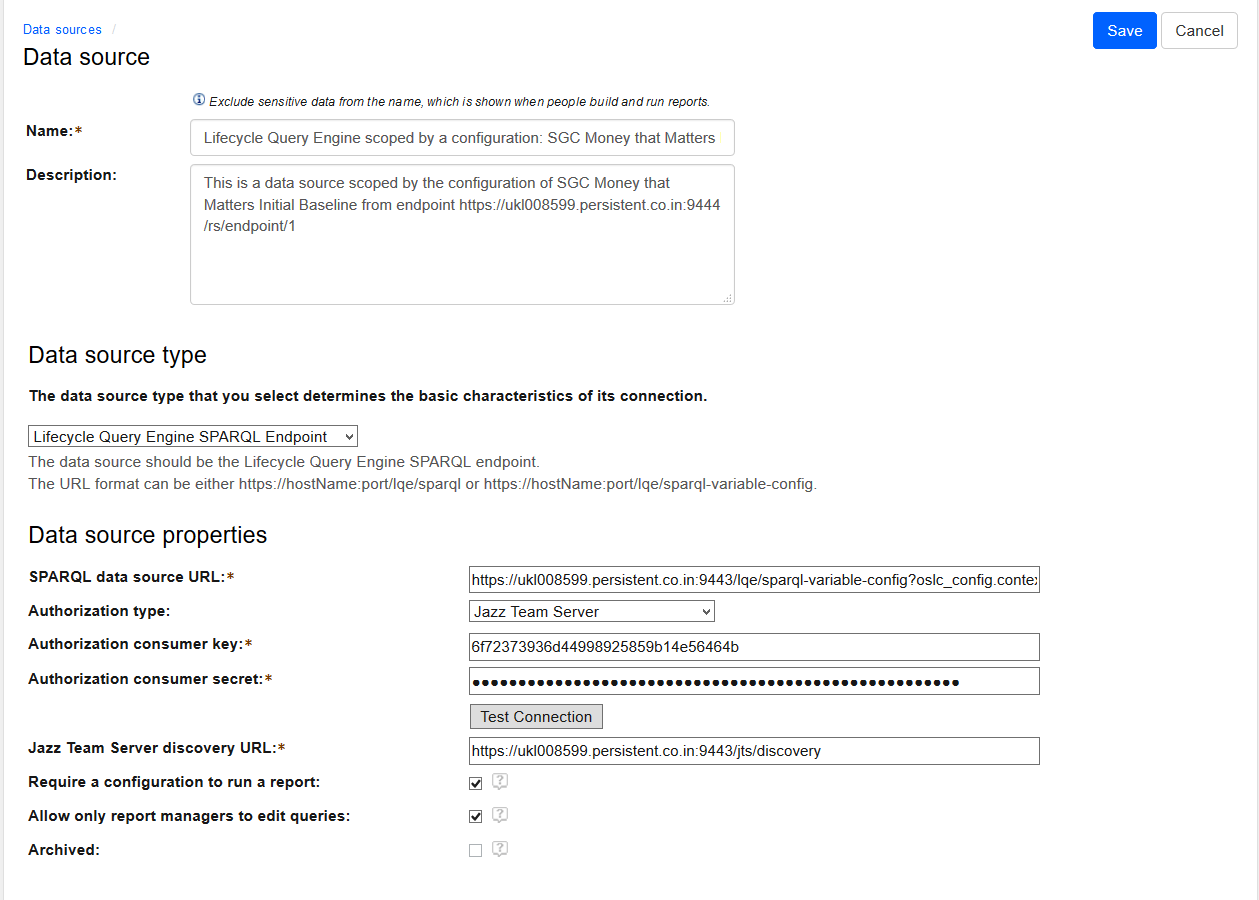 RB administrators can change the configuration for the data source by clicking Choose configuration as shown below. In doing so, the RB administrator must take care to select a configuration that is related to the current configuration with compatible DOORS Next types. Image of choosing the configuration and the Archive button : 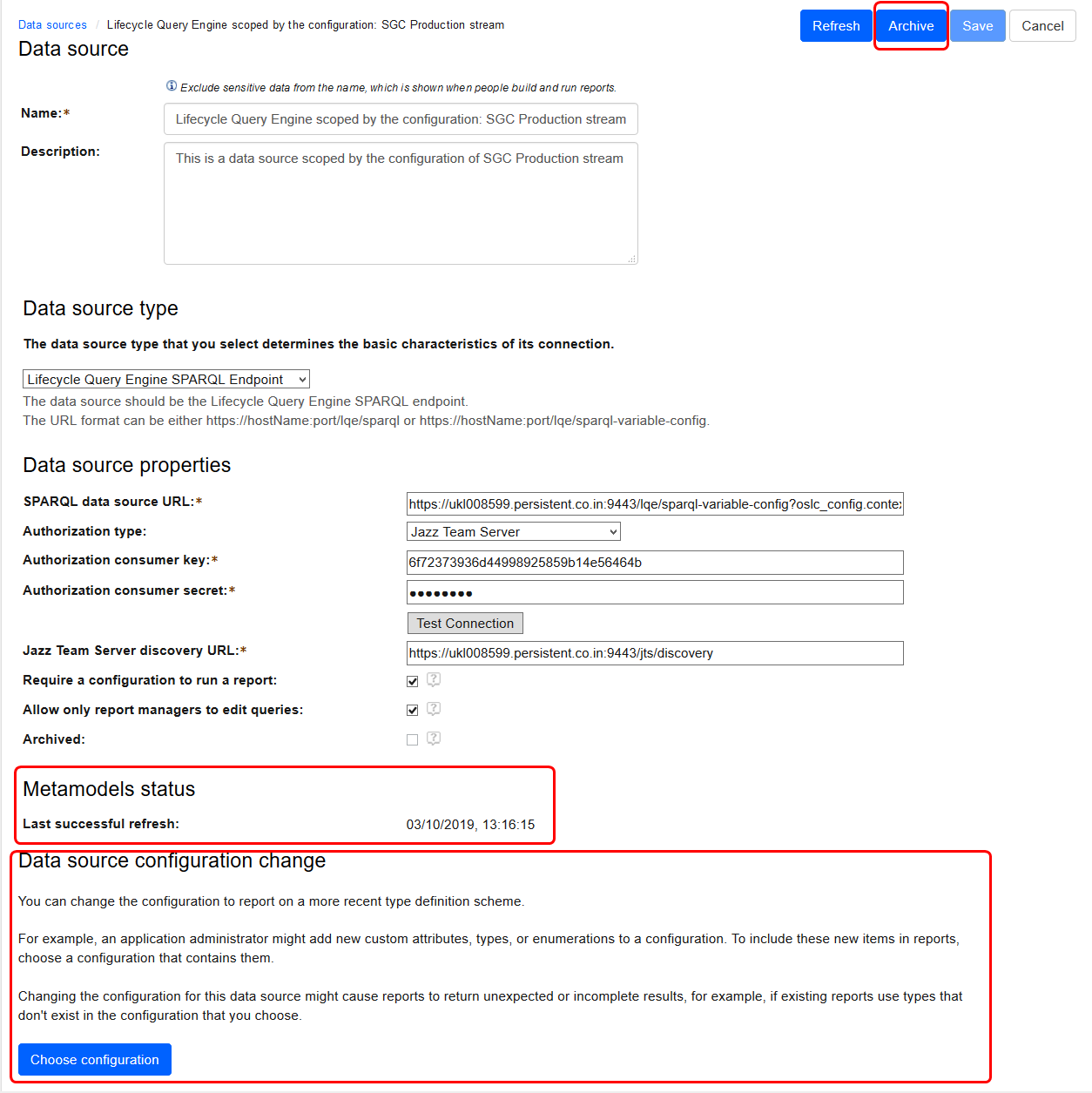 Currently the only ELM application that has a versioned type system is DOORS Next. Typically, you use a Global Configuration that has contributions from at least one DOORS Next configuration. When creating the new RB data source as above, RB will create metadata scoped to the specified configuration, only including type information from DOORS Next that belongs to the DOORS Next configurations that contribute to the global configuration. Note that creating such additional RB data sources consumes more memory on the RB server, and the server might need additional resources to perform well. RB administrators can archive data sources, such as configuration scoped ones, by clicking on Archive as shown in the image above. Before doing so, the RB administrator should ensure that reports for that data source are not in active use in dashboards or run frequently by users. Such reports cannot be modified or run if the associated data source is archived. Archiving a data source means that the RB server does not need to hold the metadata for that data source in memory. Users who have reporting requirements to reproduce old reports can Restore an archived data source. Configuration scoped data sources are not automatically refreshed. An RB administrator must manually refresh a configuration scoped data source. If the data uses a global baseline, then a refresh should never be needed. The page for a specific data source now includes a Metamodels status section that shows when the meta data for that data source was last refreshed. The above image shows an example where the last refresh was successful. Image of an example with simulated errors: 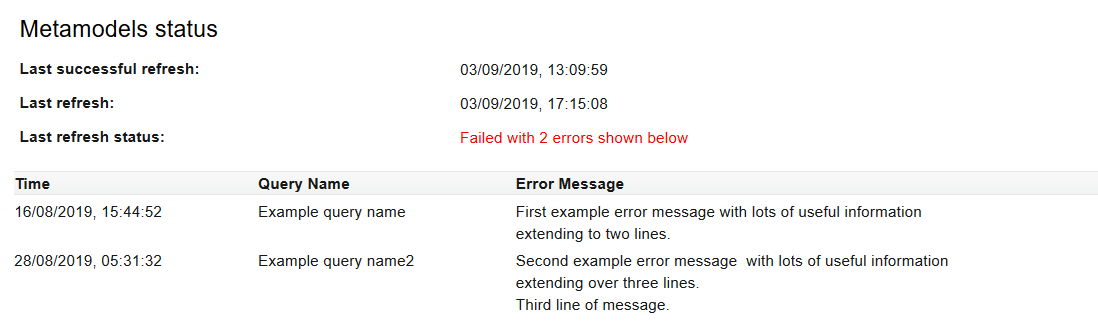 The Data sources page includes a new Show archived data sources check box which is cleared by default, and the page only lists data sources that are not archived. Setting that check box shows all data sources and a column for the archived state of each data source as shown below. Image of the Show archived data sources check box: 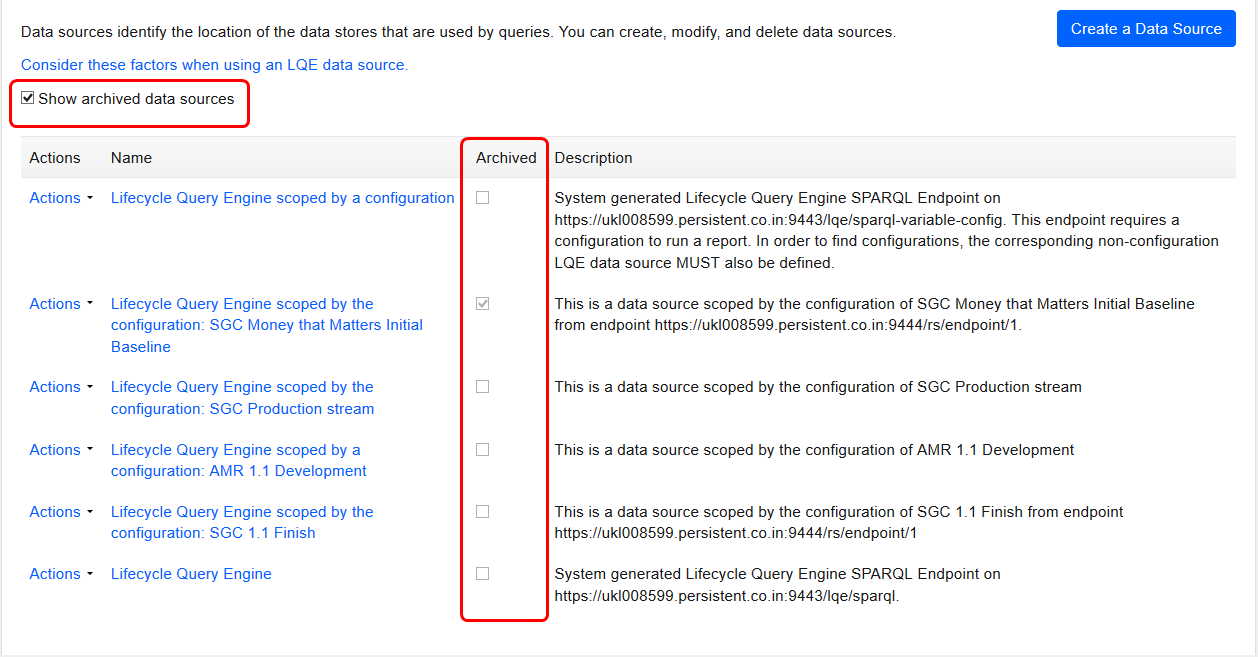
|
