| Description | |
|---|---|
| IBM Documentation |
IBM Knowledge Center is now IBM Documentation
On April 1st, IBM released the newest version of our product documentation site, with a new user experience and a new name—IBM Documentation. Previously known as IBM Knowledge Center, IBM Documentation offers a modernized user experience built with IBM Design Language. Get started now in IBM Documentation, and look for the guided tour that walks you through the new features. Notes:
|
| Jazz Source Control |
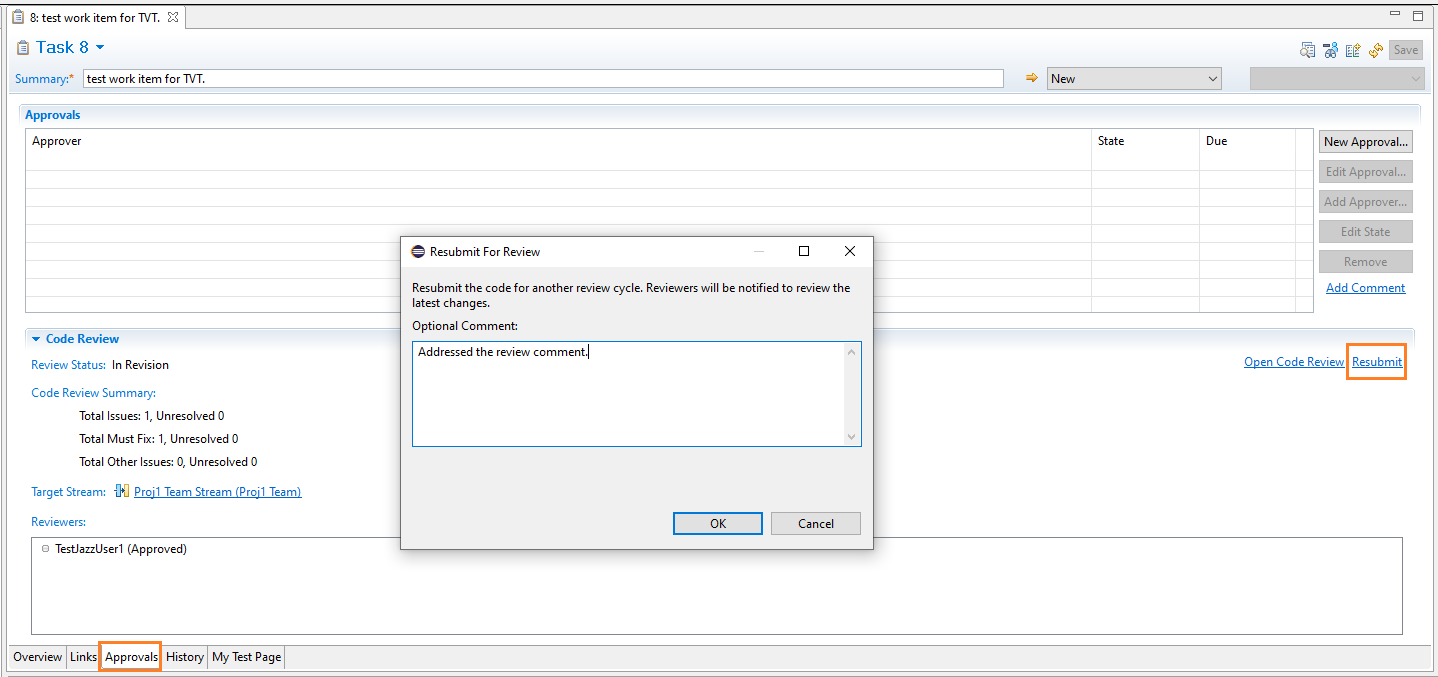
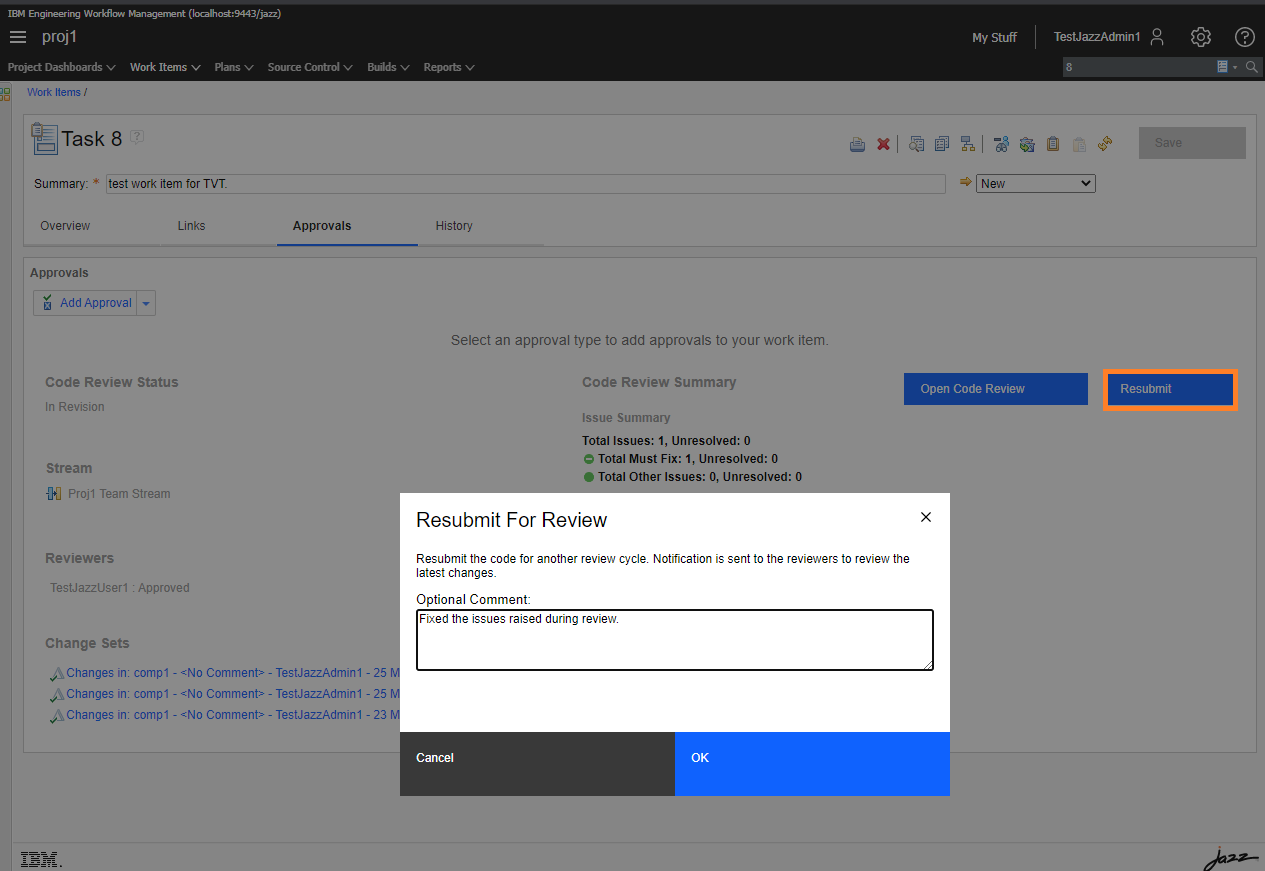
Support Resubmit scenarios for code review in the work item
Users can now resubmit the code for review from the code review presentation view in the work item by using the Eclipse, web, or Visual Studio clients.
Image of code review presentation to show the Resubmit action in the Eclipse client: Image of code review presentation to show the Resubmit action in the web client: |
| Tracking and planning |
Age in State plan attribute
You can use the new Age in State plan attribute to track the progress of a plan item based on its age in the current state. Age in State is defined as the difference between the current date and the date when the plan item was allocated to the current state for the first time. In a new Kanban Board, the attribute is added to all the large size cards by default. You can also add the attribute to an existing plan view. Image of the Kanban Board configuration with the Age in State attribute: 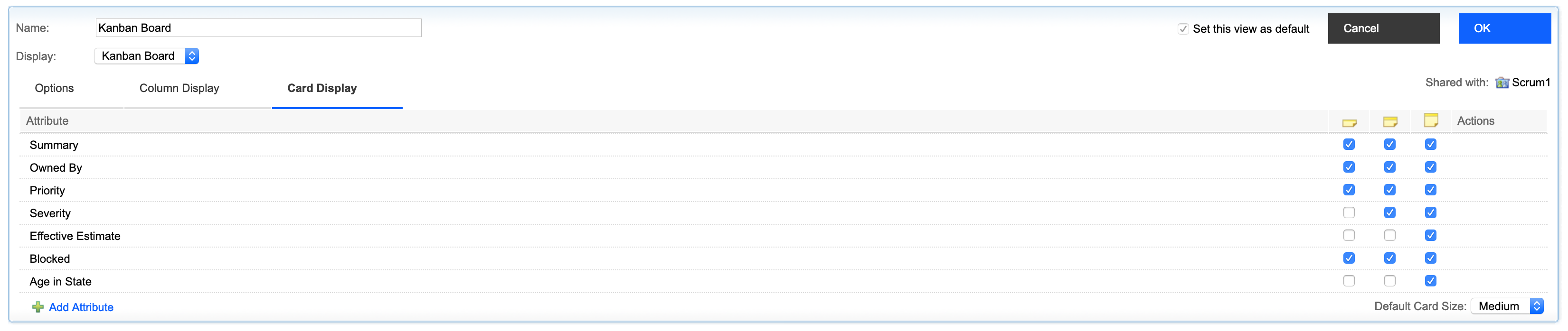 Image of a Kanban Board card with the value of Age in State displayed: 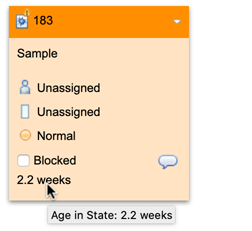
|
|
Improved selection dialog for Team Areas and Project Areas in the web client
In the web client, when you select one or more Team Areas or a Project Area in the work item editor or the query editor, you can now do the following: - Filter the values by name. - Select multiple values from the list. Image of the Select Team or Project Areas dialog with two Team Areas selected and two preselected Team Areas disabled: 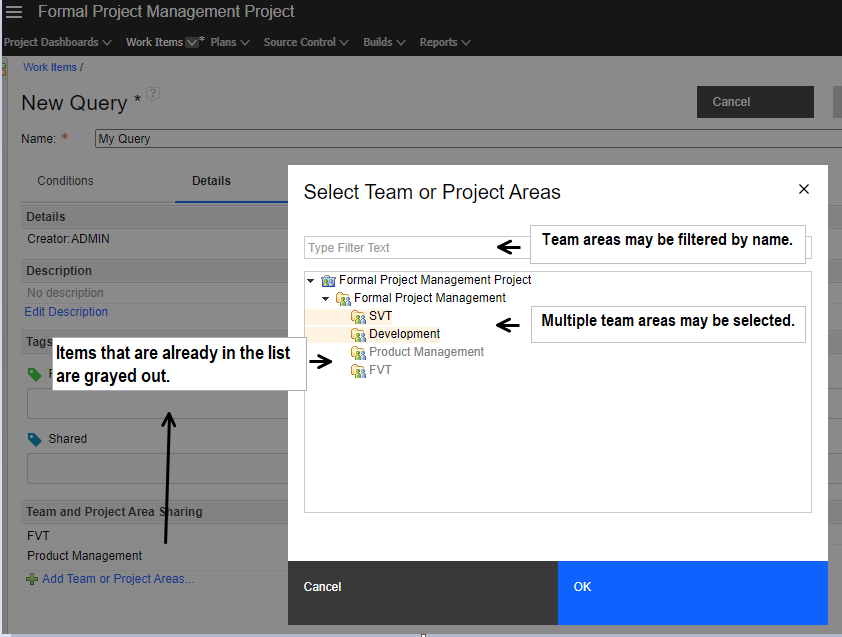
|
|
|
Paste an image from the system clipboard to a work item as an attachment
To add an image as an attachment, you can now copy the image from your system clipboard and paste it onto the work item editor. You can paste the image by using any of the following methods:
Image of the Add attachment dialog: 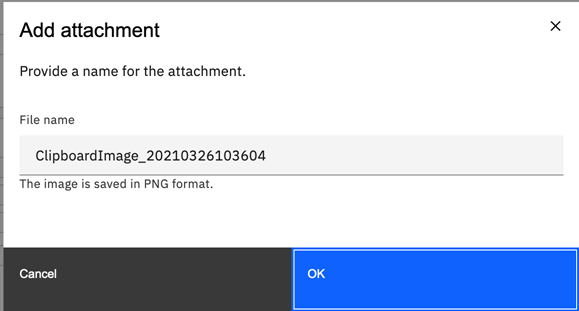 Limitations:
|
|
|
Save pinned lanes in Quick Planner
You can save the pinned lanes in the Quick Planner boards. If you pin one or more lanes in a board, the preference is saved in the system. The next time you or any other user views the board, the lanes appear in the order as pinned by the previous user. |
|
|
States filter customization in Quick Planner
In Quick Planner work boards, you can configure the States filter on the lane settings page. The States filter is now available for all the State groups, including the <All State Groups>. |