| Description | |
|---|---|
| Client for Visual Studio |
Ability to open web-based UI in Visual Studio by using the Microsoft Edge Chromium runtime
When you install the IBM Engineering Workflow Management (EWM) client for Visual Studio IDE on a machine with a compatible Microsoft Edge Chromium runtime, all web-based UI use the Microsoft Edge Chromium rendering engine in place of the unsupported Internet Explorer. This includes Feeds, History Graph, Operation History, and OSLC pickers. You can install the latest Microsoft Edge Chromium Evergreen Runtime from https://developer.microsoft.com/en-us/microsoft-edge/webview2/. |
| Engineering Workflow Management Shell |
Ability to open web-based UI in Shell by using the Microsoft Edge Chromium runtime
When you install the IBM Engineering Workflow Management (EWM) Shell client on a machine with a compatible Microsoft Edge Chromium runtime, all web-based UI use the Microsoft Edge Chromium rendering engine in place of the unsupported Internet Explorer. This includes Operation History and OSLC pickers. You can install the latest Microsoft Edge Chromium Evergreen Runtime from https://developer.microsoft.com/en-us/microsoft-edge/webview2/. Image of the additional Microsoft Edge Chromium runtime prerequisite check during installation: 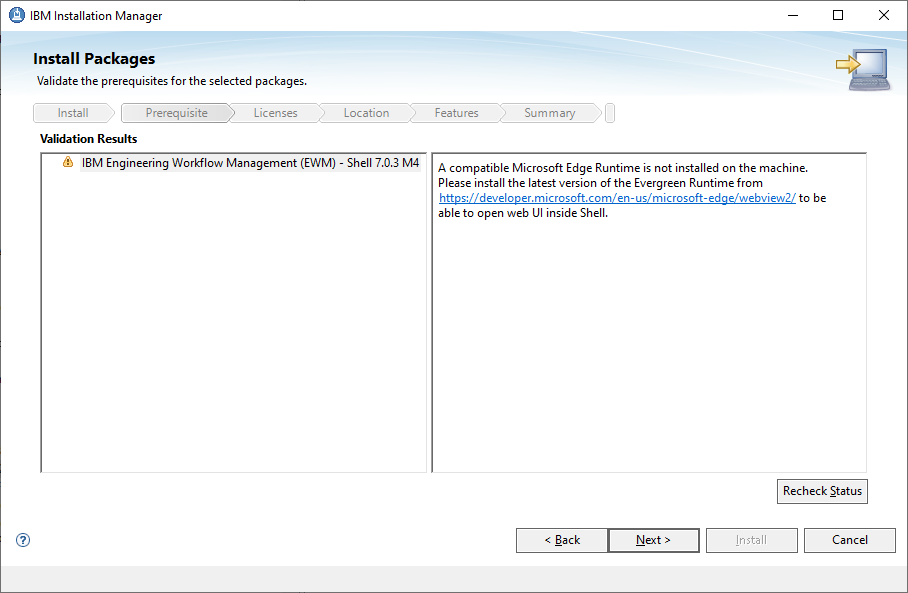
|
| EWM clients |
IBM Installation Manager can no longer be used to install the EWM client on MacOS
The Engineering Workflow Management (EWM) Eclipse client does not support installation by using IBM Installation Manager on MacOS. You can use the Eclipse p2 capability to install the EWM Eclipse client on MacOS. For more information, see Installing the IBM® Engineering Workflow Management client in Eclipse by using the p2 installation repository. |
| Git integration |
Ability to filter issue in the Git diagnostics table by project areas to easily browse the Git issues
You can now filter issues in the Git diagnostics table by project areas. Click the filter icon to view all table filters, including the additional project area filter. |
|
Ability to add a comment to the EWM Work Item from the command line or webhook when linking a work item to a Git commit
You can now replicate the commit details to the work item comments when you link Git commits through webhooks or post-receive hooks in GitLab from the Git Repository registration page for the GitLab hosting server. |
|
| Jazz Source Control |
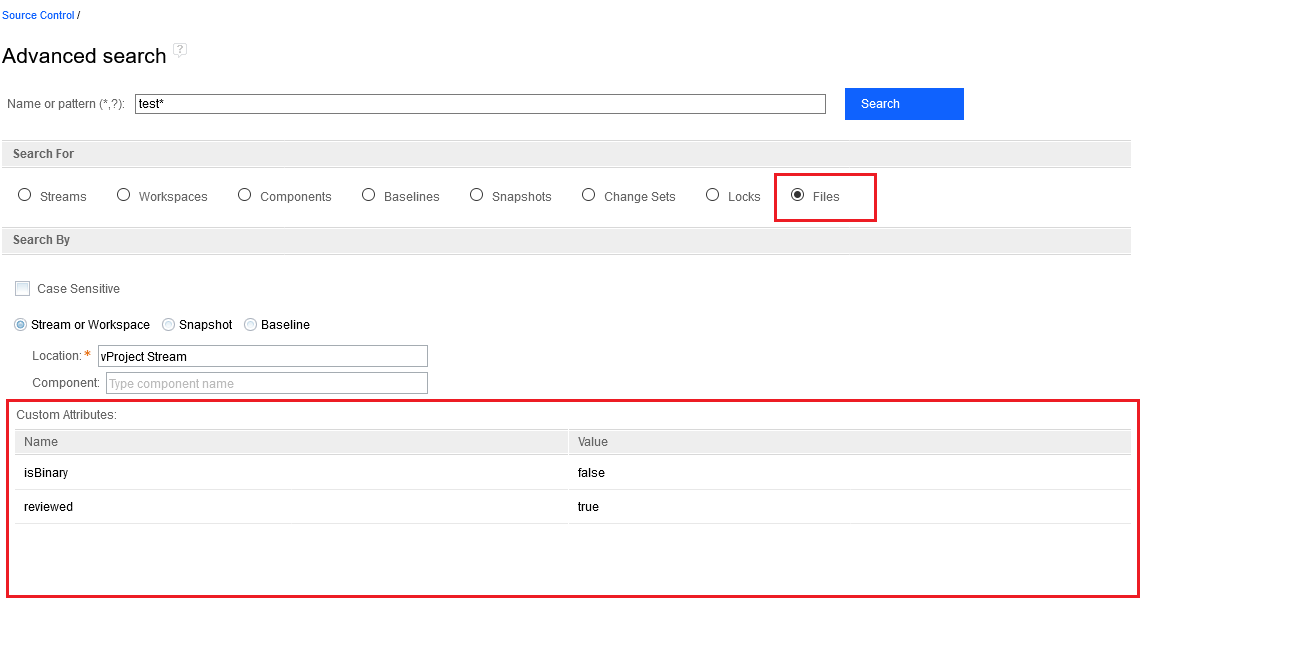
Ability to search for files based on custom attributes in the EWM web client
In the EWM web client, on the Advanced Search page of Source Control Management (SCM), you can now search for files based on custom attributes. |
|
New Preview pane available in a global configuration
A preview pane is now provided for source control contributions to the Global Configuration Management (GCM) application. The source control contributions are streams, components in a stream, snapshots, and baselines. When you select one of these contributions in a global configuration, the preview pane is populated with the information about the resource. Image of the Preview pane to show the preview of a source control stream: 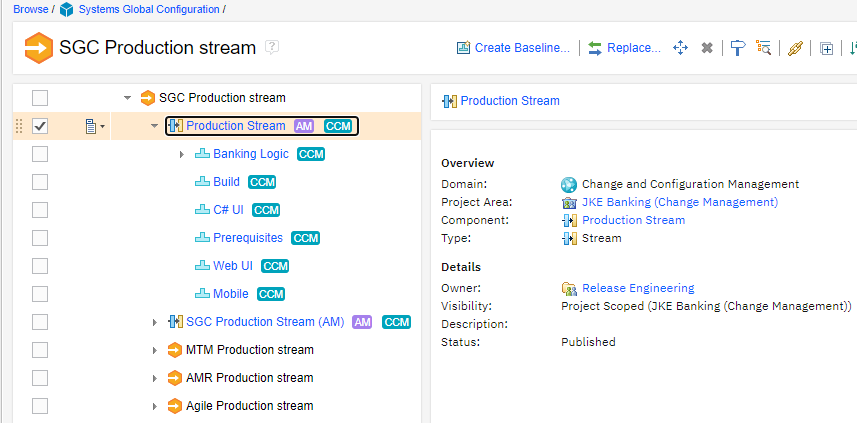
|
|
| Tracking and planning |
Option to display line breaks for large HTML attributes in query results
In the web client, the line breaks can now be preserved for large HTML and text attributes in the query result output. For example, the text in the Description field of work items displayed as a query result. By default, the feature is enabled. You can change the setting on the Advanced Properties page. You can set the Query Result Maximum Row Height property to define the maximum number of rows that can be displayed for each query result. The default value is 500. To disable the feature, you can set the value to 0. When the value is 0, the output is presented as it used to display in the earlier versions. For more information, see Configuring advanced properties. Image of the Query Result Maximum Row Height property on the Advanced Properties page: 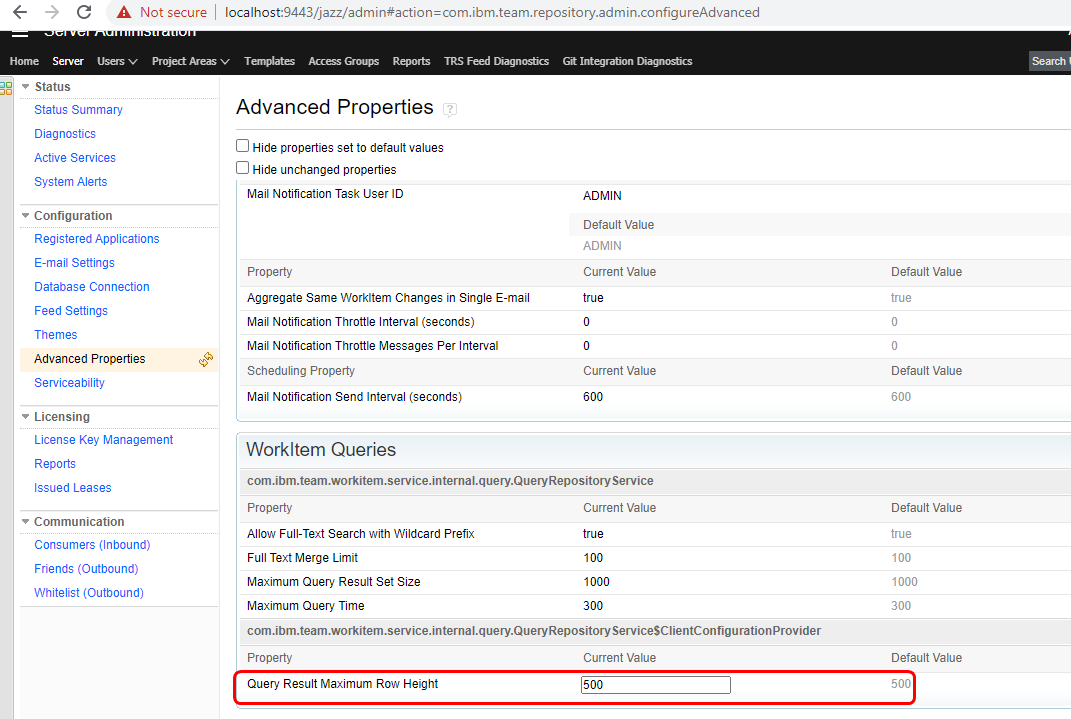 Image of the Description column when the default value of the advanced property is used: 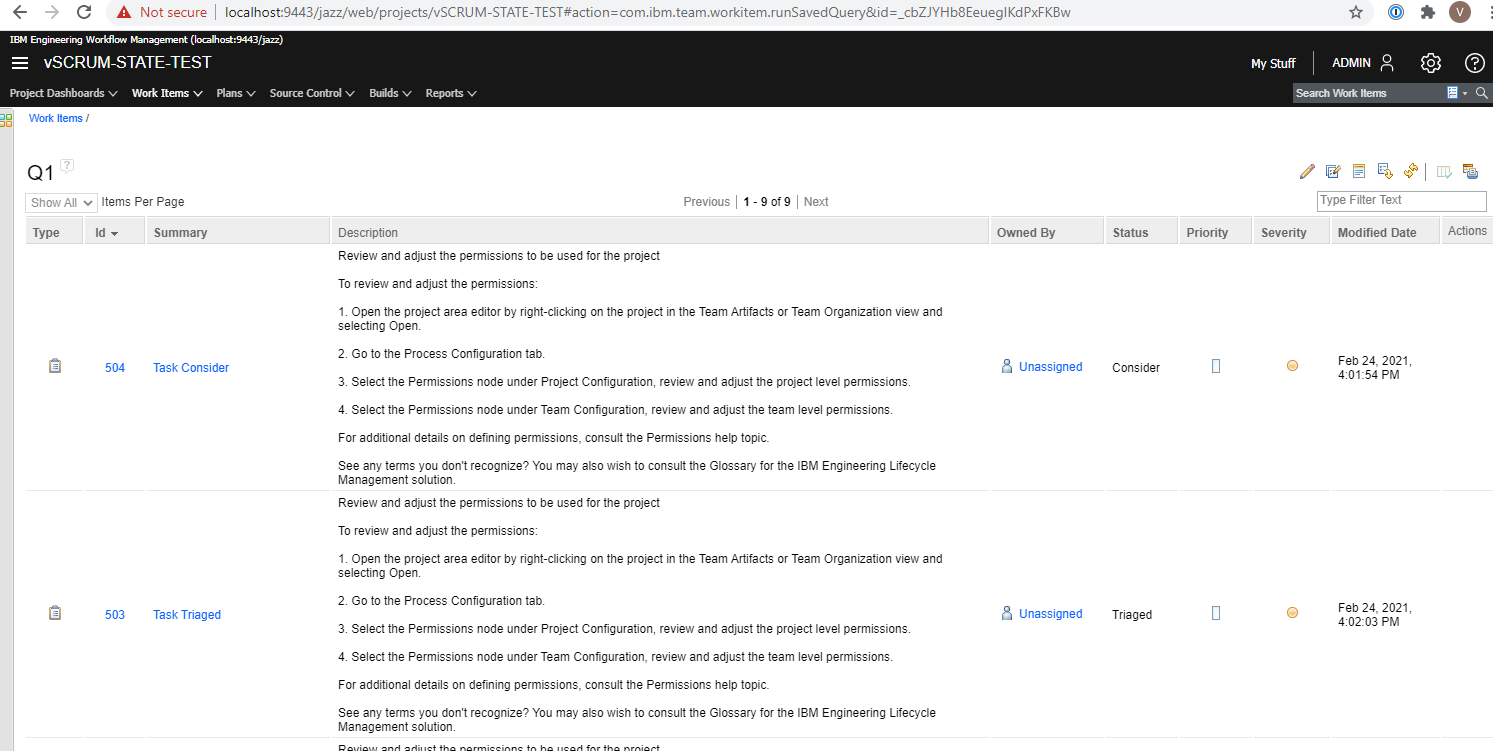 Image of the Description column when the value of the advanced property is set to 0: 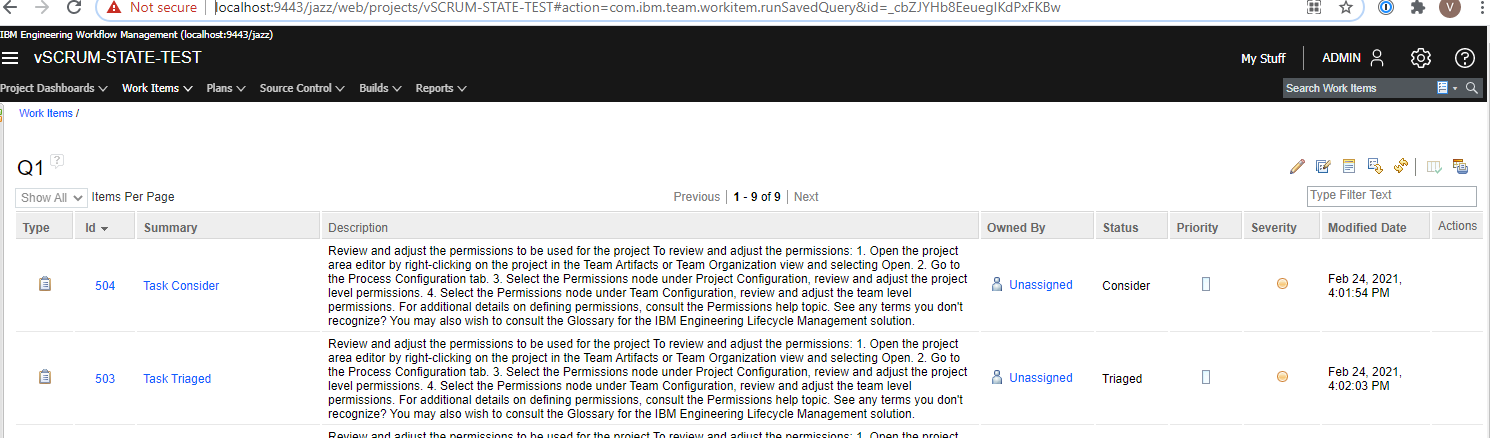
|
|
Users can opt out of automatic subscription to a work item
When you add a comment to a work item, you are automatically subscribed to the work item and you receive email notifications each time the item is updated. If you don’t want to be subscribed automatically to a work item when you add a comment, you can now choose to opt out of automatic subscription in the web client. To opt out, on the Mail Configuration page, clear the Subscribe me automatically when I add a comment checkbox. In 7.0.3, the option is removed from the Preferences page of the Eclipse client. You can configure the setting in the contributor’s profile or work items settings page in both web and Eclipse clients.However, Eclipse clients with versions earlier than 7.0.3 hold a higher preference and the new Contributor's profile setting is ignored. Image of the Work Items Preferences page in an earlier version of the Eclipse client: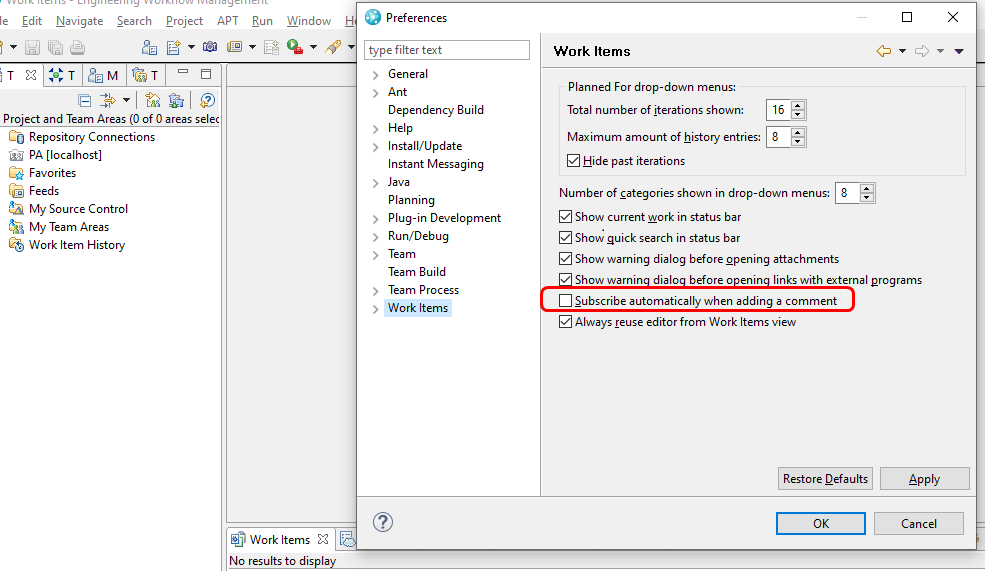 Image of contributor's setting in web client: 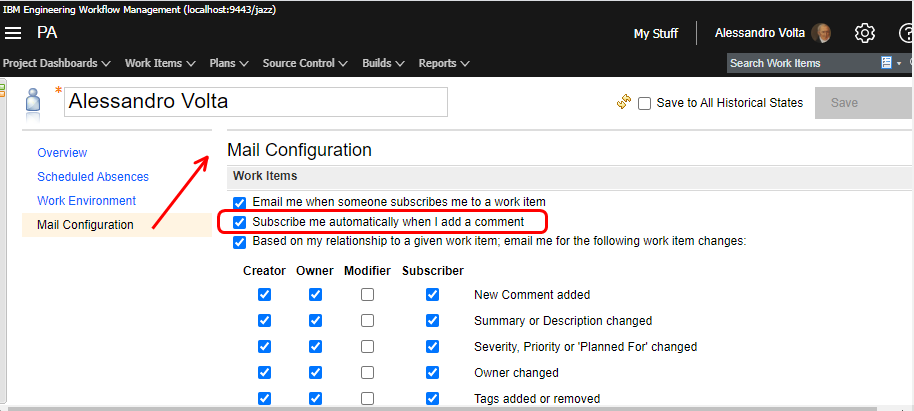 Image of contributor's setting in Eclipse client: 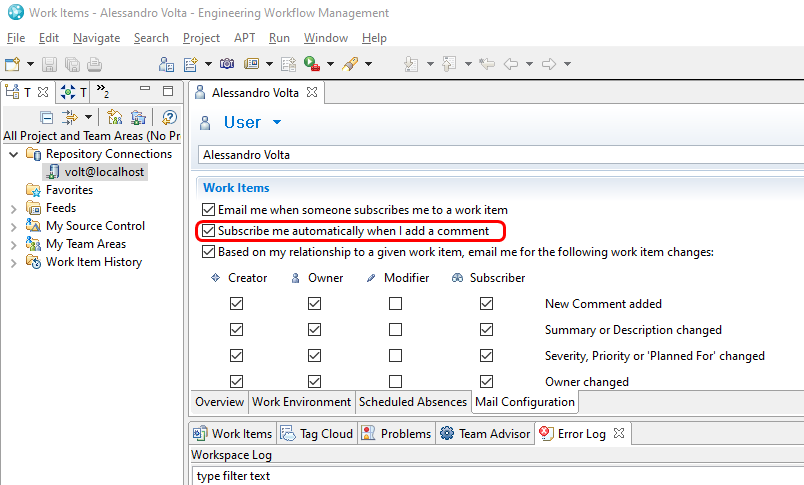
|