| Description | |
|---|---|
| Client for Visual Studio |
Ability to open web URLs inside Visual Studio by using the Microsoft Edge Chromium runtime
When you install the IBM Engineering Workflow Management (EWM) client for Visual Studio IDE on a machine with a compatible Microsoft Edge Chromium runtime, from the main menu, under Tools > Options > IBM EWM, the option to open web URLs internally gets enabled. When selected, all web URLs open in an embedded view that is based on the Microsoft Edge Chromium rendering engine. You can install the latest Microsoft Edge Chromium Evergreen Runtime from https://developer.microsoft.com/en-us/microsoft-edge/webview2/. Image of the options window to open web URLs internally: 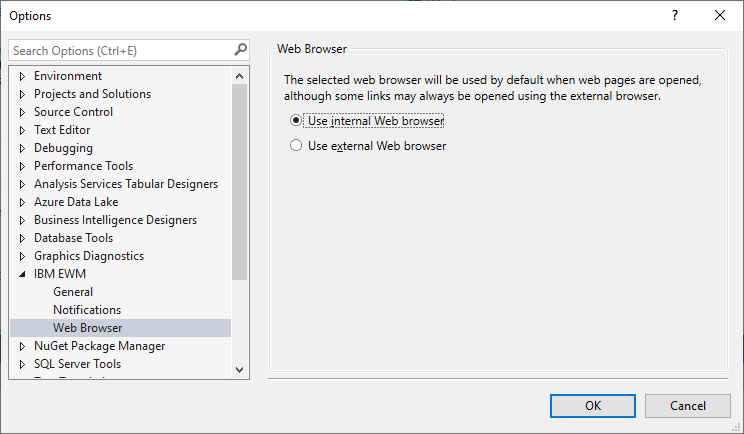 Image of the optional Microsoft Edge Chromium runtime prerequisite check during installation: 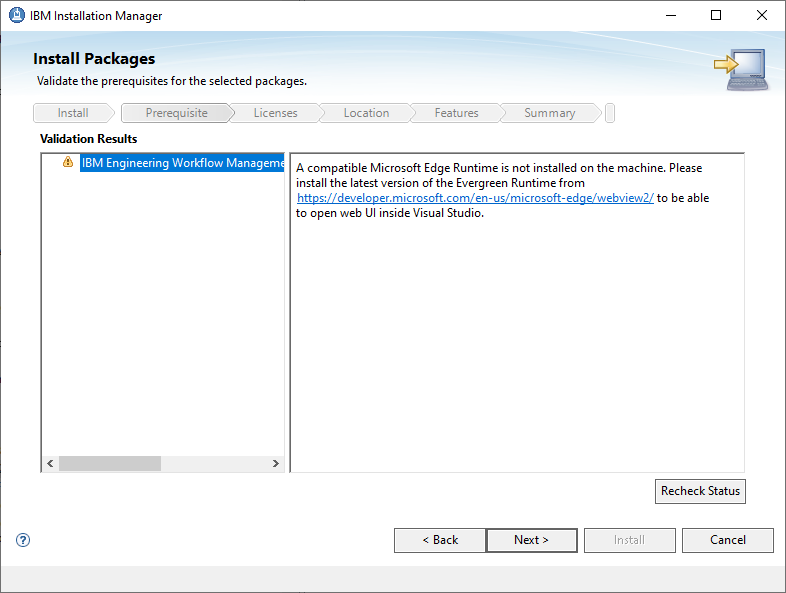
|
| Git integration |
Git commit link and improvements in rich hover
A Git commit link in the work item editor now shows the commit ID, comment, name of the committer, and commit creation date. By using the rich hover on the Git commit link, you can navigate to the EWM user profile page of the committer. |
| Jazz Source Control |
Ability to search for files in baselines or snapshots in the EWM web client
In previous releases, you can search for files only in workspaces or streams by using Advanced Search. Now, you can search for files in baselines or snapshots as well. 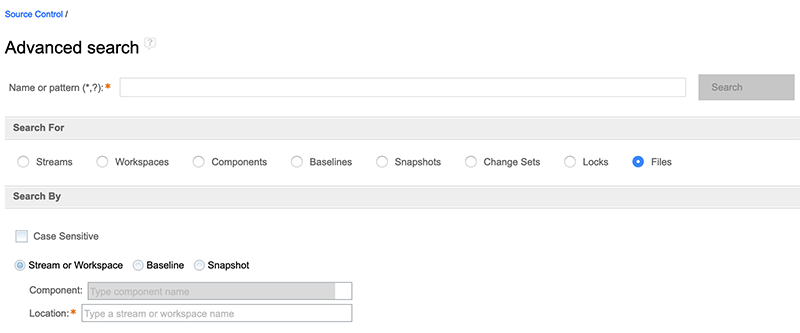
|
|
Ability to show, set, or unset custom attributes for a file
The file content view in the Source Control Management (SCM) web client now contains a new Custom Attributes tab. You can use this tab to show, set, or unset custom attributes for a file. You can add custom attributes that are preconfigured in the project area for a file type and set a value. You can also modify the value or remove the custom attribute, if required. Image for Custom Attributes tab in the file content view: 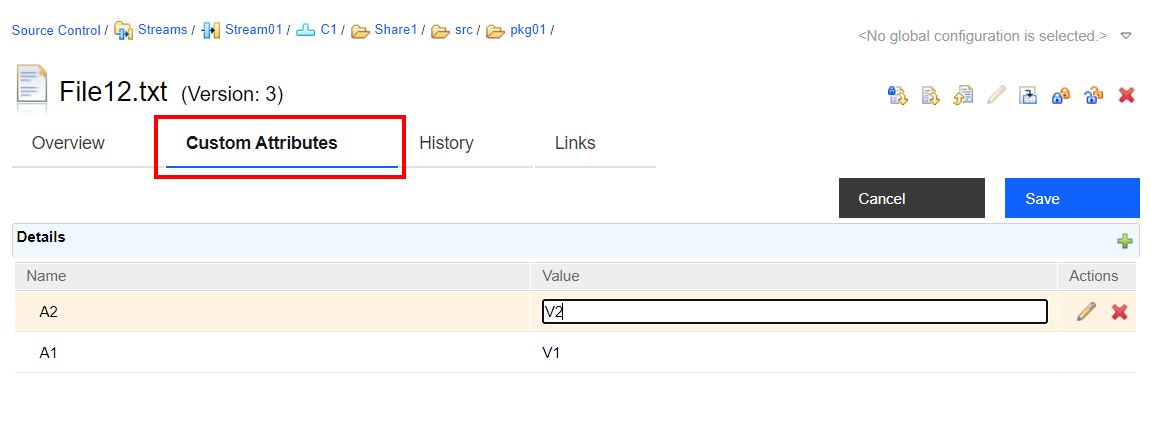
|
|
|
Restrict publishing of SCM artifacts owned by a project area that is not enabled for full configuration management
By default, project areas are not configured for full configuration management. Hence, you cannot publish any Source Control Management (SCM) artifacts such as streams, baselines, or snapshots to the EWM SCM Configuration Resources (TRS 2.0) feed. You can enable full configuration management from the Configuration Management tab of the Source Control section on the Project Area administration page before you publish the SCM artifacts. Image of Configuration Management tab that shows the Enable Full Configuration Management button: 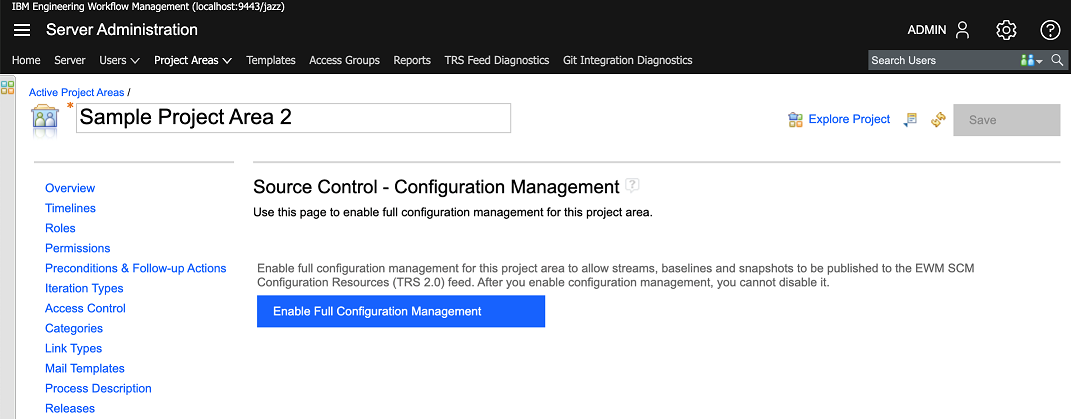 Image of a project area that is enabled for full configuration management: 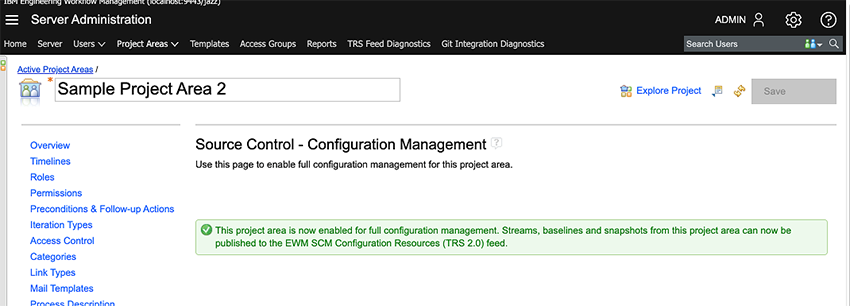
|
|
| Tracking and planning |
Preview support for PDF work item attachments
In the web client, you can now preview PDF attachments in the work item editor. To enable this feature, on the Advanced Properties page set the Allow preview of PDF attachments property to True. For more information, see Configuring advanced properties. Image of Allow preview of PDF attachments property on the Advanced Properties page: 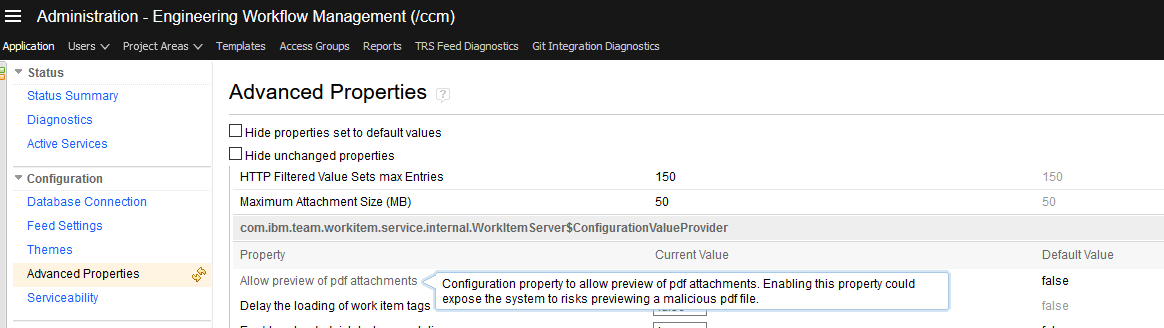 In the Links tab of the work item editor, you can click a PDF attachment link to see the preview. You can also hover over the attachment link to see the preview. Image of the preview of PDF attachment on clicking the attachment: 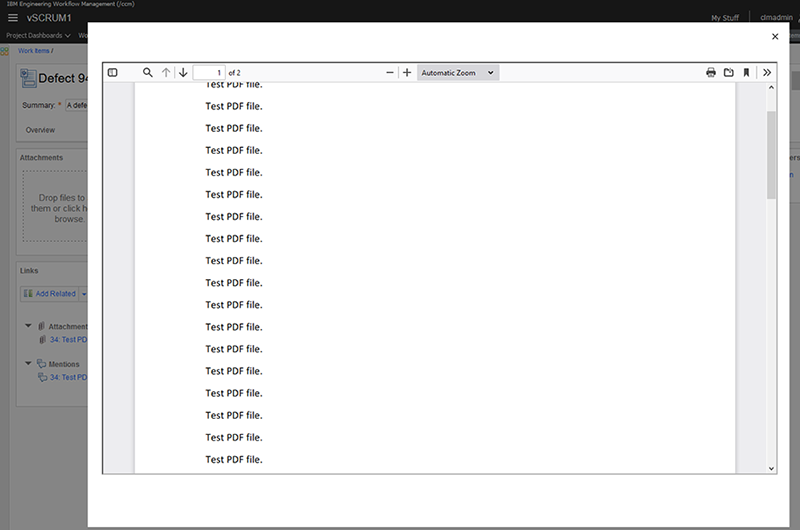 Image of the preview of PDF attachment on hovering over the link: 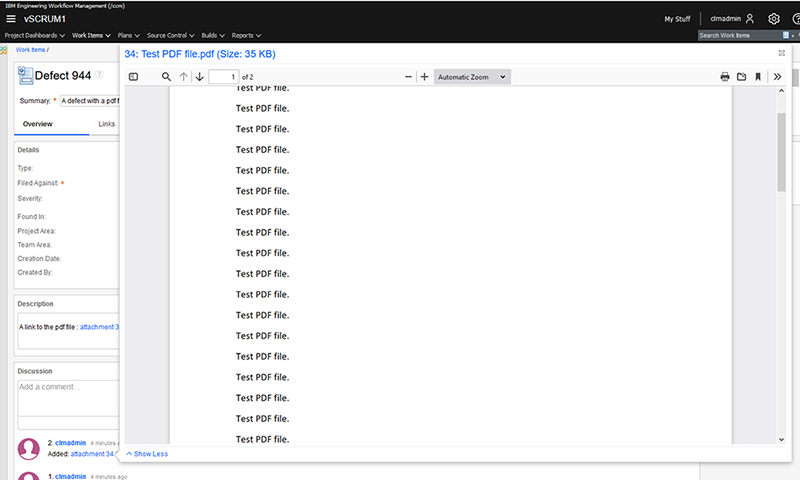
|
|
Simplified linking
Linking plans by using copy-and-paste method You can use the Copy Link option in the plan editor to copy the plan link and then, click the Paste as link icon in another target artifact. You can select the link type in the Create Links dialog box and click Create links. You can link a development plan to any of the following target artifacts:
 Image of the Paste as link option in the plan editor:  Keyboard shortcuts for the copy-and-paste method: Copy Link: Ctrl+C (Windows and Linux) or Command+C (Mac) Paste as link: Ctrl+Shift+V (Windows and Linux) or Command+Shift+V (Mac) Linking plans by using drag-and-drop method You can drag a plan from the plan editor and drop it on a requirement collection in DOORS Next to create an OSLC link between the artifacts. Support for linking artifacts between EWM and RMM You can use either the drag-and-drop method or the copy-and-paste method for creating OSLC links between an EWM work item and a Rhapsody Model Manager (RMM) architecture element. Image of the Create links dialog box: 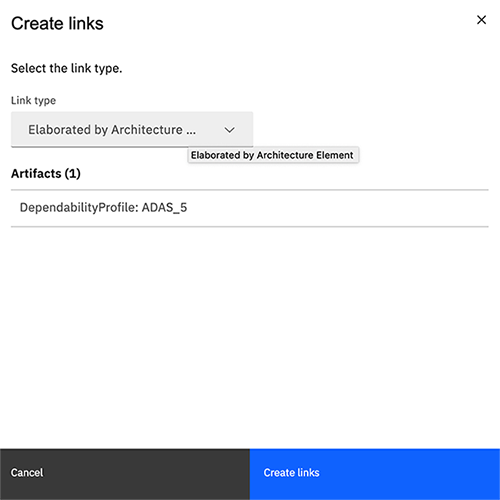 Note: You cannot create links if the user-selected Configuration Context in the source is not the same as the configuration in the target application. Image of the error when you try to create a link in a different configuration: 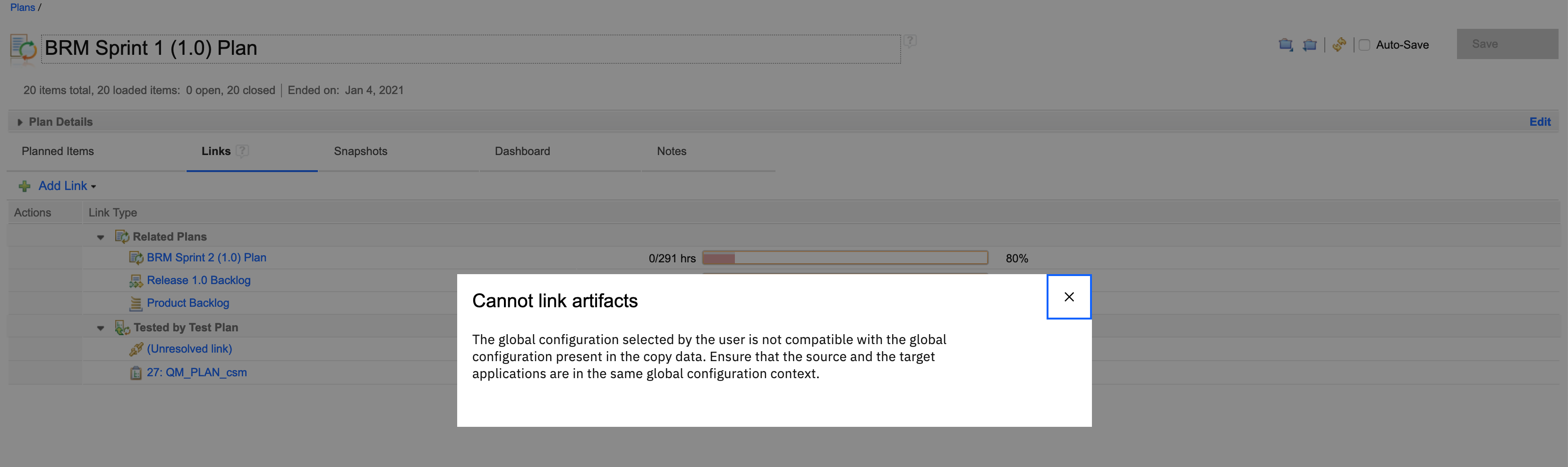
|