| Description | |
|---|---|
| Jazz Source Control |
Repository tools command for deleting SCM components
You can use the scmDeleteComponent repository tools command to delete a previously archived SCM component. Deleting a component permanently removes the component and all its included artifacts, such as change sets, baselines, files, and content, from the database. Example: > ./repotools-ccm.sh -scmDeleteComponent component=_j6bJgDWPEeugK61YTHPVkg repositoryURL=https://server.com:9443/ccm adminUserId=AdminUser adminPassword=AdminPassword For more information, see https://jazz.net/wiki/bin/view/Main/ScmComponentDelete#Invoke_Component_Delete. |
| Tracking and planning |
Program Board enhancements
Support Proposed iteration on the board The Program Board provides visualizations that you can use during the program iteration planning at the program or team level. In the SAFe process, during planning, you cannot set the Planned For iteration beyond backlog. For the Program Board to be useful during program iteration planning, you can now opt to select the Proposed attribute. This attribute is available in the out-of-the-box SAFe templates and can be used while displaying data on the board. Image of the Create Program Board dialog: 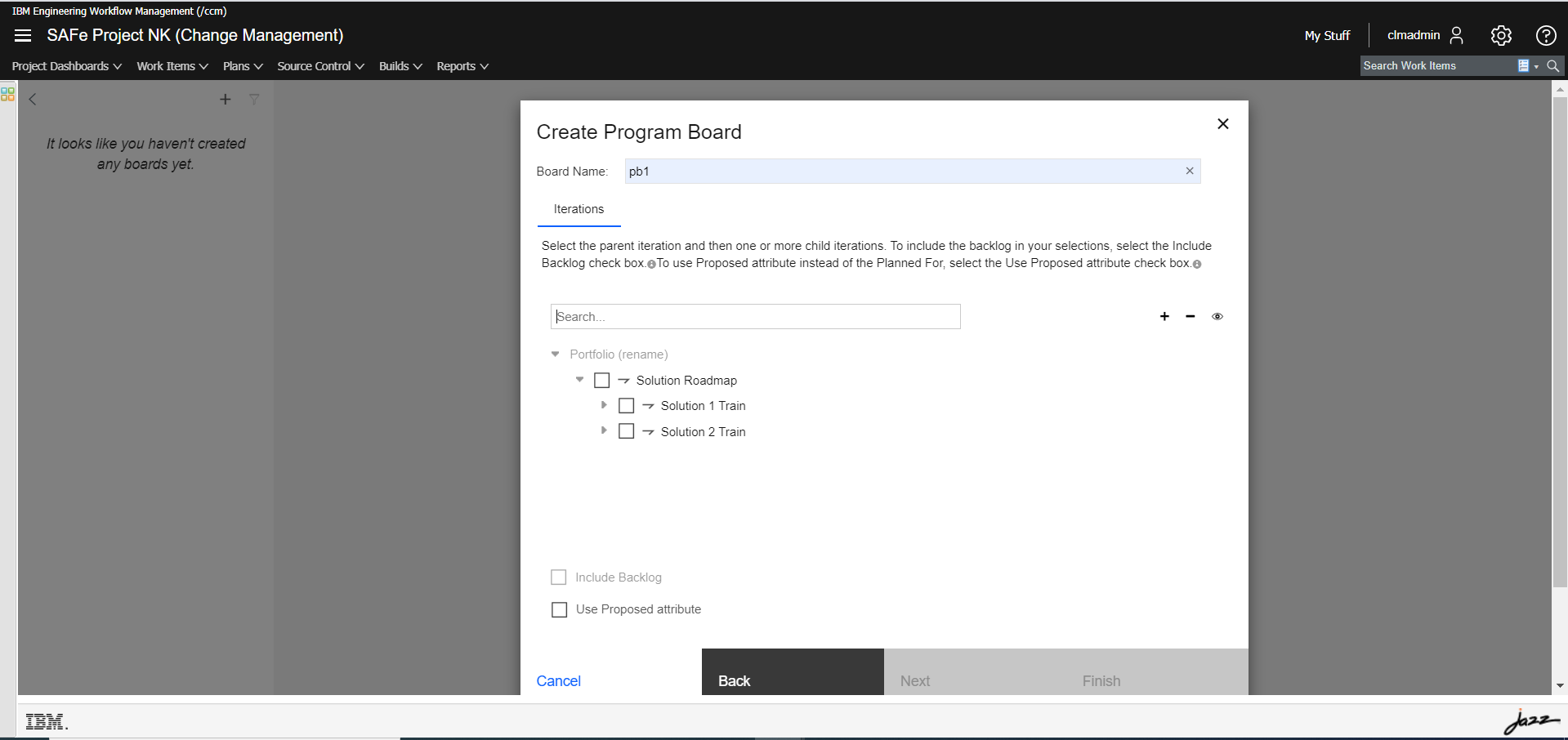 Filter rejected or invalid work items The Program Board now excludes rejected or invalid work items by filtering them out. The filtering is done based on their Rejected or Invalid states as defined by the out-of-the-box templates. |
|
Simplified linking
Support for non-OSLC link types You can drag a work item from the work item editor, plan editor, or quick planner views and drop it on the work item editor to create non-OSLC links such as parent-child and depends-blocks. You can also use the Copy Link option in the work item editor, plan editor, or quick planner views to copy the work item link. Click the Paste as link icon in another work item to create a non-OSLC link. Image of the Create links dialog box: 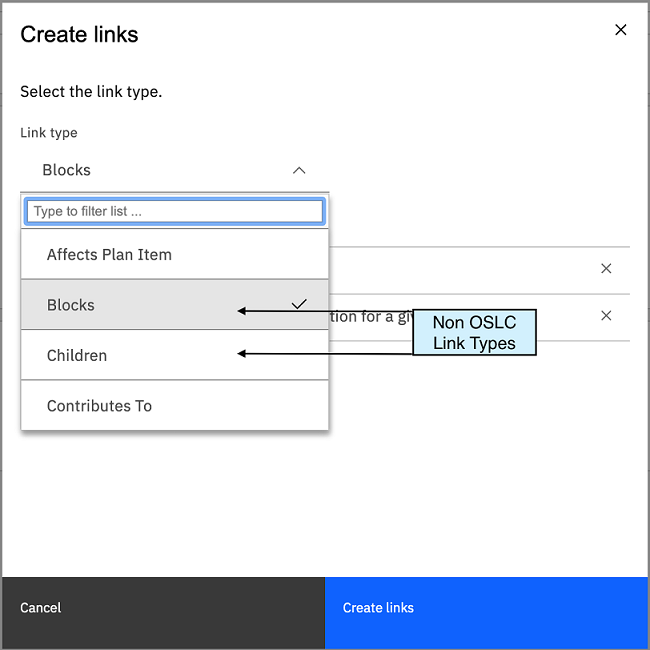 Improvements to the dialog box The last link type that was used to create a similar link from work items is stored in the system. This link type is displayed as the default link type in the Create Links dialog box. You see a load indicator if it takes time to create links by using the drag-and-drop or copy-paste method. The delay might occur when the data to be displayed on the dialog box is being fetched or you click Create links to add user-selected artifacts to the work item editor as links. Support for external tools You can copy the ID and Summary of the work item as a link by using a keyboard shortcut or copy action in the work item editor, plan editor, or quick planner. You can then paste the copied link to an external tool such as Notepad, Notes, and Slack messages.Keyboard shortcuts to copy a link:
|