| Description | |
|---|---|
| Build |
Build and Visual Studio Improvements
This release adds two enhancements to the Microsoft Visual Studio build definition for Jazz Build engine:
|
|
Support for optimized incremental load in Jazz builds and EWM Jenkins builds
Jazz builds and EWM Jenkins builds that are configured with a build definition now supports an optimized incremental load. You can enable this option by adding the “team.scm.doOptimizedIncrementalLoad” property to the build definition and setting its value to “true”. When you initiate an optimized incremental load, only modified files are fetched from the repository; local changes are not reverted, and untracked files are not deleted. For more information, see Support for optimized incremental load in Jazz builds and EWM Jenkins builds. |
|
| Client for Microsoft Visual Studio IDE |
EWM clients can now retain history when you move or rename files outside the environment
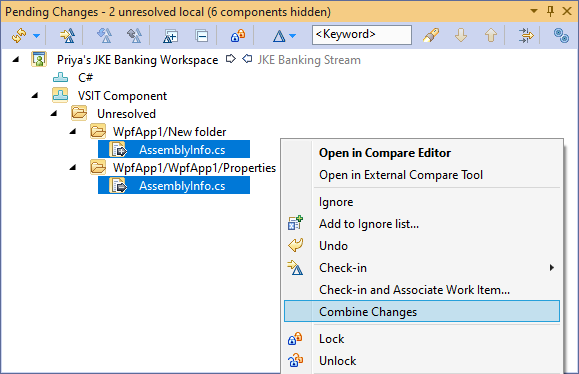
When you move files or folders outside of Visual Studio or Eclipse, or without using the IBM EWM context menu for the Windows Explorer client, the history of the files or folders is lost. Refreshing the Pending Changes view for sandbox changes will show the deletion of the files or folders from the original location and addition to the new location corresponding to the move or rename action. You can now use the Combine Changes option from the Pending Changes view to combine the two changes and retain the move or rename history.
|
|
Option to open a new instance of Visual Studio when you change the sandbox
For any action that requires you to switch the current sandbox location, you can now open a new instance of Visual Studio with the changed sandbox location without having to close your current solution. To enable this option, click Tools > Options. In the Options dialog box, expand Jazz Source Control and click Sandbox. Then, select the Open a new instance of Visual Studio when changing sandbox checkbox. Image of sandbox preferences under Jazz Source Control: 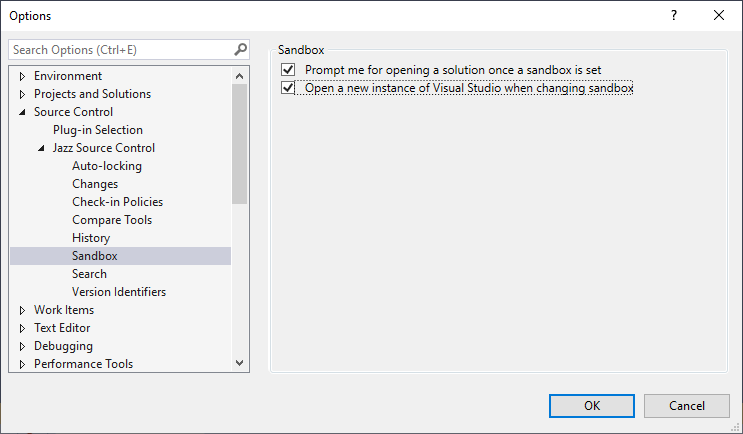 Image of the Set Sandbox message: 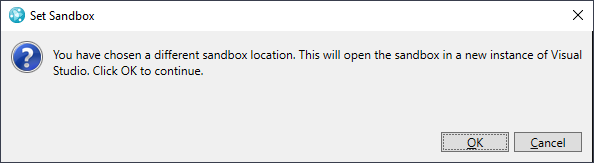
|
|
| Git integration |
Ability to link GitHub pull requests to EWM work items
You can now link GitHub pull requests to EWM work items by specifying the work item number in the pull request description. You can check the status of the pull requests linked to the work item, in the Pull requests tab. |
| Jazz source control |
Ability to locate change sets in the web client
On the Change Set page of the web client, you can now locate change sets by using the Locate Change Sets icon in the upper right of the page. To open the Locate Change Sets page for the current change set, click the Locate Change Sets icon. Image of the Locate Change Sets Icon: 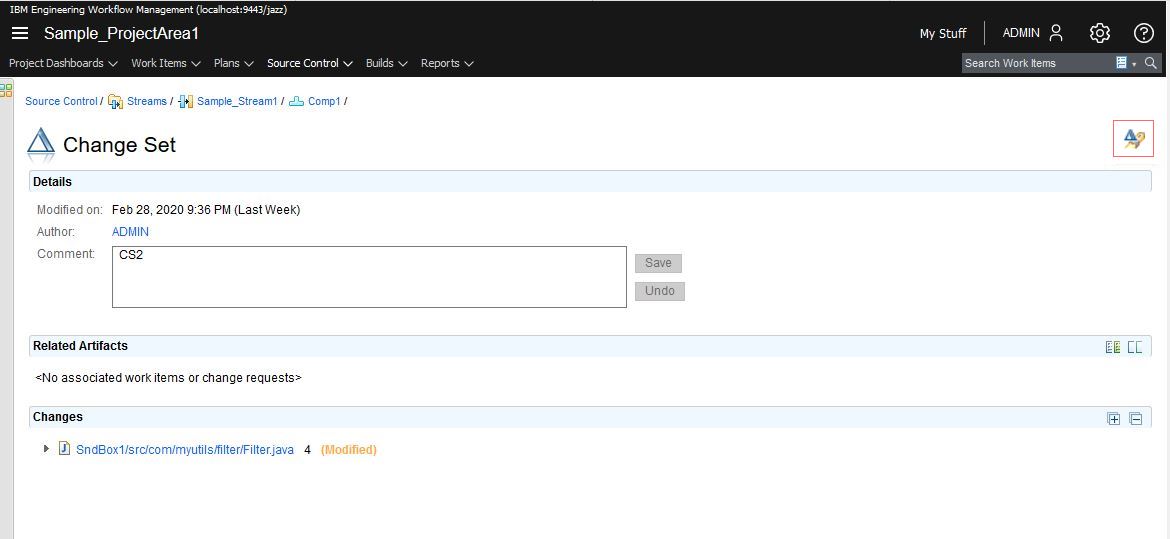 The Locate Change Sets page lists all change sets and the work items that are associated with them. Image of locate change sets results : 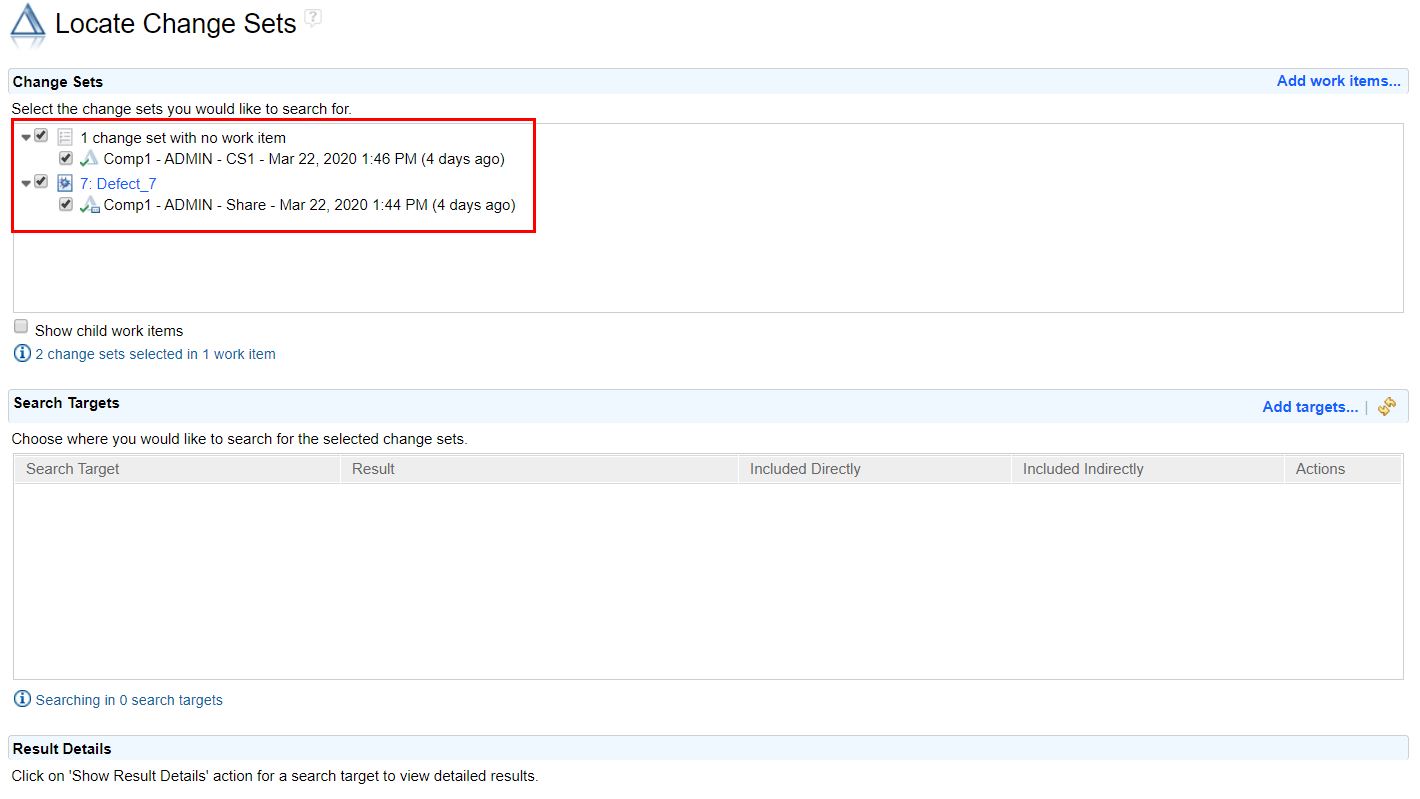 To add streams from your project and team areas, in the Search Targets section, click Add targets > Add streams from project and team areas that I am member of. Image of Add targets menu: 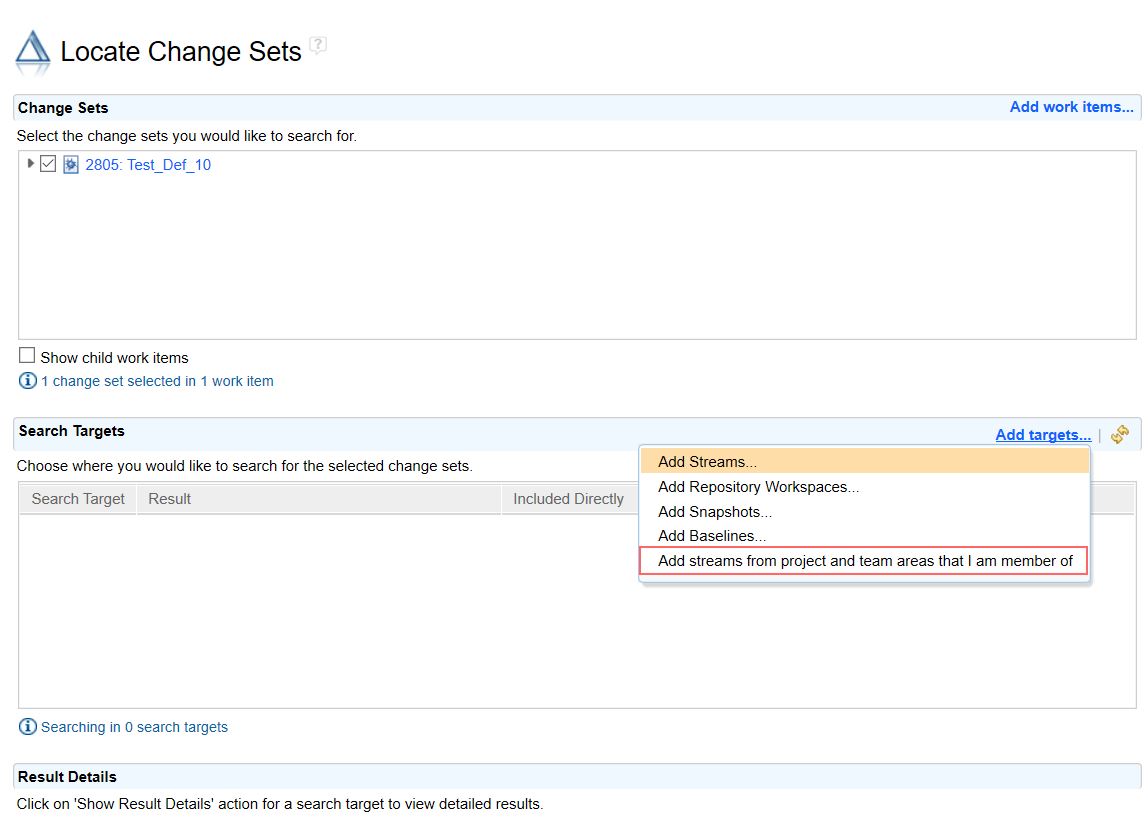
|
|
Authors can optionally include a comment when submitting change sets for code review
When submitting change sets for code review, authors can optionally include a comment. Currently, this can be done from the submit for review work flow in the Eclipse client, and when the author resubmits during subsequent review cycles through the web client. These comments are displayed in the Overview tab of code review and are included in the email notification that is sent to the reviewers to notify them that they are being requested to perform a code review. Image of comment section in the Submit for Review window (Eclipse): 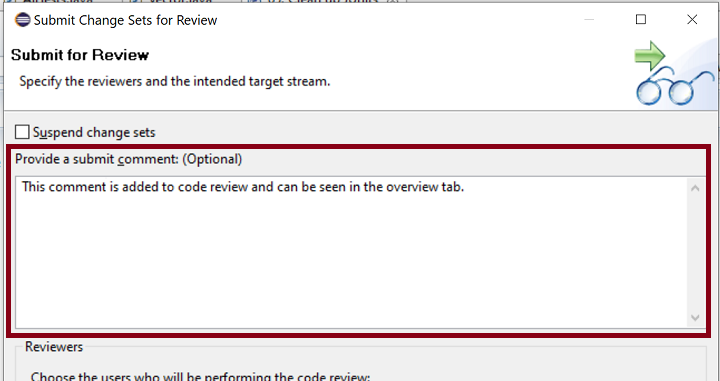 Image of author's comment displayed in the Overview tab (web): 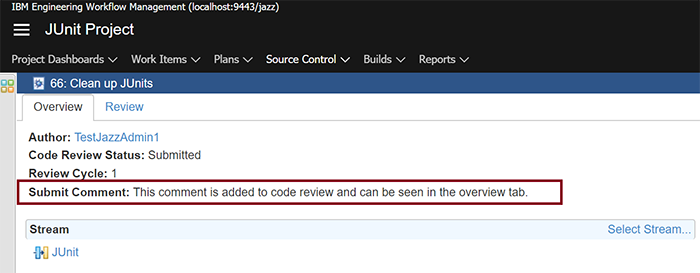 Image of Resubmit For Review wizard for adding a comment (web): 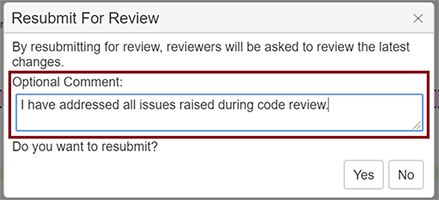 |
|
|
Custom attributes are now supported on change sets
The custom attribute support is now extended to include change sets. You can create new custom attributes in your project area and apply them to change sets. Image of Add Attribute window showing the change sets option: 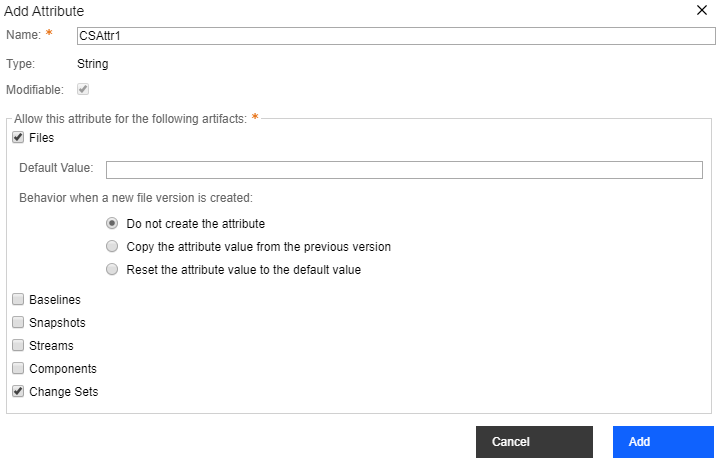 Command line interface (CLI) support for custom attributes is also extended. Now you can set, unset, get, and show custom attributes on change sets by using CLI. You can also query for change sets using these custom attributes. Custom attributes on change sets might be useful for some purposes. For example, you could use a custom attribute to identify a change set that should not be delivered to the production stream and then write a custom advisor to prevent delivery of any change sets where this attribute was set. |
|
|
New prompt for reviewers to start code review
It is common for a reviewer to open code review and start reviewing the content before clicking the start button. In this release, when the reviewer opens the review tab, a brief notification pop-up window is displayed periodically to remind the reviewer to start their review. The reviewer's state changes to "In-Review" and the pop-up window is not displayed after the reviewer clicks anywhere on the pop-up window or clicks the start button. Image of the notification pop-up: 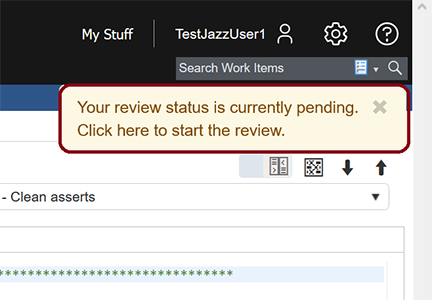
|
|
|
Resolved checkbox replaced with Resolution list in code review
In code review, the Resolved checkbox is replaced with a new Resolution list that can be optionally defined to be more specific about how an issue was resolved. Resolutions are defined by the project administrator in the code review preferences page and are displayed in the issue editor. When resolutions are not defined for a project area, system default values unresolved and resolved are presented in the issue editor. When a new issue is created, the resolution field is set to unresolved. Image of code review preferences page for the JUnit project with resolutions defined: 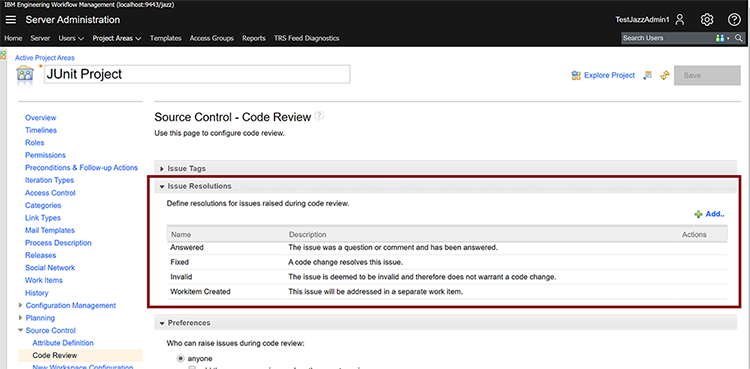 Image of resolution field in the issue editor displaying the resolutions defined for the JUnit project area: 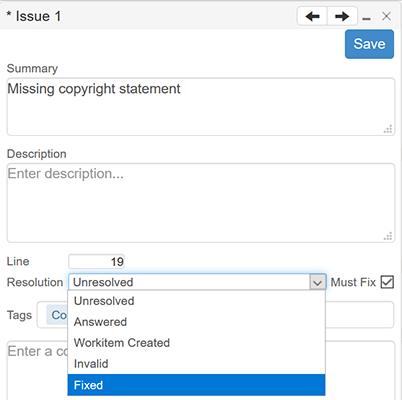 |
|
|
Reviewers can modify their review time and provide optional comments after completing a code review cycle
After a reviewer completes a review cycle, they can optionally provide a review comment and modify their review time when submitting their assessment. Review comments are visible in the overview page of code review and in the email that notifies the author that a review cycle is complete. The review effort and comments are persisted and can be extracted for reporting purposes by using the existing export code review CLI command. Image of Review Assessment dialog box: 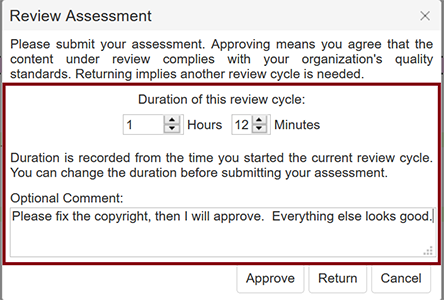 Image of the review comment displayed in the Overview tab: 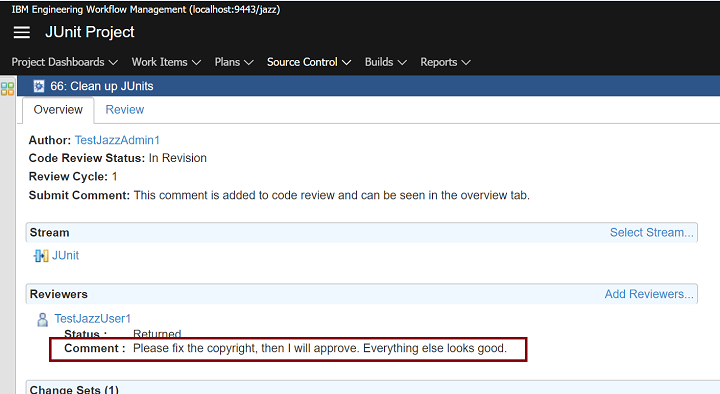 |
|
|
System Explorer added to the Show menu group of the context menu to access the sandbox location
You can now open the sandbox location by clicking Show > System Explorer in the context menu of repository workspaces and component nodes. You can use the System Explorer action in many views including Pending Changes, Team Artifacts, Change Summary, Change Explorer, and Search Results. Image of the System Explorer action in the context menu: 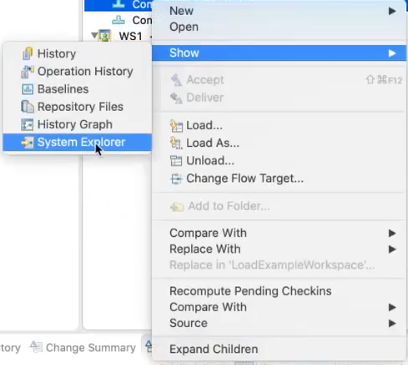 This action opens the file explorer of the operating system in the sandbox. If the content is loaded across multiple sandboxes, a list of sandboxes is presented, and you can select the ones to be opened in the file explorer. This feature uses the Eclipse preference "Command for launching system explorer" that can be found in the Eclipse preferences under General > Workspace. Out of the box, this preference works on Windows, Mac, and Linux but can be tweaked as needed by the user. |
|
| Tracking and planning |
Ability to categorize work item types as Plan Items in a Taskboard view
You can now configure Plan Items in the Taskboard view of a plan. By default, the selection of the Plan Item in the plan view is inherited from the project area configuration. If the user changes the selection in the plan view, it is not inherited from the project area configuration. Image of the plan view editor: 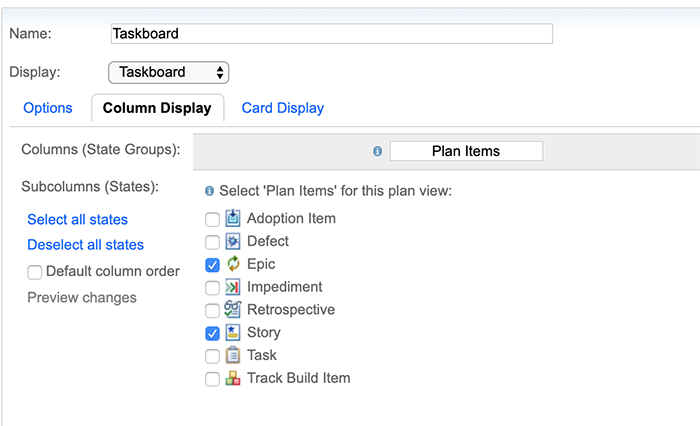 |
|
Delete attachments in the web client
You can now delete attachments in the web client. Image of Delete action on attachment: 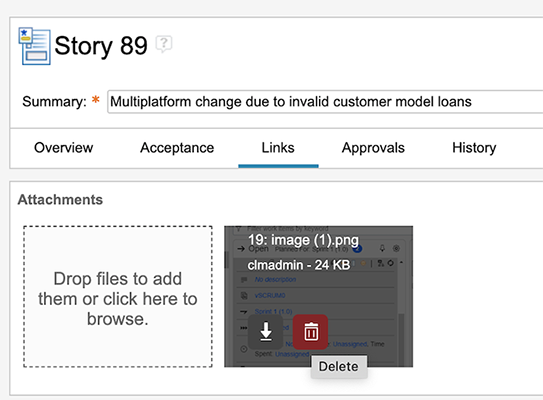 By default, the Remove icon is not shown on the attachments. If you want to see the Remove icon on the attachments, set the Show 'Remove' action on attachments server property to true. Image of the advanced server property:  Image of the remove icon on the attachment: 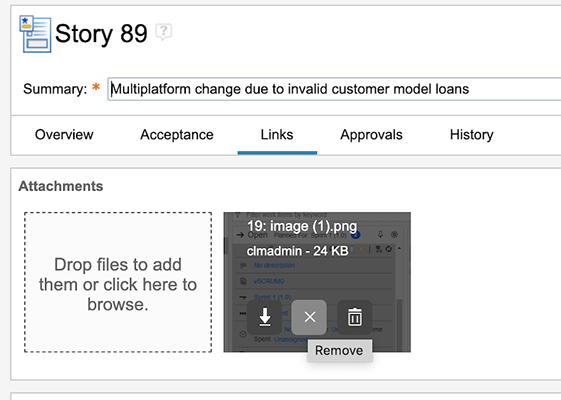
|
|
|
Improved tag management
Add or Remove tags on multiple work items in the web client You can now add or remove tags on multiple work items from the query results list in the web client. Image of Editing tags Query results view: 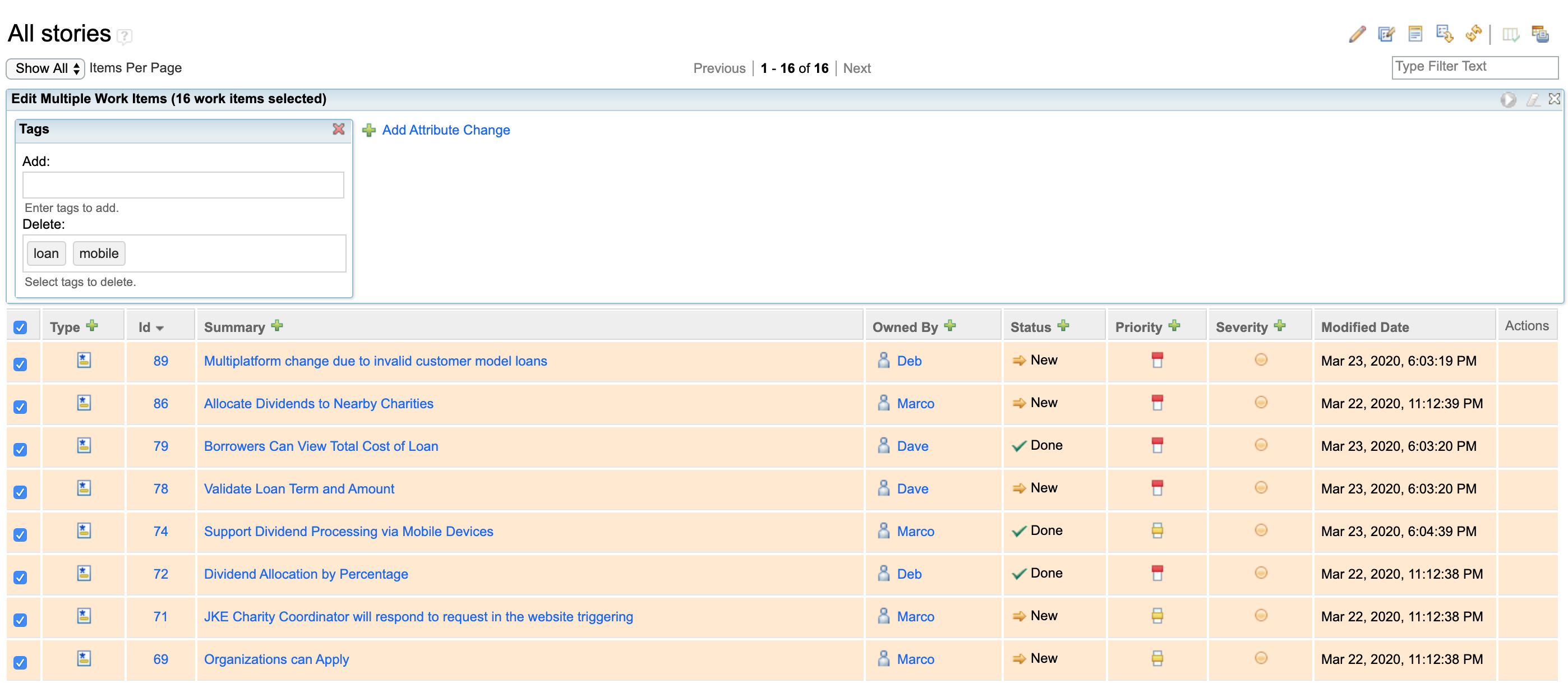 Remove tags from proposals To customize the list of proposals displayed, when you add or modify work item tags, you can now associate a Value Set provider script with the Tags attribute. The script can return a filtered collection of tag names, which excludes the tags that need to be removed from the proposals. This can also be used to provide a default set of tags to be used in a new project. |
|
|
LQE based reporting improvements
TRS Feed Diagnostics The TRS Feed Diagnostics page now combines the pages for Validation and Skipped Resources. Image of the TRS Feed Diagnostics page: 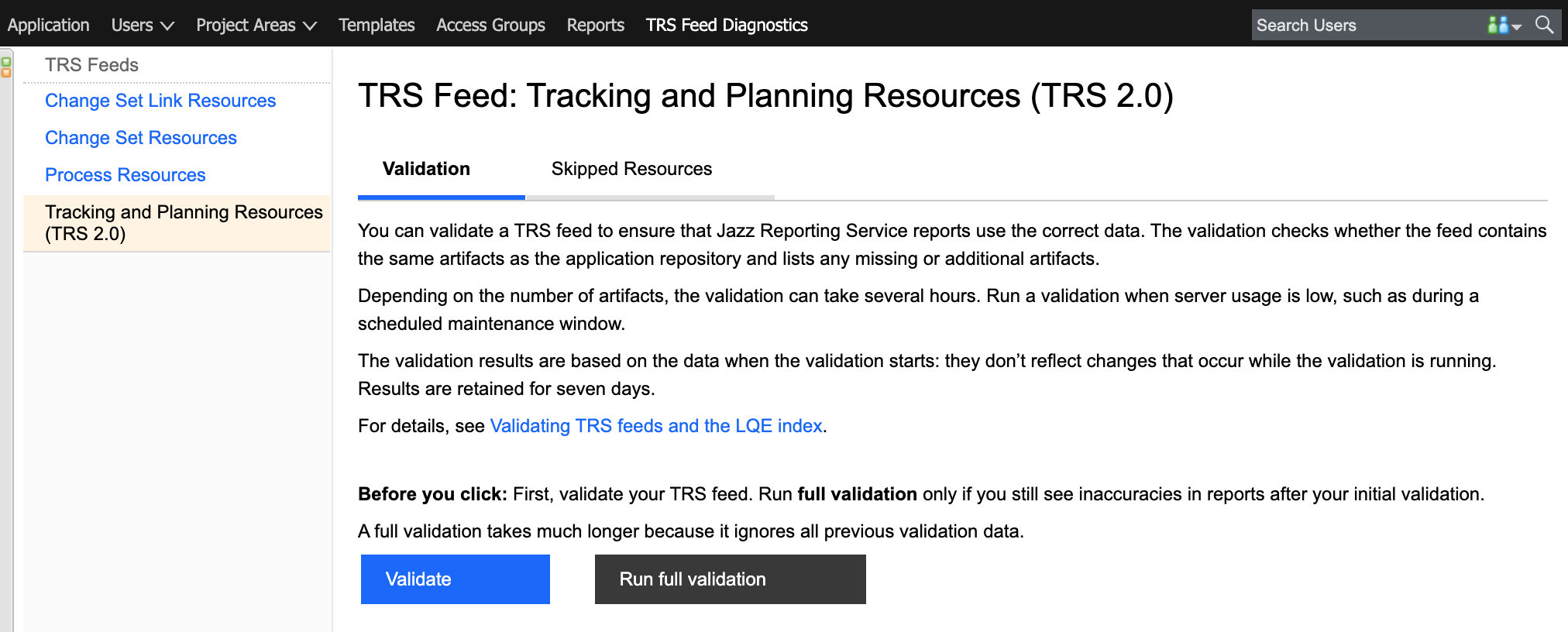 TRS Validation The Tracking and Planning Resources (TRS 2.0) feed now supports validation and repair. In case, Jazz Reporting Service reports have inconsistencies such as missing or duplicated artifacts, you must validate the TRS feeds for the Tracking and Planning Resources (TRS 2.0) feed. You can also ask a Lifecycle Query Engine (LQE) administrator to validate a TRS feed against the LQE index. If both validations finish with no errors, the LQE index matches the data in the application repository. To validate the TRS feeds for the Tracking and Planning Resources (TRS 2.0) feed: 1. Open the application administration page. For example, https://host:port/ccm/admin. 2. On the toolbar, click TRS Feed Diagnostics. 3. In the TRS Feeds section, click a feed and click Validate. 4. On the Validation tab, click Validate. Custom process attributes The Tracking and Planning Resources (TRS 2.0) feed now publishes custom team area, team area list, project area, and iteration attributes of a work item. You can create reports in Jazz Reporting Service that use this data. Tracking and Planning Resources (TRS 1.0) Feed The Tracking and Planning Resources (TRS 1.0) feed is removed from the services.xml file and cannot be available for addition as a data source in LQE. |
|
|
Quick Planner enhancements
Progress You can click Progress to see the remaining time, hours worked, items resolved, and story points achieved in a sprint. The progress now honors the board filters and also the lane filters applied on the board. Image of Progress in Quick Planner: 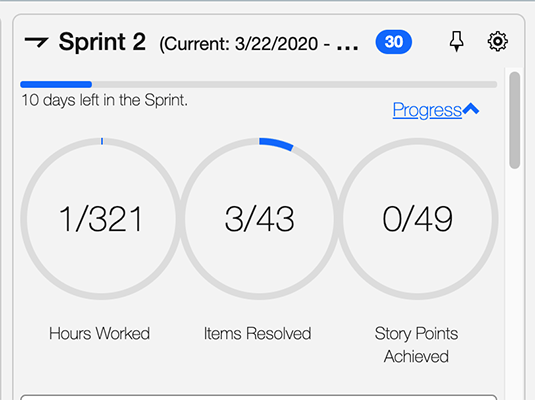 Rich hovers The resource links that are shown on the Quick Planner board now support rich hovers. You can hover over a resource link and see a preview. Image of rich hover in Quick Planner: 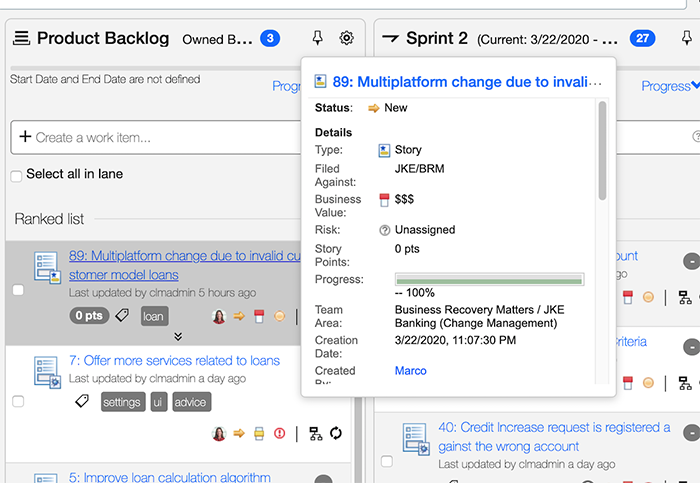
|
|
|
SAFe 5.0 process templates are available
This milestone adds two predefined process templates that support Scaled Agile Framework (SAFe) 5.0:
|
|
|
Support to filter queries in Select Work Items dialog box
In the web client, you can now filter queries in the Select Work Items dialog box. Select Search by Query. It shows queries with names or descriptions that contain the text entered in the filter box. Image of Select Work Items dialog: 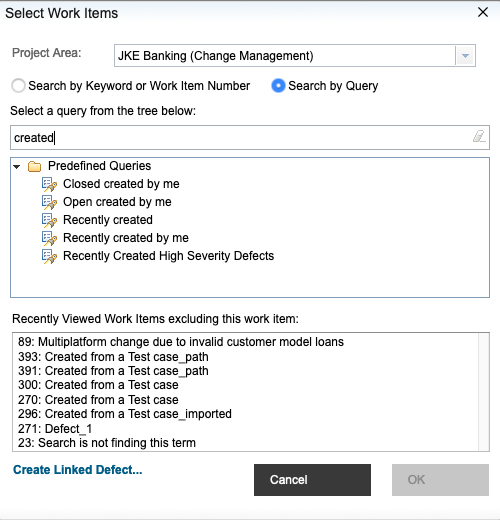
|