| Description | |
|---|---|
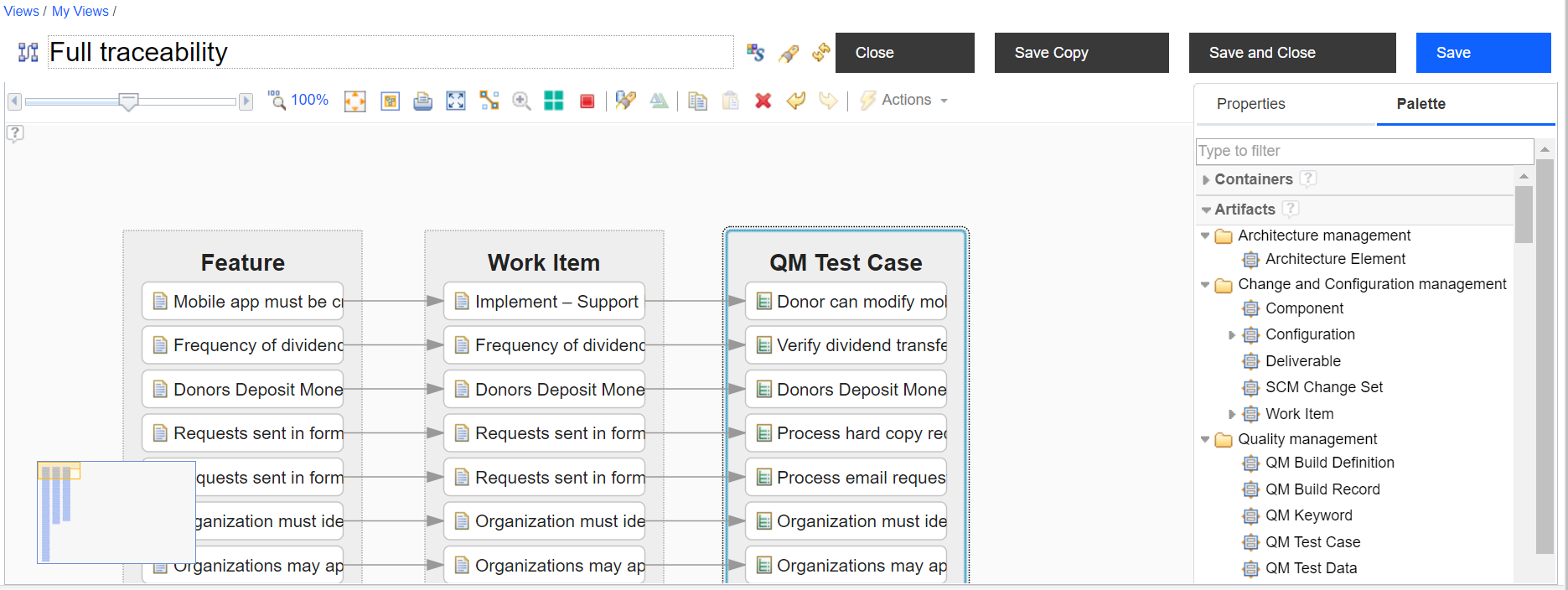
| View formatting |
Addition of image parameter in UI type
An image is added as a shape in the UI type that is created from the scratch. To add an image as a shape in the UI type definition, you must specify the following shape attributes:
When you tried to enter a parameter value for the Image URL attribute, an error was shown. Now, you can add a parameter value for the Image URL attribute. You can add an image parameter to the UI type and enter value such as ${imageURL}. Note: The name of the image parameter in UI type must match with the variable name in the query result. When a container is loaded on the view canvas, the image parameter value from the query result is used to load the image in the resource node. To use an image in IBM Engineering Lifecycle Optimization - Engineering Insights (ENI), you must add domain of the image URL in the whitelist. For more information, see Managing the whitelist for uploading images. If domain of the image URL is not added in the whitelist, the image is not displayed when the container is loaded on the view canvas. Image of image parameter that is added in the UI type definition: 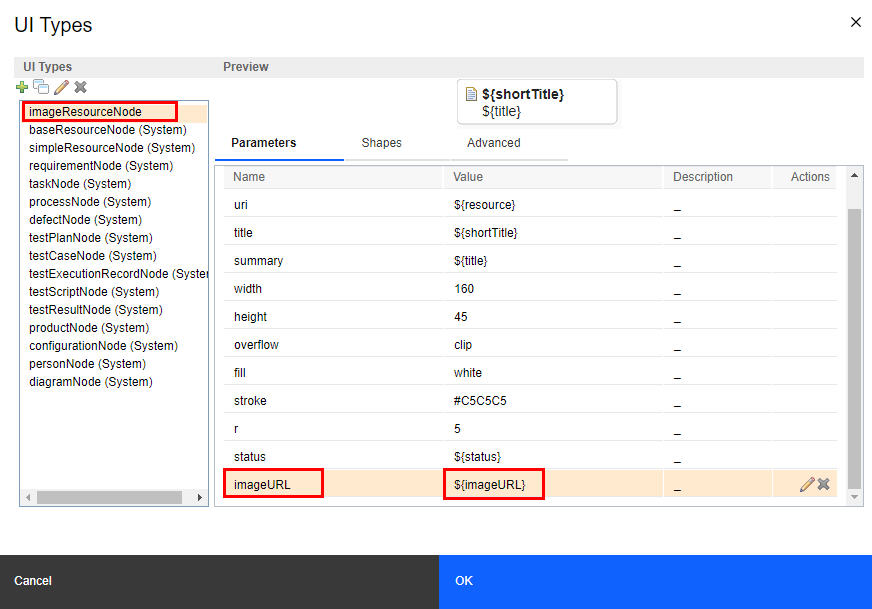 The image that is defined on the Shapes tab is loaded based on the shape and visible for each resource node when the container is loaded on the view canvas. Important: To view the defined image when a container is loaded, you must add or update an image as a shape in the UI type definition. For example, you can either add an image and enter value for Image URL parameter as ${imageURL} or update the existing image's Image URL parameter as ${imageURL}. Image of adding Image as Shape Type: 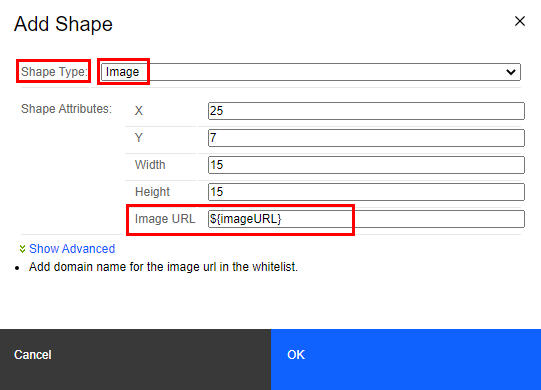 Image of defined image parameter on the Shapes tab: 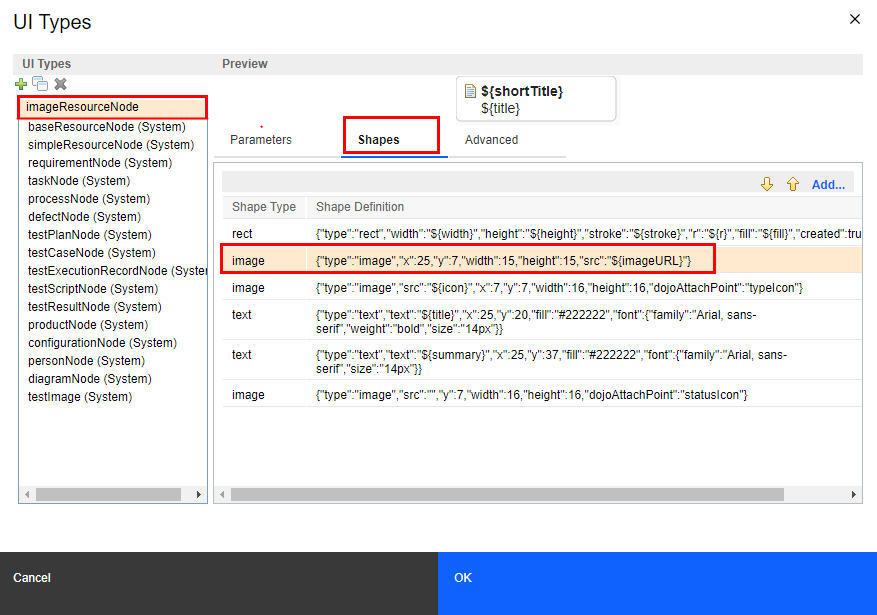 Image of container that is loaded with the defined image: 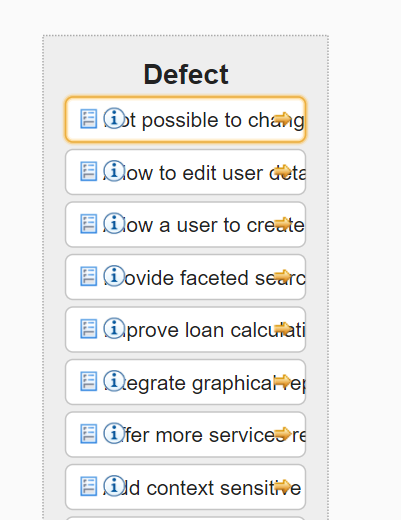
|
|
Ability to rename a UI type
You can now rename the user-defined UI types. The Rename icon is added in the UI Types dialog box to rename the UI type. You can use the Rename option in the following scenarios:
To rename a UI type: 1. Open the view in the edit mode. 2. Drag the required artifact onto the view canvas. 3. Right-click the artifact in the view, and click Edit Node. The Nodes dialog box opens. 4. On the UI Type tab, click the pencil icon that is next to the UI Type list. The UI Types dialog box opens. 5. From the UI Type list, select the UI type that you want to rename. 6. Click the Rename icon. 7. In the Rename UI Type ID window, enter the ID for the UI type, and click OK.
Image of the new Rename icon: 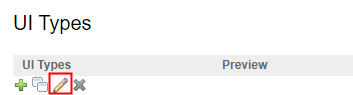 Image of Rename UI Type ID window: 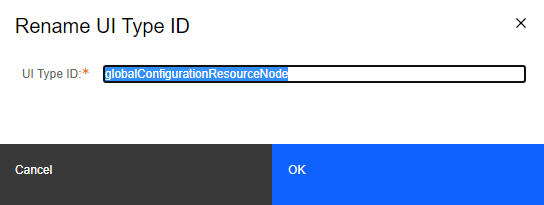 Image of Rename UI Type ID window with new name: 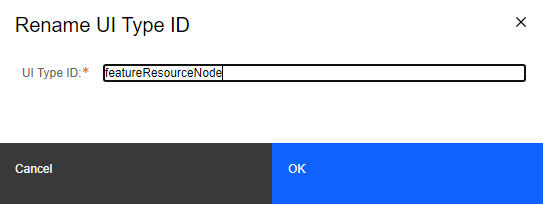 You can also rename a UI type by using the UI Types option in the Properties section of the view. Click Edit UI Types. The UI Types dialog box opens. Image of UI Types option in the Properties section of view: 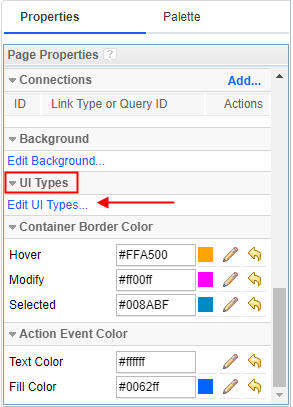 |
|
| Views |
Cancel label in view is now renamed as Close
When you save a view by clicking Save option, the Save and Save and Close options are disabled. Hence, if you want to go to the View mode from the Edit mode of a view, you must click Cancel. Earlier, clicking Cancel was confusing as it was read as cancelling the view changes instead of going back to the View mode from Edit mode. |
| Web UI |
IBM Plex typeface
Fonts from the IBM Plex typeface are introduced as part of the ongoing user experience transformation and alignment with IBM's open source Carbon Design System. For example, the "IBM Plex Sans" font replaces "Arial" as the base sans-serif font. The IBM Plex typeface is now common across the following applications:
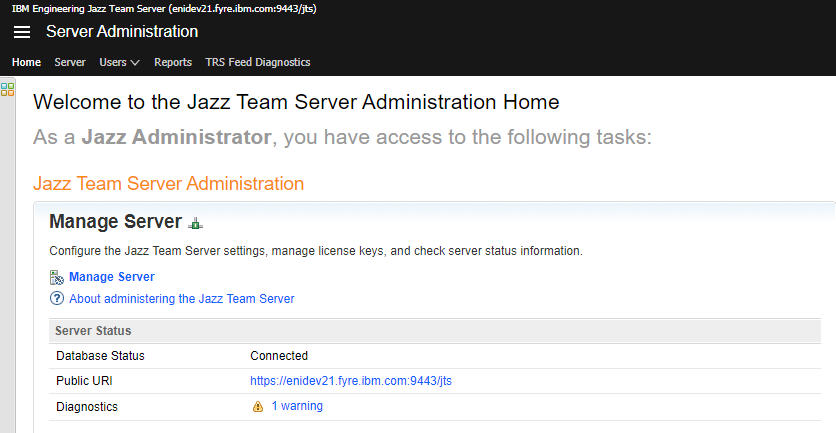 Image of Jazz Team Server Administration Home after (IBM Plex Sans): 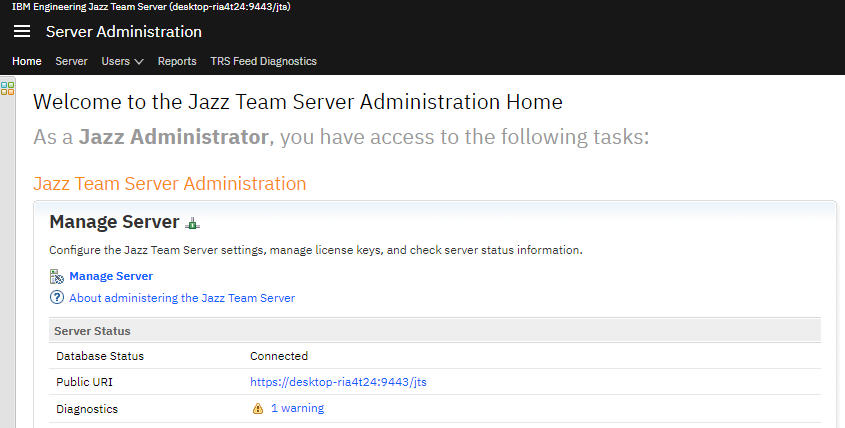 Image of Engineering Insights Welcome Page before (Arial): 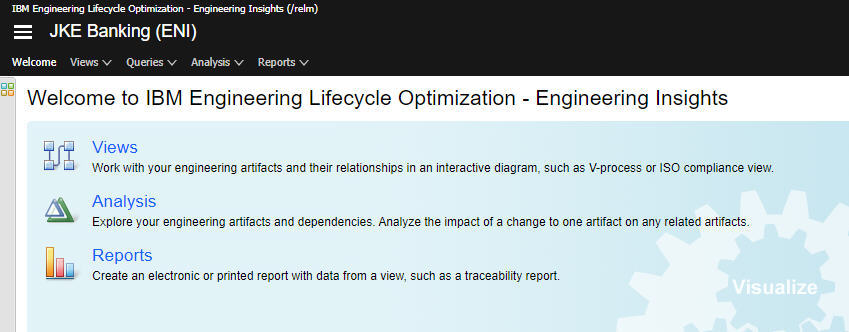 Image of Engineering Insights Welcome Page after (IBM Plex Sans): 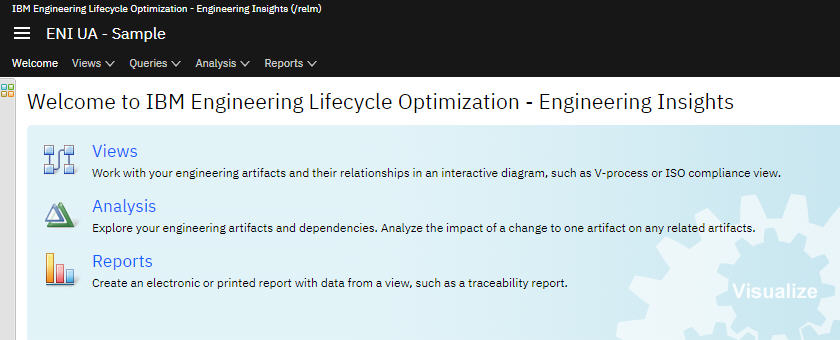
|