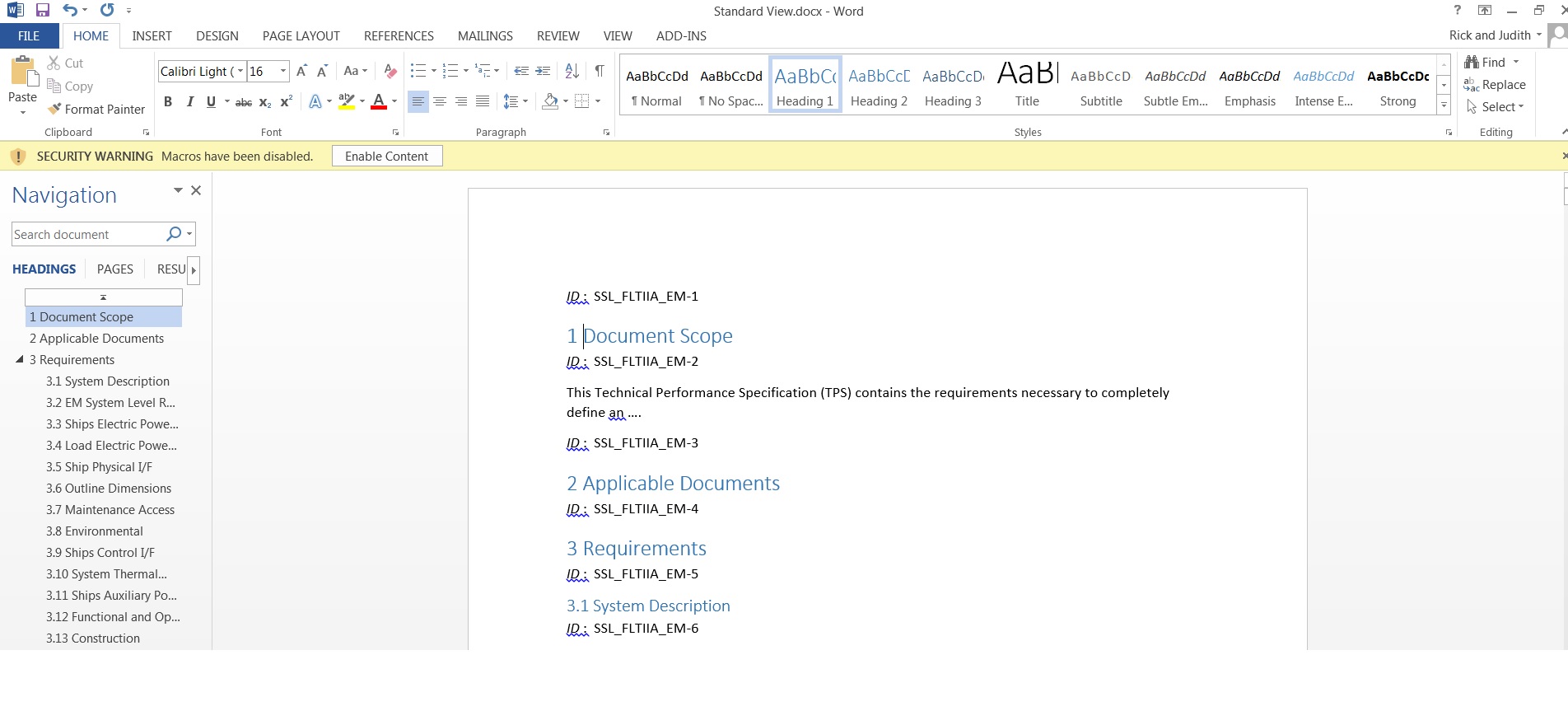
Hello, I have a question regarding exporting a view from DOORS into Word. I just want to export 3 Attributes into a single paragraph using the Paragraph Style is the Word Style to apply to that attribute. This works in the "Standard View" if I have the Main Column set to "Object Heading and Object Text". When I export into Word, the Heading 1, Heading 2, Caption and List Paragraph get exported correctly into a ""Word" Style. If I create a new DXL attribute "Group Text" with 3 attributes such as [Object Identifier] Object Heading Object Text [Type] , the output into Word makes each Paragraph into the Word "Normal" Style instead of the Style that is set. Is there a way to get a DXL attribute to export into Word and keeping the "Paragraph Style" attribute for each output paragraph? Thanks, Rick rsilverman - Tue May 20 17:39:59 EDT 2014 |
Re: Exporting a DXL Attribute into a Word Document When DOORS exports to MS Word, there is a choice in the export dialogue to use a "Paragraph Style" attribute where Attribute & Style pairs define the names of the styles to use in the target MS Word document for each DOORS object. You can define specific styles for each object attribute. If you do not use the "Paragraph Style" attribute when exporting, then DOORS uses its own MS Word style defaults - for example, objects that have text in the "Object Heading" attribute will be mapped to the default "Heading 1", "Heading 2", ...etc, styles in MSWord. All other DOORS attributes will be mapped to the "Normal" style in MS Word. So your DXL attribute is being mapped to the "Normal" style. If you want to define a specific style you will need to create a Text type attribute named "Paragraph Style" and learn how to define Attribute Style pairs in this attribute - click here for a link to the on-line DOORS user manual that describes how to define these Attribute Style pairs.
Paul Miller
|
Re: Exporting a DXL Attribute into a Word Document PRM - Tue May 20 20:04:28 EDT 2014 When DOORS exports to MS Word, there is a choice in the export dialogue to use a "Paragraph Style" attribute where Attribute & Style pairs define the names of the styles to use in the target MS Word document for each DOORS object. You can define specific styles for each object attribute. If you do not use the "Paragraph Style" attribute when exporting, then DOORS uses its own MS Word style defaults - for example, objects that have text in the "Object Heading" attribute will be mapped to the default "Heading 1", "Heading 2", ...etc, styles in MSWord. All other DOORS attributes will be mapped to the "Normal" style in MS Word. So your DXL attribute is being mapped to the "Normal" style. If you want to define a specific style you will need to create a Text type attribute named "Paragraph Style" and learn how to define Attribute Style pairs in this attribute - click here for a link to the on-line DOORS user manual that describes how to define these Attribute Style pairs.
Paul Miller
Paul,
Thanks for the reply to my question. I read your answer but I still have the same problem. I have the 'Paragraph Style' Option checked when I run the Microsoft Word Export script (File > Export > Microsoft Export > Word) but the output behavior changes when I use different DOORS views. In the first view "Standard" , I only have one column. This column is in the Standard View and only contains the "Object Heading and Object Text" when you look under edit properties. After I export to Word, I get the correct Paragraph Styles which match the Attribute 'Paragraph Style' in the module." This is shown in the attached file - Standard View.jpg In the second view "Word Output" , I again only have one column. But this time the column is a DXL attribute which has 4 attributes combined, as I mentioned in my first post. I also added the square brackets around the Object Identifier and the Type attributes. I was able to add these brackets by modifying the DXL attribute (see the attached file Group Text.dxl) Here are the 4 attributes: [Object Identifier] Object Heading Object Text [Type]. When I export these to Word, I get each paragraph in the "Normal" Style. There are no Heading 1 or Heading 2 Styles on the Object Heading. Is it possible that I need to include some DXL code in the DXL attribute to be able to get the Word export to use the correct Paragraph Styles when I use a DXL attribute? When I am done exporting to Word, at a minimum I need to go through the Word document to change the Paragraph Style of the Heading to create a Table of Contents. By creating the DXL attribute, I am adding a lot of value to the Specification, but if would save me time if I could get the Paragraph Styles to work. Thanks! -Rick Attachments Group Text.jpg Group Text.dxl Standard View.jpg |
Re: Exporting a DXL Attribute into a Word Document rsilverman - Wed May 21 09:21:41 EDT 2014 Paul,
Thanks for the reply to my question. I read your answer but I still have the same problem. I have the 'Paragraph Style' Option checked when I run the Microsoft Word Export script (File > Export > Microsoft Export > Word) but the output behavior changes when I use different DOORS views. In the first view "Standard" , I only have one column. This column is in the Standard View and only contains the "Object Heading and Object Text" when you look under edit properties. After I export to Word, I get the correct Paragraph Styles which match the Attribute 'Paragraph Style' in the module." This is shown in the attached file - Standard View.jpg In the second view "Word Output" , I again only have one column. But this time the column is a DXL attribute which has 4 attributes combined, as I mentioned in my first post. I also added the square brackets around the Object Identifier and the Type attributes. I was able to add these brackets by modifying the DXL attribute (see the attached file Group Text.dxl) Here are the 4 attributes: [Object Identifier] Object Heading Object Text [Type]. When I export these to Word, I get each paragraph in the "Normal" Style. There are no Heading 1 or Heading 2 Styles on the Object Heading. Is it possible that I need to include some DXL code in the DXL attribute to be able to get the Word export to use the correct Paragraph Styles when I use a DXL attribute? When I am done exporting to Word, at a minimum I need to go through the Word document to change the Paragraph Style of the Heading to create a Table of Contents. By creating the DXL attribute, I am adding a lot of value to the Specification, but if would save me time if I could get the Paragraph Styles to work. Thanks! -Rick Paul, Thank you. I just figured out what I had to do. The new DXL attribute "Group Text2" has to be defined in the "Paragraph Style" attribute. Once I did this I was good to go. I just didn't realize that the new "DXL attribute" could also get its "Paragraph Style" . Thanks! -Rick |