I am attempting to import into doors an excel spreadsheet. I am having problems with non-heading objects being placed under the wrong heading. E.G. 6.1 req 1 req 2 6.1.1 req 3 req 4 When Imported into DOORS looks like this: 6.1 6.1.1 req 3 req 4 req 1 req 2
What I have tried: exporting, reordering, reimporting in various ways - This has not worked, the problem persists. I am not familiar enough with DOORS to think of another solution besides manually fixing it. It is 4500 lines so that really is an unappealing option. If anyone has any ideas I would appreciate the help!
bmmy9f - Wed Feb 03 17:01:25 EST 2016 |
Re: Doors Import Excel - Hierarchy Issue
I'm not clear what you are trying to do. Are you trying to import into an existing module by updating existing objects when possible? Or are you simply trying to import into a brand new module? |
Re: Doors Import Excel - Hierarchy Issue kourosh - Thu Feb 04 12:22:17 EST 2016
I'm not clear what you are trying to do. Are you trying to import into an existing module by updating existing objects when possible? Or are you simply trying to import into a brand new module? I am attempting to import a new module and create a hierarchy. However, when I create the hierarchy manually by demoting, requirements get put under the wrong section. |
Re: Doors Import Excel - Hierarchy Issue bmmy9f - Thu Feb 04 13:31:36 EST 2016 I am attempting to import a new module and create a hierarchy. However, when I create the hierarchy manually by demoting, requirements get put under the wrong section. Can you provide a simple CSV file along with exact steps that will replicate the problem? |
Re: Doors Import Excel - Hierarchy Issue kourosh - Thu Feb 04 14:19:10 EST 2016 Can you provide a simple CSV file along with exact steps that will replicate the problem? Okay I created a sample of the problem with a simple .cvs. Here are my steps: Import only headings, establish hierarchy with demoting objects to proper heading. export object identifiers add object identifiers into original spreadsheet and re-import.
Attachments Book1.csv |
Re: Doors Import Excel - Hierarchy Issue Sorry, but I still struggle to see what's going on based on the steps you provided. Perhaps if you provide exact details or screenshots of every step. |
Re: Doors Import Excel - Hierarchy Issue kourosh - Thu Feb 04 16:11:58 EST 2016 Sorry, but I still struggle to see what's going on based on the steps you provided. Perhaps if you provide exact details or screenshots of every step. I am basically trying to import an excel file. Which I can do. Then assign hierarchy (object level), which I think the method i am using is messing up module. What is the best way to establish hierarchy? I have read quite a few posts about this and the answers I get always create more problems. |
Re: Doors Import Excel - Hierarchy Issue bmmy9f - Thu Feb 04 16:18:46 EST 2016 I am basically trying to import an excel file. Which I can do. Then assign hierarchy (object level), which I think the method i am using is messing up module. What is the best way to establish hierarchy? I have read quite a few posts about this and the answers I get always create more problems. How do you know it is the way you are establishing hierarchy (demoting objects) that is messing up the module, rather than what you're doing after that (exporting and then re-importing). I mean the functionality for demoting and promoting objects in DOORS is not problematic - and there's nothing in your explanation that shows that it is. When you re-import after an export, you need to make sure you select a key that uniquely identifies the objects you want to update in the module (typically one would use absolute number/object identifier), otherwise the right objects won't be updated and new ones will be created. I would suspect something is going wrong once you export then re-import, but it's hard to speculate further based on the information given so far. |
Re: Doors Import Excel - Hierarchy Issue kourosh - Thu Feb 04 16:33:29 EST 2016 How do you know it is the way you are establishing hierarchy (demoting objects) that is messing up the module, rather than what you're doing after that (exporting and then re-importing). I mean the functionality for demoting and promoting objects in DOORS is not problematic - and there's nothing in your explanation that shows that it is. When you re-import after an export, you need to make sure you select a key that uniquely identifies the objects you want to update in the module (typically one would use absolute number/object identifier), otherwise the right objects won't be updated and new ones will be created. I would suspect something is going wrong once you export then re-import, but it's hard to speculate further based on the information given so far. I will try get more information on this. It is the end of the day. I will post tomorrow with a more detailed description. Thank you for your help. |
Re: Doors Import Excel - Hierarchy Issue kourosh - Thu Feb 04 16:33:29 EST 2016 How do you know it is the way you are establishing hierarchy (demoting objects) that is messing up the module, rather than what you're doing after that (exporting and then re-importing). I mean the functionality for demoting and promoting objects in DOORS is not problematic - and there's nothing in your explanation that shows that it is. When you re-import after an export, you need to make sure you select a key that uniquely identifies the objects you want to update in the module (typically one would use absolute number/object identifier), otherwise the right objects won't be updated and new ones will be created. I would suspect something is going wrong once you export then re-import, but it's hard to speculate further based on the information given so far. Okay, I found a DXL script to do the hierarchy. It does it correct with the exception of one thing. It puts random "-" into the heading. Instead of 3.2.1.3.2.3.1 it is 3-5.2.1-4.3.2.3.1. Any idea on this error? I am hoping this is a common problem, but google yielded no results. |
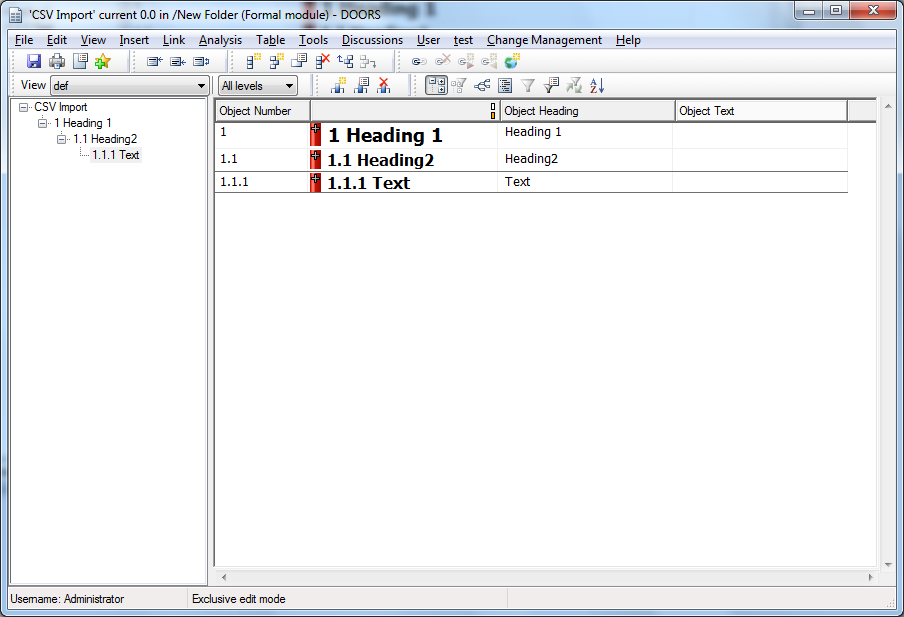
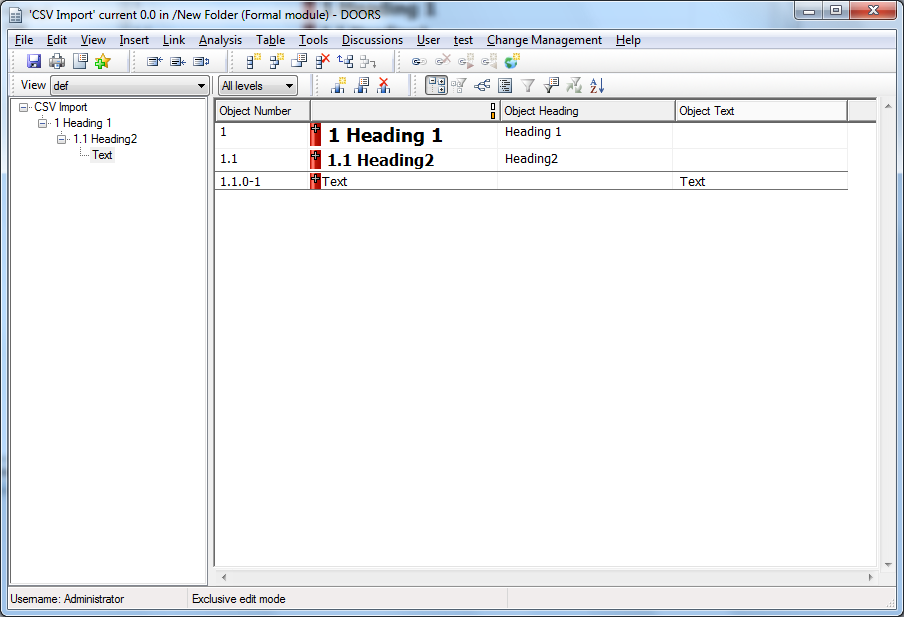
Re: Doors Import Excel - Hierarchy Issue If you are referring to the "Object Number" attribute, the dash will come on Object Text. See the attachments I have included to see a situation where the Object Number shows 1.1.1 and another that shows 1.1.0-1. The hierarchy is the same, the only difference is the third object has text filled in Object Text rather than Object Heading. Attachments ObjectNumber_with_ObjectHeading.png ObjectNumber_with_ObjectText.png |
Re: Doors Import Excel - Hierarchy Issue I believe it is an object heading, yet it is still adding in the dashes. I attached the attribute list. Let me know what you think. Attachments objectnumber with heading.png |
Re: Doors Import Excel - Hierarchy Issue Hmm weird... is it a table object?
Can you show a screenshot of the object in the module and also have the module explorer enabled to show the hierarchy? |
Re: Doors Import Excel - Hierarchy Issue kourosh - Fri Feb 05 14:06:37 EST 2016 Hmm weird... is it a table object?
Can you show a screenshot of the object in the module and also have the module explorer enabled to show the hierarchy?
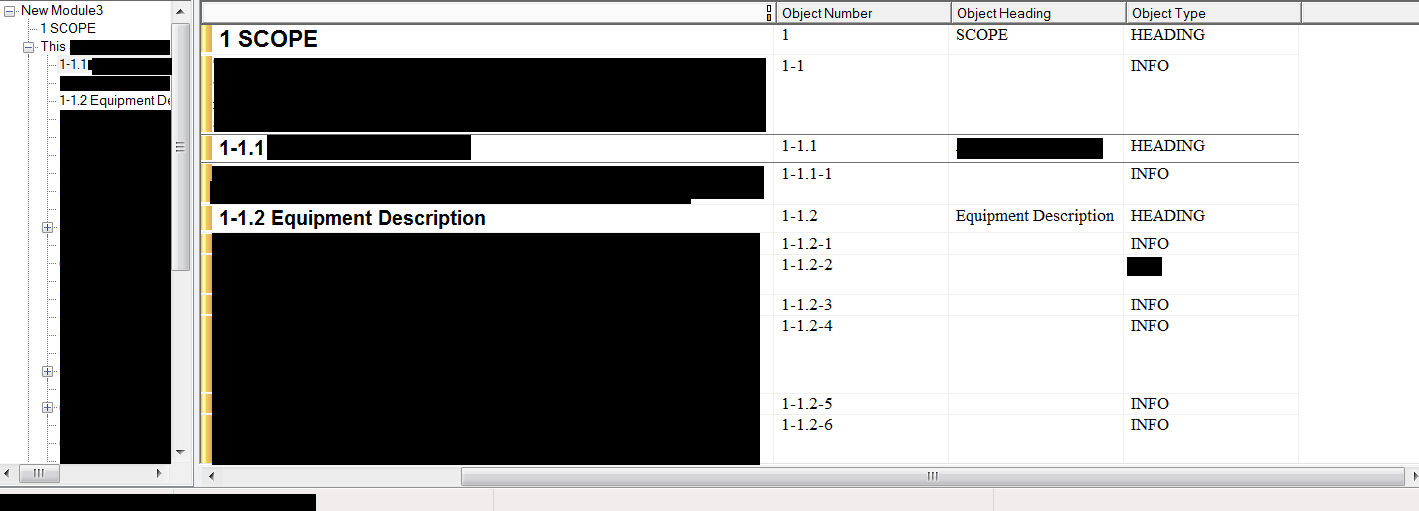
The object type is heading. I also have to remove any reference to what the module may be referring to, will this still give you enough information? Attachments Untitled.png |
Re: Doors Import Excel - Hierarchy Issue Yes that is expected because the "Equipment Description" heading is the second child of 1-1 (Object Text). Therefore it is 1-1.2. The reason the dash is there is because 1-1 is Object Text. If you changed the text in 1-1 from Object Text to Object Heading it will change the Object Number from 1-1 to 2. And as a result that first child heading will change from 1-1.1 to 2.1, the next object (which is Object Text) will become 2.1-1 and the next object will change from 1-1.2 to 2.2. |
Re: Doors Import Excel - Hierarchy Issue Ah, okay that makes complete sense. How should I handle this? Is there a way to remove 1-1 from the hierarchy while having it immediately follow "1 Scope"? |
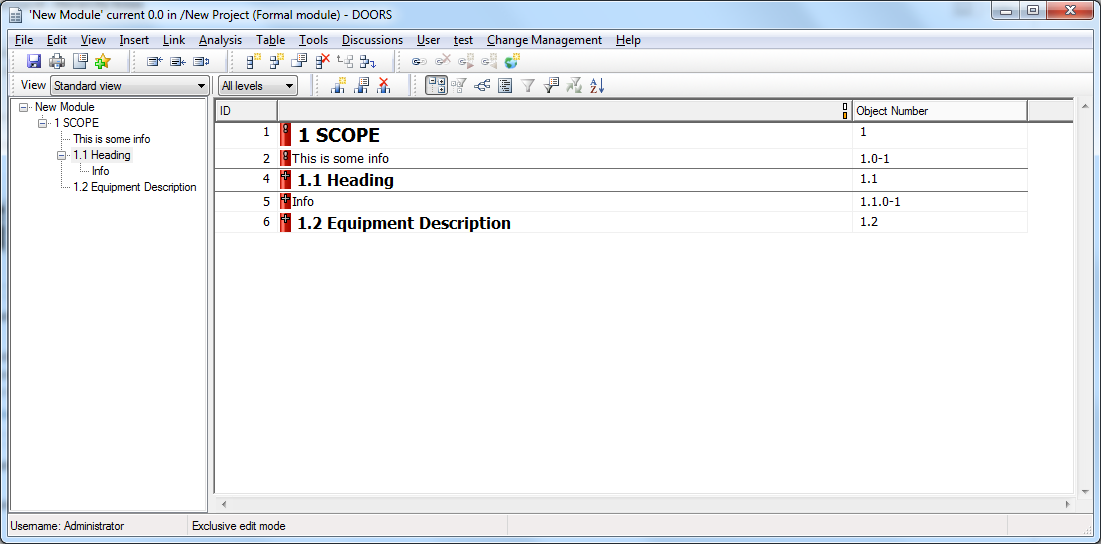
Re: Doors Import Excel - Hierarchy Issue bmmy9f - Fri Feb 05 14:59:16 EST 2016 Ah, okay that makes complete sense. How should I handle this? Is there a way to remove 1-1 from the hierarchy while having it immediately follow "1 Scope"? See attached, Is this what you are looking for? You're going to have to do some drag and drop -> Move -> After/Below until you get what you want to achieve. For example, move the 1-1 text below scope and then move those headings after the old 1-1 text so its no longer a child of the text, but the next sibling (and thus also a child of "1 Scope"). Attachments hierarchy.png |
Re: Doors Import Excel - Hierarchy Issue kourosh - Fri Feb 05 15:35:36 EST 2016 See attached, Is this what you are looking for? You're going to have to do some drag and drop -> Move -> After/Below until you get what you want to achieve. For example, move the 1-1 text below scope and then move those headings after the old 1-1 text so its no longer a child of the text, but the next sibling (and thus also a child of "1 Scope"). Yes, this is what I have been struggling with. There are over 45000 rows in total I will need to do this for. Manually could work, but that is just not in the scope of possibility with that many rows. If I remove all but the headings, this method works and then I can reimport the text, but it puts all of them out of order, which is what my original question was regarding. |
Re: Doors Import Excel - Hierarchy Issue bmmy9f - Fri Feb 05 16:00:19 EST 2016 Yes, this is what I have been struggling with. There are over 45000 rows in total I will need to do this for. Manually could work, but that is just not in the scope of possibility with that many rows. If I remove all but the headings, this method works and then I can reimport the text, but it puts all of them out of order, which is what my original question was regarding. Hi, The following might make things a bit easier . Its not a marvelous solution but should get you going a bit quicker. Here is what I would do: Create a new module. Import the spreadsheet Run the attached script (Select Tools - Edit DXL, open the script and click run). All this script does is move the Objects with Object Text hierarchically below the nearest Object with Object Heading. So make sure all line items in the .csv file have Object heading or Object Text but not both Select View - Outline - this is a simple filter that just shows Objects that contain Object Heading Use promote and demote to structure the heading as you want. Turn off Outlining and save the module.
I know this is still manual but it should be quicker as you only have to deal with headings not all objects
Hope that helps
Attachments quick object mover.dxl |
Re: Doors Import Excel - Hierarchy Issue ChrisHardy68 - Sun Feb 07 18:38:49 EST 2016 Hi, The following might make things a bit easier . Its not a marvelous solution but should get you going a bit quicker. Here is what I would do: Create a new module. Import the spreadsheet Run the attached script (Select Tools - Edit DXL, open the script and click run). All this script does is move the Objects with Object Text hierarchically below the nearest Object with Object Heading. So make sure all line items in the .csv file have Object heading or Object Text but not both Select View - Outline - this is a simple filter that just shows Objects that contain Object Heading Use promote and demote to structure the heading as you want. Turn off Outlining and save the module.
I know this is still manual but it should be quicker as you only have to deal with headings not all objects
Hope that helps
Thank you for helping out. I still cannot move object text under their correct parent object Heading. E.g. I have a text object that should go directly under 1, but it is put after 1.5, and text under heading 1.4 gets put under heading 1.4.4. It basically takes the text objects and puts them after the lowest heading object that is also below the same heading object. |
Re: Doors Import Excel - Hierarchy Issue bmmy9f - Fri Feb 05 16:00:19 EST 2016 Yes, this is what I have been struggling with. There are over 45000 rows in total I will need to do this for. Manually could work, but that is just not in the scope of possibility with that many rows. If I remove all but the headings, this method works and then I can reimport the text, but it puts all of them out of order, which is what my original question was regarding. Hi Insert the column: Object Level before your export (name the column (do not leave it marked Object Level or it will lead to confusion) and make note of the name). You will use this column to recreate your hierarchy. When you do the import allow DOORS to create a new integer attribute of your "renamed Object Level" column. Then use the enclosed script to rebuild the hierarchy choosing the Object Level radio button and the "renamed Object Level" attribute. Sara Attachments RebuildHier.dxl |
Re: Doors Import Excel - Hierarchy Issue smarti.sj - Mon Feb 08 14:24:02 EST 2016 Hi Insert the column: Object Level before your export (name the column (do not leave it marked Object Level or it will lead to confusion) and make note of the name). You will use this column to recreate your hierarchy. When you do the import allow DOORS to create a new integer attribute of your "renamed Object Level" column. Then use the enclosed script to rebuild the hierarchy choosing the Object Level radio button and the "renamed Object Level" attribute. Sara This solved it, thank you all for your help! |
Re: Doors Import Excel - Hierarchy Issue smarti.sj - Mon Feb 08 14:24:02 EST 2016 Hi Insert the column: Object Level before your export (name the column (do not leave it marked Object Level or it will lead to confusion) and make note of the name). You will use this column to recreate your hierarchy. When you do the import allow DOORS to create a new integer attribute of your "renamed Object Level" column. Then use the enclosed script to rebuild the hierarchy choosing the Object Level radio button and the "renamed Object Level" attribute. Sara Hi, I follow you tutorial. From my original formal module file, I insert the "object level" column and name it with "aaa". Then I export to CSV with "aaa" is the first column. I create new formal module, import the spreadsheet file with those chosen modifies: From list ; update existing objects; all objects In Attributes to import, I add "Object heading " . It shows "1 Object Heading" I import the dxl code by Tool = > edit dxl ,but the run button still faded and I can't click it. Would you mind telling more details ? or would you mind giving some pictures ?
Regards, Khoa |